October was the month the order page, the product page and the storefront were rebuilt, and email orders, delivery routes, bulk imports, purchase orders and the activity log arrived. Each of those has its own post, linked below. This update covers everything else that shipped in October: one sign-in for people who order for several businesses, a full page for new customers, a page that shows what each role can do, rebuilt standing orders, one payment across several invoices, and smaller changes across the storefront, reports and integrations.
October’s Big Releases
Eight releases were big enough for a post of their own. Each one walks through the feature with screenshots and a quick reference.
October 27, 2026
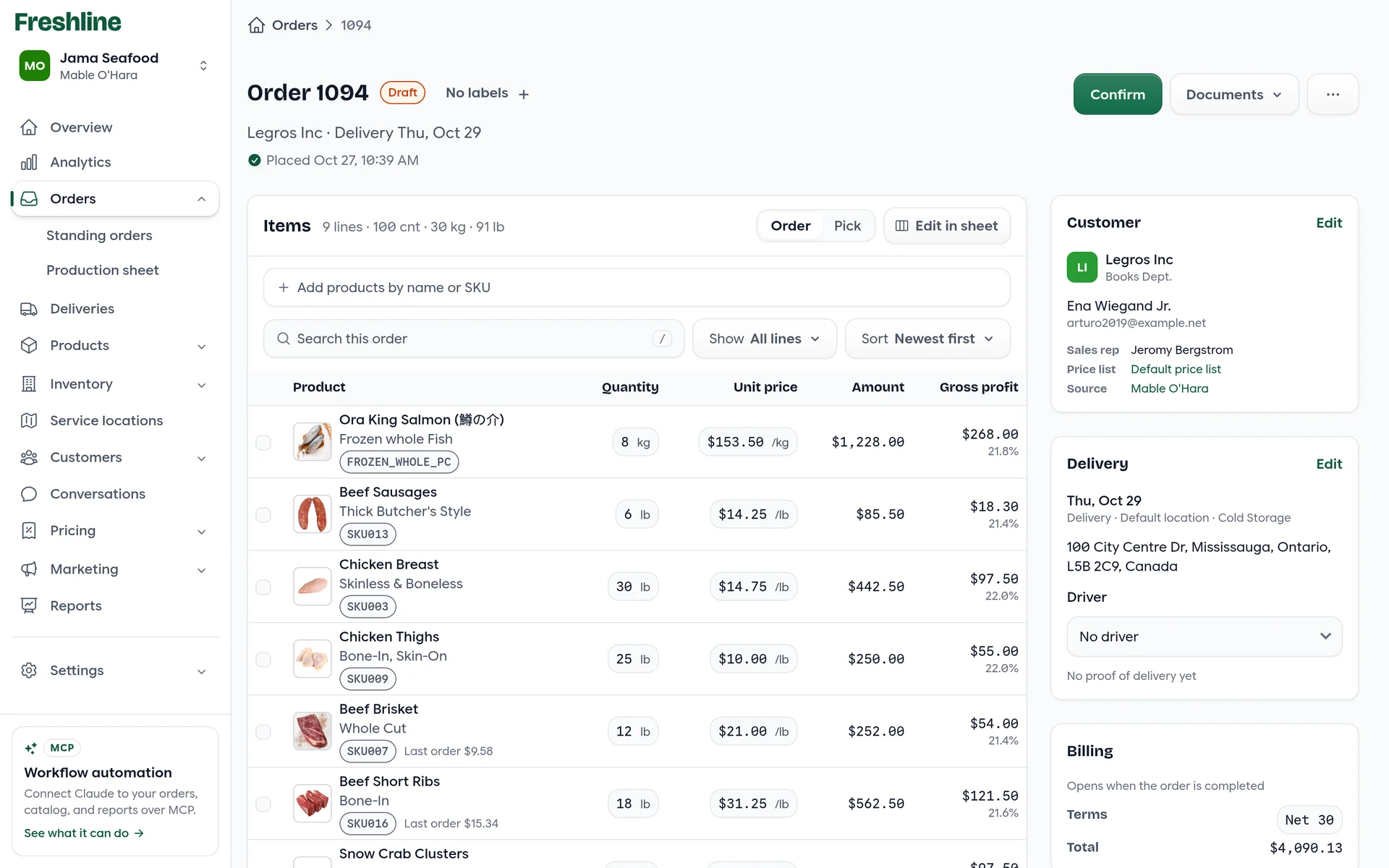
Meet the New Order Page
Edit in place, save one line at a time, pick in the warehouse and capture proof of delivery on one faster page.
Read the post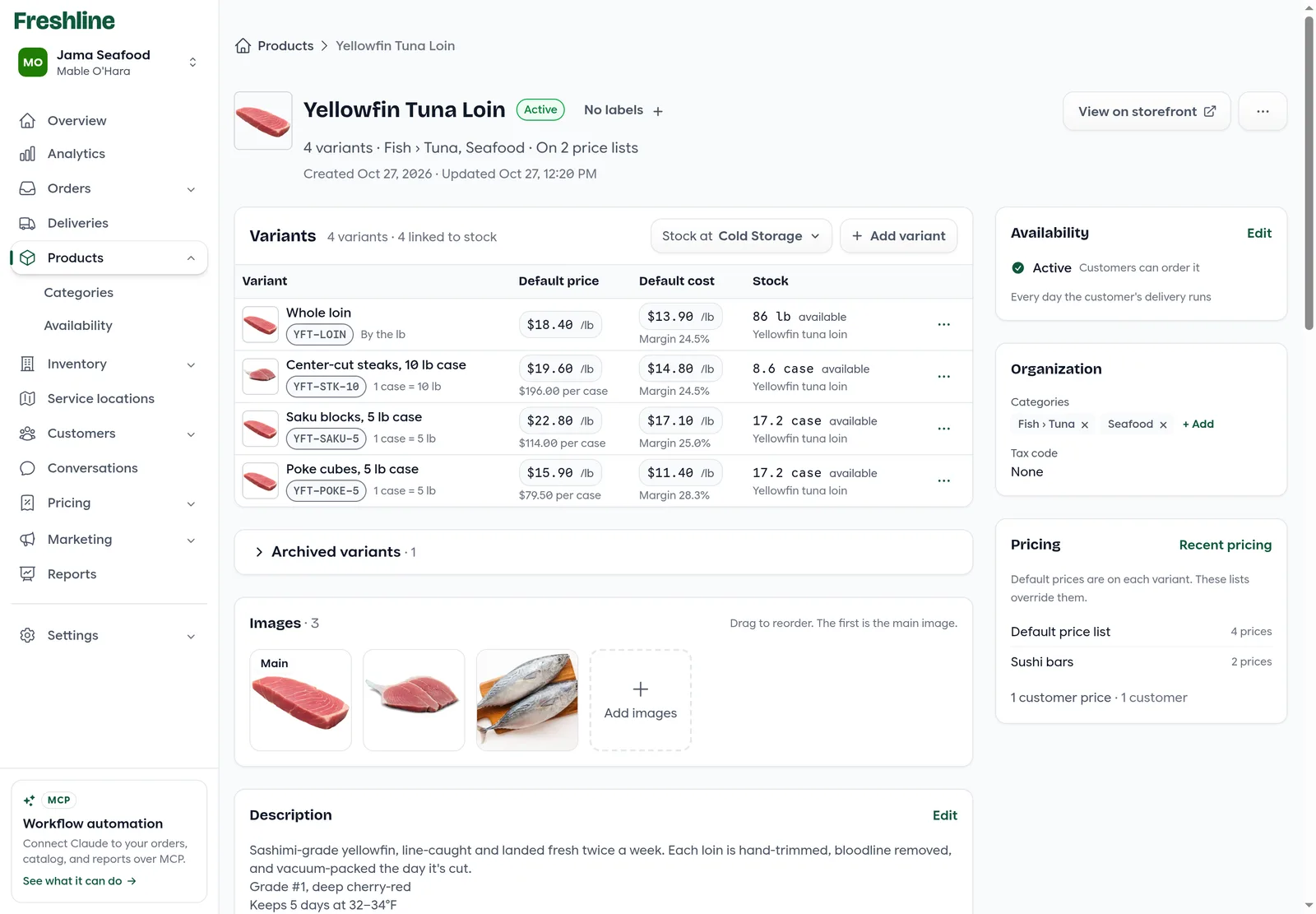
October 27, 2026
Meet the New Product Page
Edit prices in place, save only what you change, archive variants instead of deleting them, and start new products as drafts.
Read the post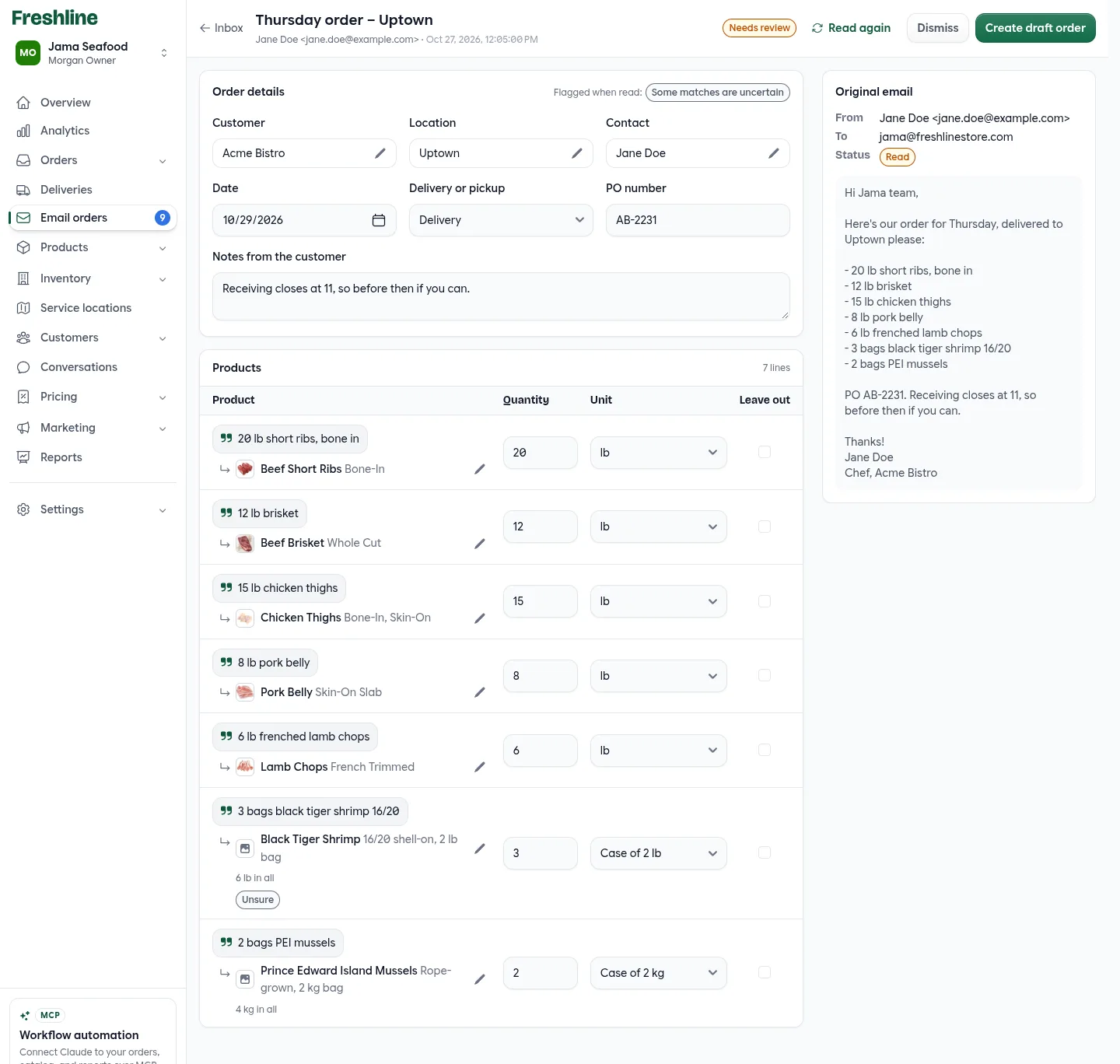
October 27, 2026
Introducing Email Orders
Customers email their orders, as a message, PDF, spreadsheet or photo. Freshline reads them and has each one ready for you to check.
Read the post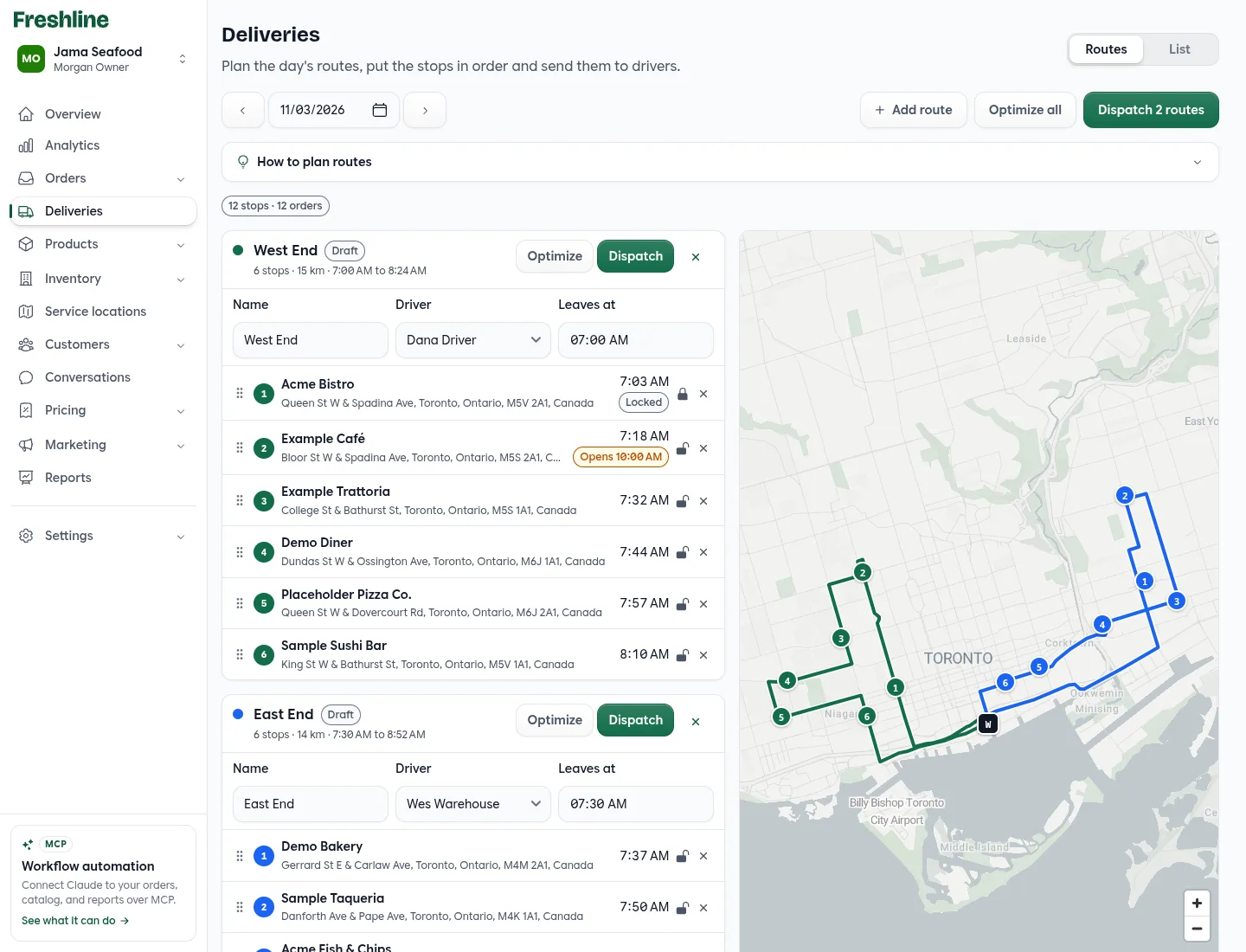
October 27, 2026
Introducing Delivery Routes
Plan each day's routes with real driving times, send them to drivers' phones, and give customers an arrival window.
Read the post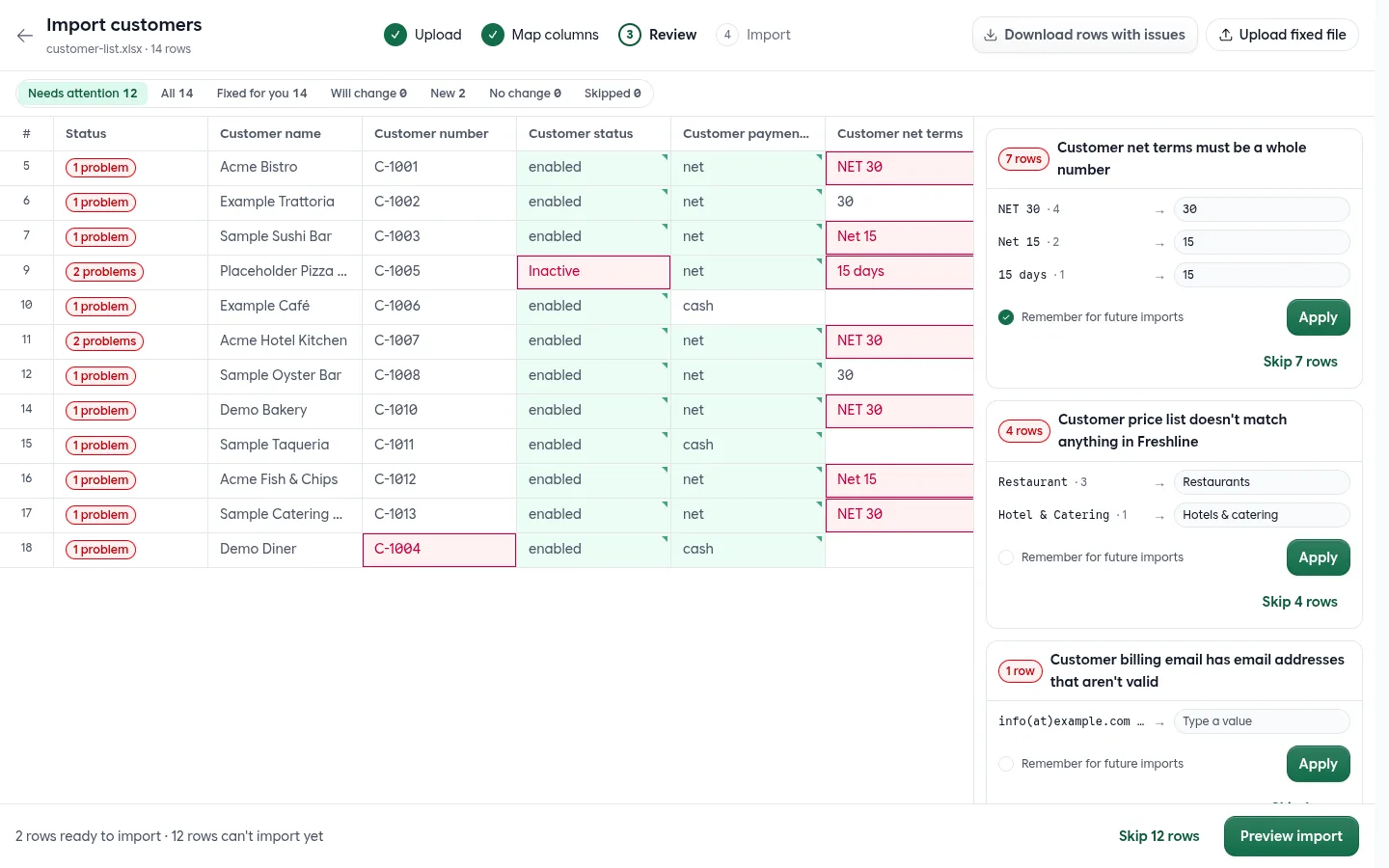
October 27, 2026
Introducing Bulk Imports
Bring any spreadsheet. Freshline matches its columns, fixes what it safely can, and shows every problem before anything is saved.
Read the post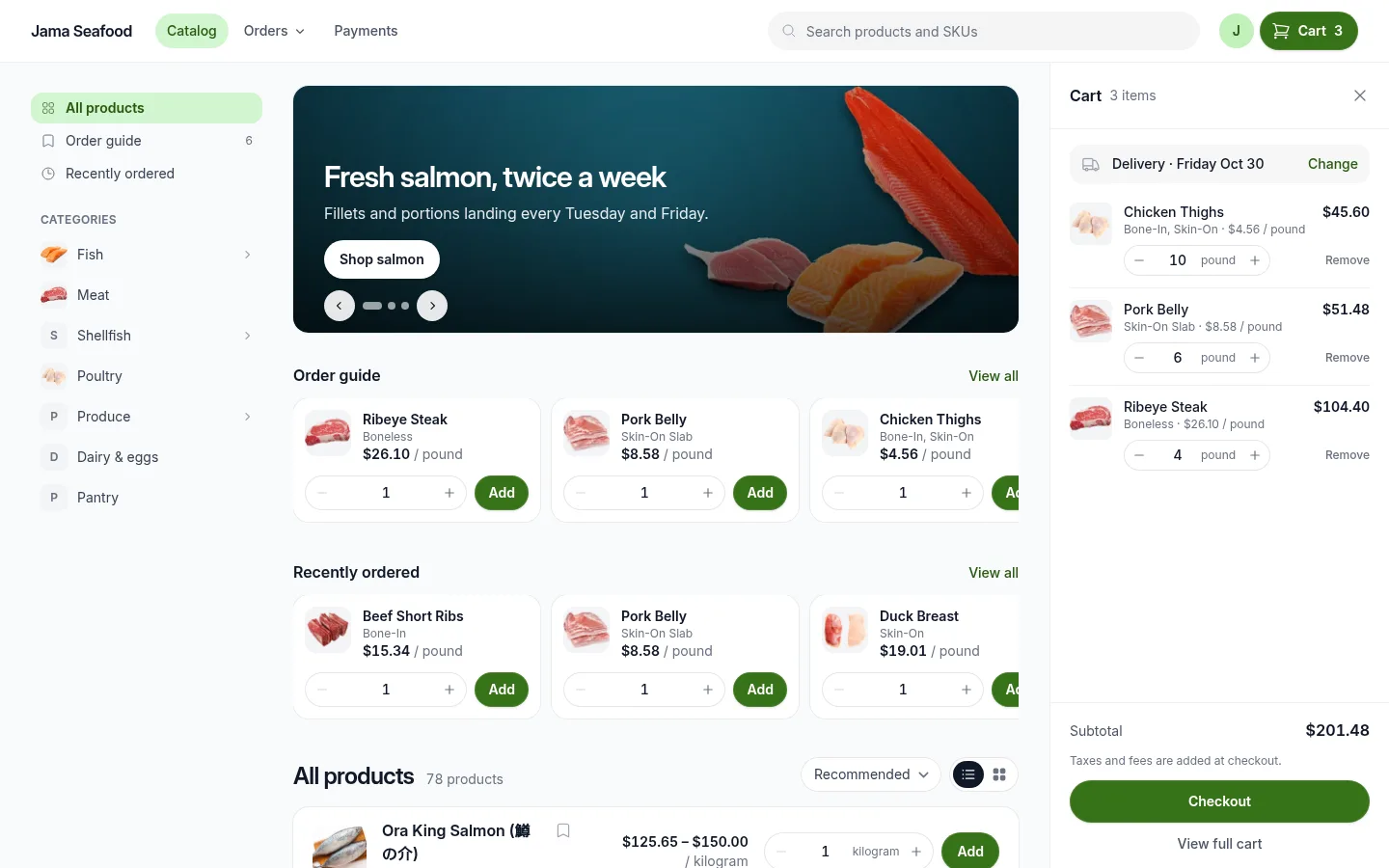
October 28, 2026
A New Look for Your Storefront
A cart that stays in view, list or grid, the order guide on the home page, category photos and a banner for announcements.
Read the post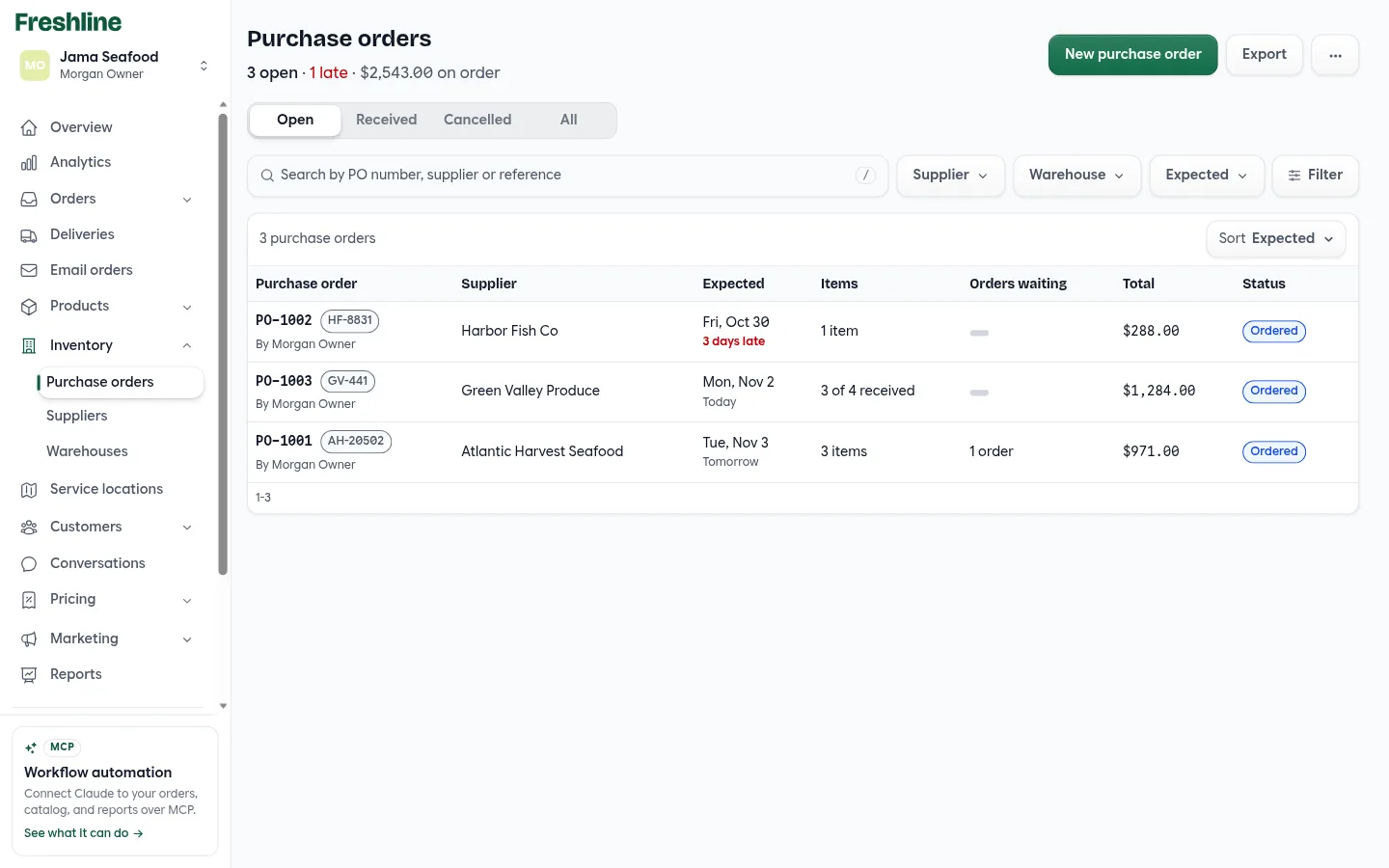
November 1, 2026
Introducing Purchase Orders
Record what you bought and when it's due. It shows as incoming stock, you can sell against it, and receiving puts it on the shelf.
Read the post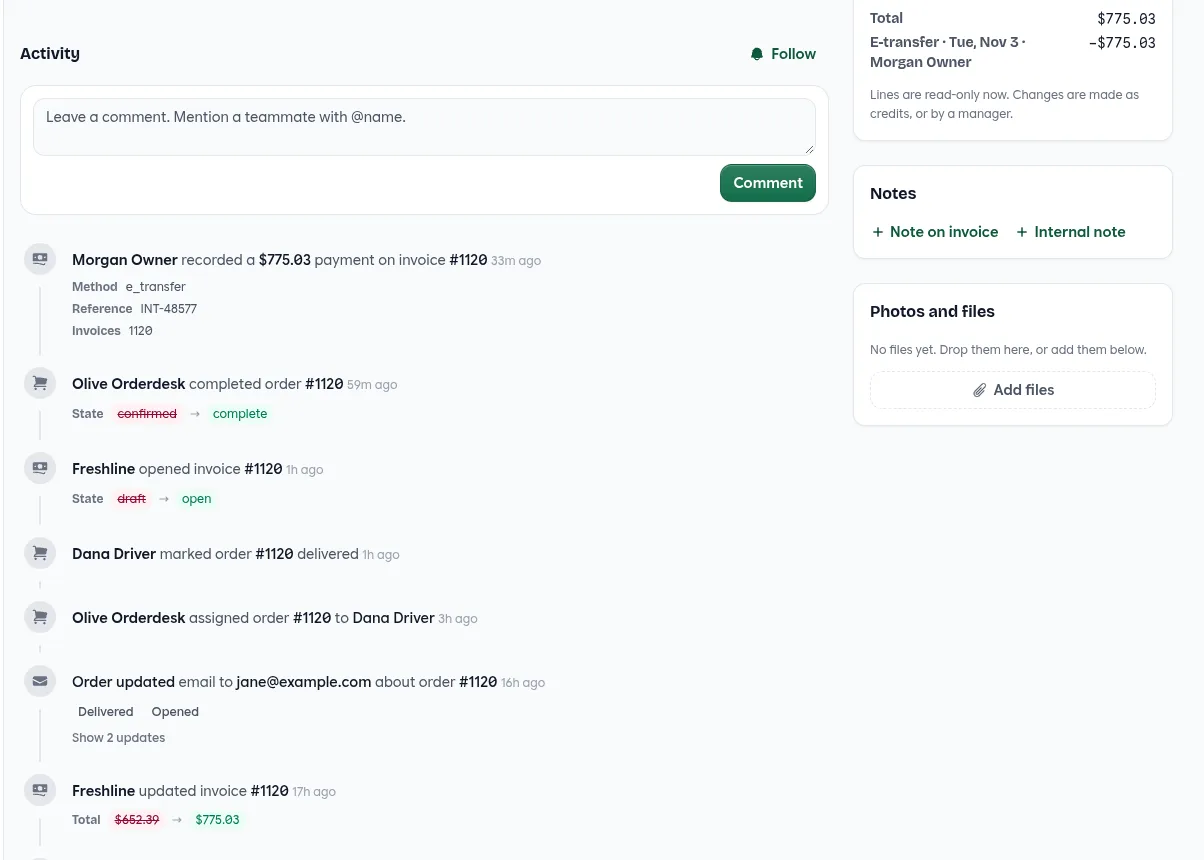
November 3, 2026
Introducing the Activity Log
Every order, customer and product shows what happened, who did it and what it was before. Comment, mention and follow.
Read the postThe New Order Page Is On for Everyone
The new order page is now on for every account. Since its post, adding products starts with Typical products: cards with photos of what the customer usually orders, up to eight that aren’t on the order yet. An order that hasn’t been placed shows the calendar right on its Delivery card, and clicking a day sets it. Picking also changed, as described under Orders below.
Customers and Contacts
One Sign-In for Several Customers
A chef who orders for two restaurants used to need two email addresses. Now one person can order for several customers with a single sign-in. On a contact’s details, staff choose Add to customer and pick the other business. The contact keeps the same email and password, and the details list their Other customers.
On the storefront, an Ordering for menu switches between them. The cart, prices, catalog and order history follow the customer they pick. Sign-in opens the customer they used last, and changing the password changes it everywhere. Remove from customer takes them off one business and leaves the others alone.
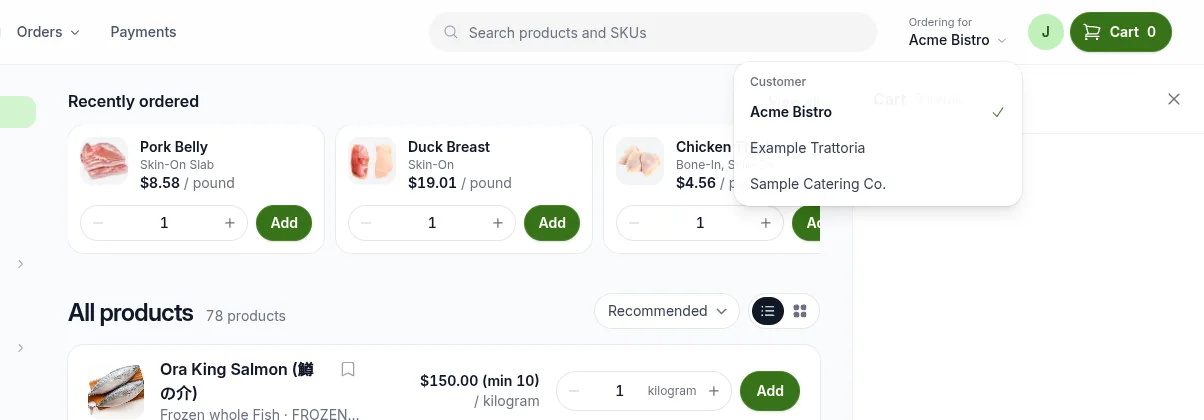
When staff add a contact whose email already signs in somewhere else, Freshline says so and links the two. Leave the password blank, and the person keeps the one they have.
A Full Page for New Customers
New customer now opens a full page instead of a pop-up. Fill in the business, its price list and payment terms, then add as many locations as it has and the people who order for it. Your store’s default price list is picked for you. The first location’s address is also the billing address, and each contact can order for every location on the customer.
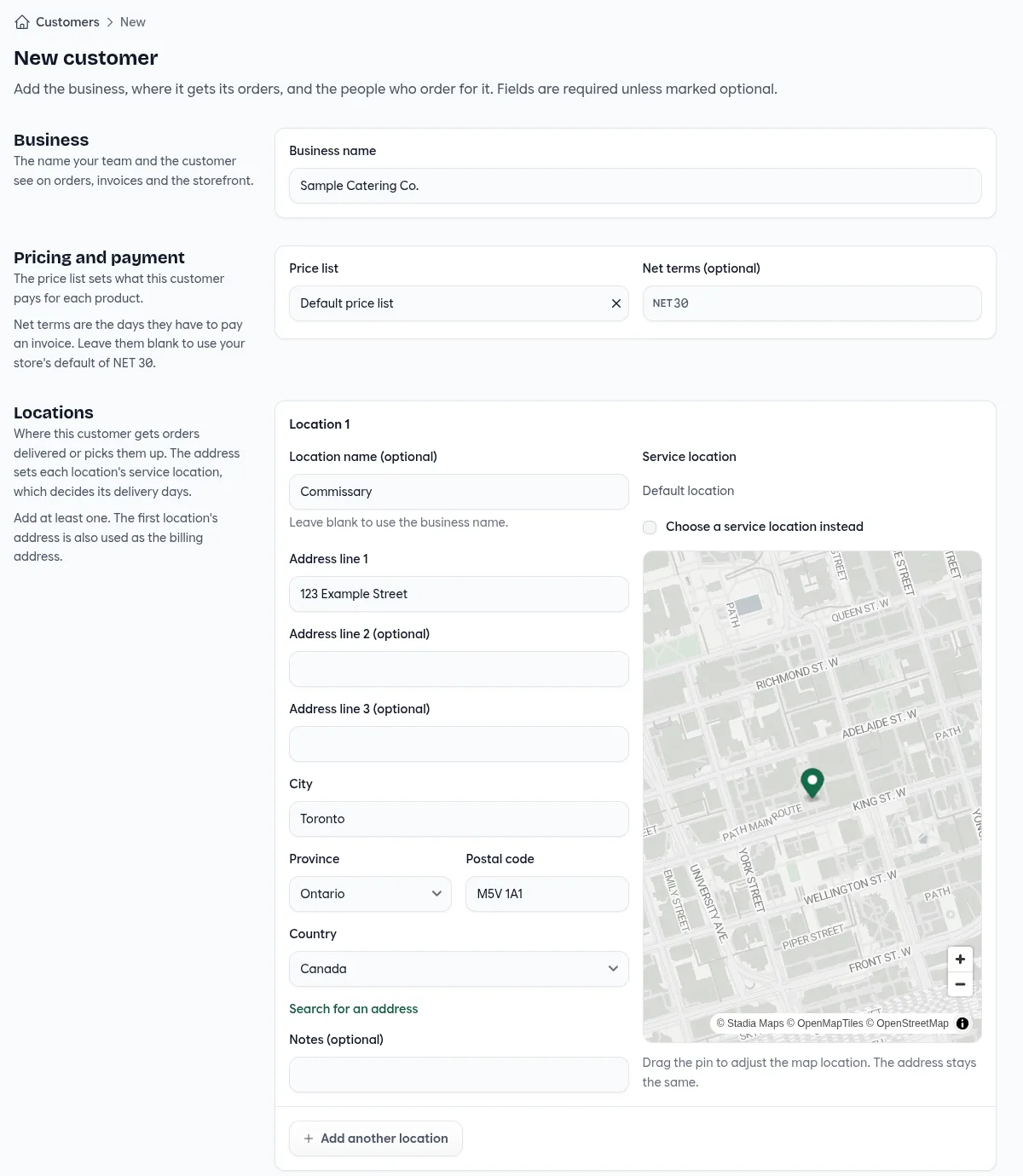
Address fields across admin, for customer locations, billing, warehouses and your store, now work the same way. Search for the address, or choose Manually enter address, then drag the pin to fine-tune where it sits on the map without changing the address. If the map can’t find it, click the map to place the pin.
Your Columns, Your Filters
Columns on the Customers list chooses which columns show and in what order: status, labels, price list, orders, last ordered, activity, and any customer custom field. The layout is saved to your account. The Orders label filter now includes Customer labels, so one click shows every order from your wholesale accounts or a delivery group.
Staff Roles and Permissions
See What Each Role Can Do
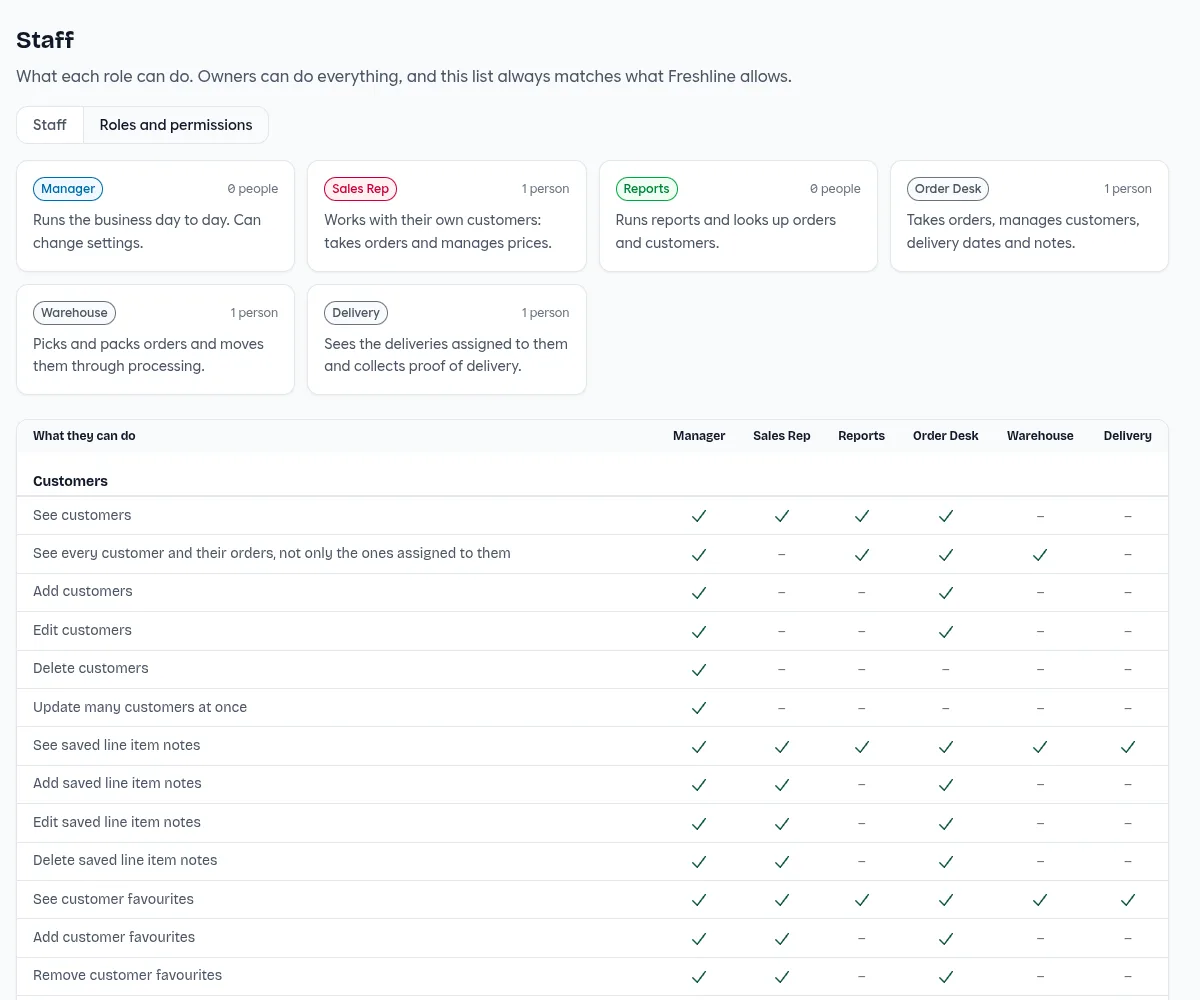
Settings → Staff has a new Roles and permissions tab. Each role gets a card with a short summary and how many people have it, then a table lists what each role can do, grouped by area: customers, orders and deliveries, standing orders, products, prices and costs, inventory and purchasing. The table is built from the same rules Freshline enforces, so it always matches what your team can actually do. Owners and managers can open it.
A Delivery Role
The new Delivery role sees the deliveries assigned to it and collects proof of delivery. Drivers open only their own orders. Turn on Let drivers edit their orders in your store settings, under Orders, and drivers can add, change and remove items and edit notes and the delivery date on the orders they’re delivering. They still can’t see prices. It’s off until you turn it on.
Who Sees Sales and Balances
Sales and balance visibility in admin can limit dashboards, sales reports, customer balances, statements and payment history to owners and managers. Warehouse and delivery staff never see them. Warehouse staff now see orders without prices and open them ready to pick. The Reports role can look up orders but no longer edit, confirm, complete or cancel them, and deleting a customer is now up to managers.
Orders
Picked Quantities Recorded
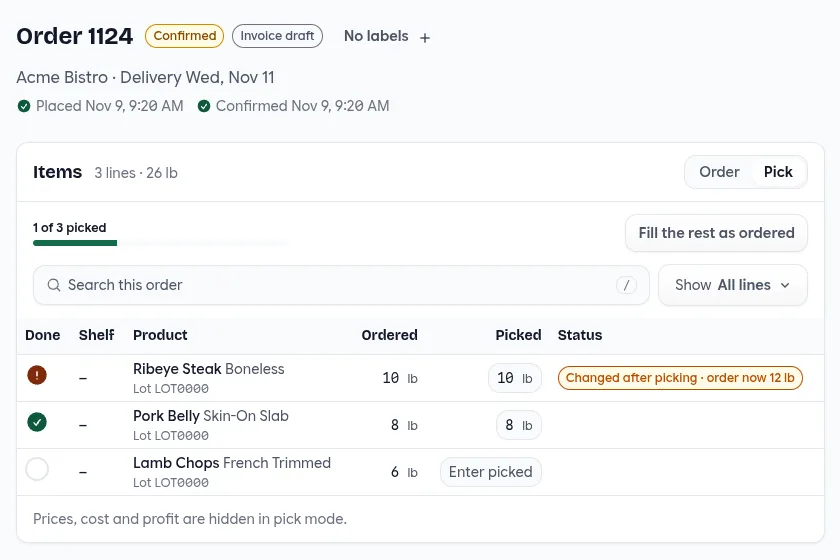
On the Pick tab, the quantity you enter as picked is saved. If someone changes the line on the Order tab afterwards, the line shows Changed after picking with the new amount, and it can be marked as picked again. On the Order tab, click the product name to open the line’s details, which show the ordered and picked quantities side by side. The customer gets an email only when the picked amount is different from what they ordered, and only when Order updated is turned on under Customer emails in your notification settings.
Paid Orders Are Locked
Once an order is complete and its invoice is paid, its lines, fees and discounts are locked: “This order is complete and paid, so its lines can’t change. Issue a credit instead, or ask a manager.” Managers can still edit it. Lowering the total puts the difference on the customer’s account credit. Raising it is refused, so charge the difference as a new order or a manual payment.
Know Why an Order Can’t Be Deleted
Delete no longer disappears from an order that can’t be deleted. It stays in the menu, greyed out, and says why: the invoice is paid, or credits or payments have been applied to it.
Always the Latest Version
The order page refreshes when someone else changes the order, and returns to the orders list if it’s deleted. If two people edit the same line at once, the second save is refused and the line shows what the other person saved. Customers get one “order updated” email for a batch of line changes, not one per line.
Select a Range
On the Orders list, the selection bar counts the orders you’ve selected and gathers documents, invoice emails and bulk edit in one place. Shift-click selects a range of rows there, and on the customers, inventory and price list tables too.
Standing Orders
Standing Orders, Rebuilt
Standing orders are now organized around three things: the items, the schedule and the dates. Creating one is a single page. Choose the customer, add the items and set the schedule: daily, weekly on the days you pick, or monthly. A summary shows how often it repeats, the first order, the next dates, and how many days ahead each order is created. A standing order can’t be saved without items, so it never creates an empty order.
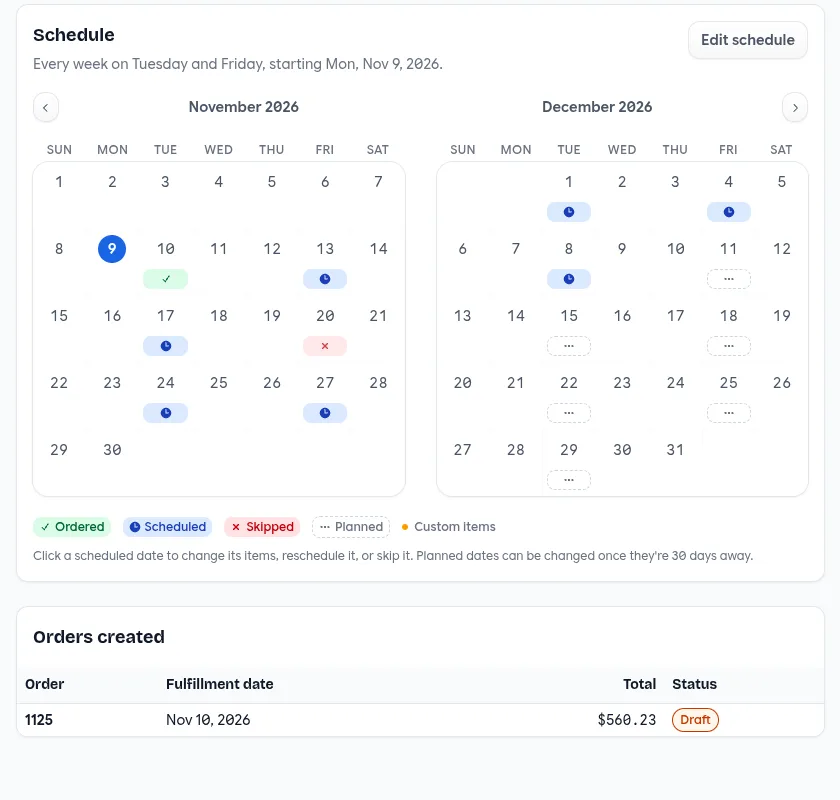
Open any date to skip it, move it, create its order now, or change the items for that date only. Each date reads Ordered, Scheduled, Skipped or Planned. A paused or ended standing order says so at the top, and changing the schedule warns you before it moves upcoming orders. On the storefront, an order placed by a standing order now links back to it with View standing order.
Payments, Credits and Taxes
One Payment, Several Invoices
A customer sends one cheque for three invoices. Record payment on their Payments tab now takes that one amount and applies it across the invoices you choose. Enter the amount received, the method (cheque, e-transfer, wire, cash on delivery or ACH/PAD), the date and a reference. Tick invoices to pay In full, and use Make partial on one to put the remainder there.
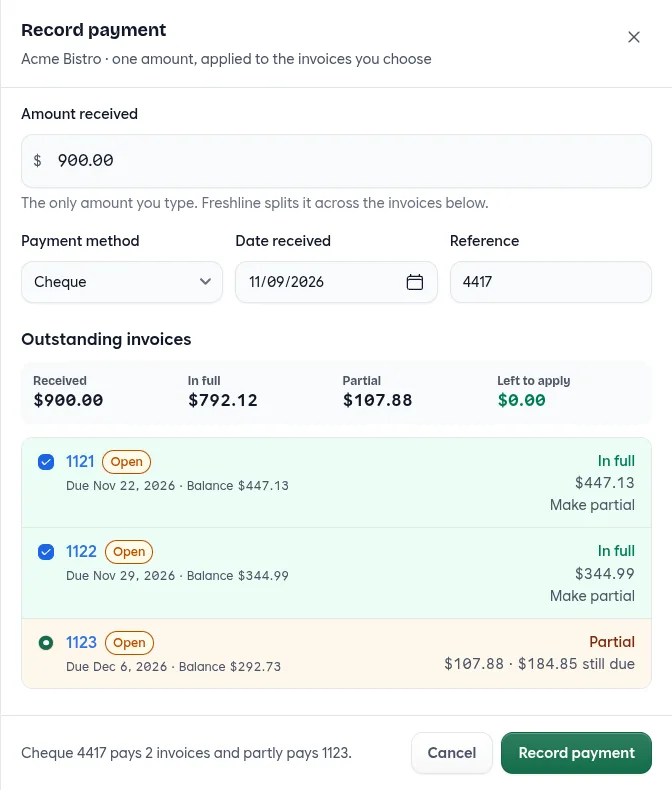
The drawer keeps a running total of what’s left to apply, and the payment saves all at once or not at all. The whole amount has to land on invoices, and it can’t be more than they owe. Each order’s payment history shows the reference and the date it was received. The Payments tab is there for stores taking payments through FreshlinePay.
Credit Memos
Issuing a credit from an order now creates a credit memo: one per save, numbered after the order (CM-1849-1, CM-1849-2), each with its own PDF that doesn’t change. The credit pays down what’s still owed on the order’s invoice first, and anything left over goes to the customer’s account credit. Credited lines are marked Credited or Partly credited, the order lists its credit memos, and the default invoice prints each credit under its line. Account credits are being turned on account by account.
Several Tax Rates on One Line
A tax code can now Apply all matching rates: every matching country and state or province rate is charged, each calculated separately, such as GST and QST in Quebec. When it’s off, only the most specific rate applies. Each line’s rates are listed in the Line item taxes report column, the API, webhooks and custom invoice templates.
A Discounts Page
Pricing has a Discounts page next to Fees. A discount takes a percentage, an amount, or an amount per unit off the whole order or off chosen products. It applies automatically, with a code, or when staff add it, and it can be capped by total uses and uses per customer. A discount can take off more than its products cost, so a $0 item like a bottle return can carry a credit. Discounts apply before fees, and tax is charged on the discounted lines.
Payments and Email Settings
Settings → Payments now starts with FreshlinePay: where your setup stands and how to finish it, with checkout requirements, such as holding a card at checkout and charging it on completion, on the same page. Settings → Notifications can send your emails from your own address. Enter the sender, add the DKIM and Return-Path records it shows you, and Check again confirms them.
Storefront
Prices per Pound, Ordered by the Case
Turn on Show only base unit prices in your storefront settings, under Catalog, and products you sell by the case show their price per pound, or per whatever their base unit is. Customers still order by the case. Quantity breaks, the cart, checkout and the price list PDF follow the setting. Invoices and order history keep the case price.
A Checkout Calendar That Opens Itself
At checkout, the date picker opens on its own when the cart doesn’t have a date yet. It only offers days whose cutoff hasn’t passed and that fall inside your booking window, the same days the cart accepts. Recommended products at checkout only include products the customer can get from their warehouse on that date, and they refresh when the date changes.
Reports and Analytics
- Cost of goods. A new report with cost, quantity sold and total cost by product for orders in a date range. It needs cost access.
- Attachments on report emails. Scheduled reports can arrive as an Excel or PDF attachment.
- Full rankings. On Analytics, Top customers and Top products have Show all, a search that keeps each row’s rank, and Download Excel.
Claude, Webhooks and Integrations
Workflow Automation Learned More
Workflow automation connects Claude to your Freshline account. It works as the teammate who signs in, with the role you’ve already given them. In October it learned labels (create them and put them on orders, customers and products), categories (file products in and out), customers’ assigned sales reps, and custom fields on customers and variants. Each skill on the Workflow automation page now has a “Try asking” example and a Download SKILL.md button.
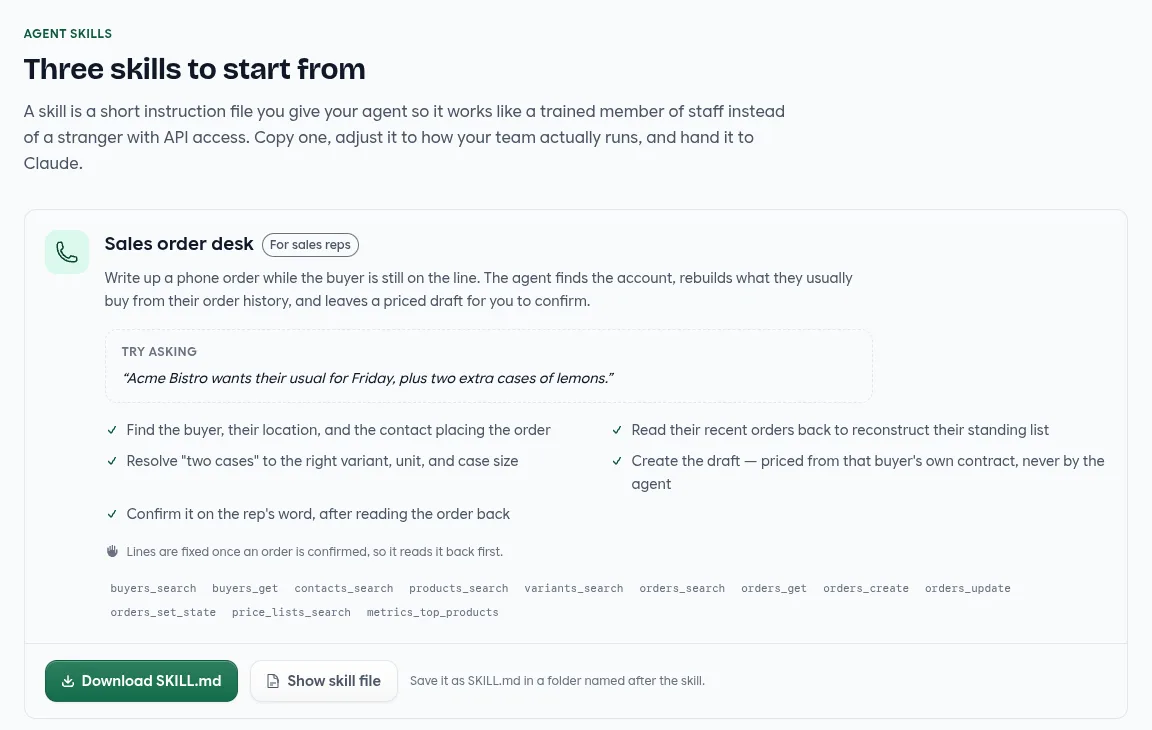
It can’t change prices. Our team sets workflow automation up with you: use Talk to us about workflow automation in admin.
Custom Headers on Webhooks
Webhook endpoints can send Custom headers with every request, such as an Authorization header your endpoint requires, up to 10 per endpoint. Header values are encrypted and hidden in the request log.
Business Central and QuickBooks
With Business Central, Freshline can now price customers from their Customer Price Groups. Each combination of groups becomes a price list, customers with no group share one, and prices set for a single customer become that customer’s own. Price lists you built by hand stay as they are. This needs a pricing extension in Business Central, so contact us to set it up. Extra email addresses on a Business Central contact are kept and get order and statement emails too. QuickBooks Online no longer creates duplicate customers or adds prefixes to variant names.
Languages and Look
Freshline is now fully translated into French (France) and French (Canada), across admin, the storefront and error messages, including flash messages, breadcrumbs and validation messages that used to stay in English. A browser set to a language Freshline doesn’t support gets English.
Admin also got a lighter touch. Buttons have a subtle raised finish, and toasts, selection bars and sticky save bars sit on frosted glass. Drawers slide in, a line’s check pops the first time it’s picked, the pick bar reads All picked at the end, and order badges stamp when an invoice is paid. Devices set to reduce motion skip the animation. The sidebar marks the page you’re on, and staff show their Gravatar where they have one.
Quick Reference
| Feature | Where | Available |
|---|---|---|
| One sign-in, several customers | Customer › Contacts › Add to customer | Every account |
| New customer page | Customers › New customer | Every account |
| Roles and permissions | Settings › Staff › Roles and permissions | Owners and managers |
| Drivers edit their orders | Store settings › Orders | Off until you turn it on |
| Picked quantities recorded | Order › Pick | Every account |
| Paid orders locked | Order page | Every account |
| Standing orders | Orders › Standing orders | Every account |
| One payment, several invoices | Customer › Payments › Record payment | Stores using FreshlinePay |
| Credit memos | Order › Issue credit | Account by account |
| Several tax rates per line | Settings › Taxes | Per tax code |
| Discounts | Pricing › Discounts | Every account |
| Base unit prices | Storefront settings › Catalog | Off until you turn it on |
| Cost of goods report | Reports | Staff with cost access |
| Workflow automation | Workflow automation | Set up with our team |
| Webhook custom headers | Settings › Developer › Manage webhooks | Every account |
Thank You
Thank you for the feedback and requests behind this month’s work. One sign-in across customers, payments that cover several invoices, and standing orders you can read at a glance all started as conversations with operators.
If you’d like a walkthrough, or want something here turned on for your team, email us at [email protected] or reach out to your Customer Success Manager.