When a customer asks why their order changed, the answer is usually in someone's head, an email thread or a note on the warehouse whiteboard. The activity log keeps it on the record. Orders, customers, products, price lists and purchase orders now have an Activity section that shows what happened, who did it, when, and what it was before. Your team can talk about a record right there, mention each other, and follow the records they care about.
What’s New
- A history on every record. Orders, customers, products, price lists and purchase orders each have their own Activity section, newest first.
- What changed, not just that something did. Quantities, prices, states and terms show their old and new values side by side.
- Everything about a customer in one place. Their orders, invoices, payments, contacts and locations all show on the customer's Activity too.
- Comments with @mentions and replies, next to the history they're about.
- Follow a record to keep it on your own activity feed. Freshline follows the records you create, edit, comment on or are mentioned on for you.
- Each teammate's activity on their staff page, grouped by day.
- Emails in the log. Emails Freshline sends a customer show on the order or customer, marked Delivered and Opened as that happens.
How It Works
Changes are recorded as they're saved, whether they're made in Freshline, on your storefront, by an integration or by Freshline on its own. Each entry belongs to the record it's about, and it also appears on the records above it, so an order's entries show on its customer and a payment shows on the orders it paid.
Where each entry shows up
- Jane Doe places order #1120→Order #1120Acme Bistro
- A payment on invoice #1120→Order #1120Acme Bistro
- A new contact or location→Acme Bistro
- A variant's details change→Its product
- A price is added or changed→Its price list or customer
A bulk action is one entry, such as “updated 40 orders in bulk”, so a big change doesn't bury everything else. New entries appear on an open page without reloading it.
Reading an Entry
Reading an entry
Olive Orderdesk1 changed the lines on order #11202 17h ago3
- 1Who. A teammate, a customer contact on your storefront, an integration, or Freshline for steps that happen on their own. Anything done by Freshline support says so.
- 2What, and on which record. The record's name is a link, so an entry about an invoice or a customer takes you there.
- 3When. How long ago. Hover for the exact date and time, in your time zone.
- 4What changed. The old value struck through, the new one in green. The first three changes show, and the rest fold under Show more.
When an integration can't send a record to your accounting or ERP system, the entry says so and shows the error it got back in full, as code, so whoever is fixing it doesn't have to go looking.
An Order, Start to Finish
Here's order #1120 on its way through a normal day. Jane Doe placed it from the storefront after lunch. Olive at the order desk confirmed it and asked the warehouse to pack the chicken on its own. When Jane called back for more ribeye and chicken, Olive changed the lines, and Jane was emailed the updated order.
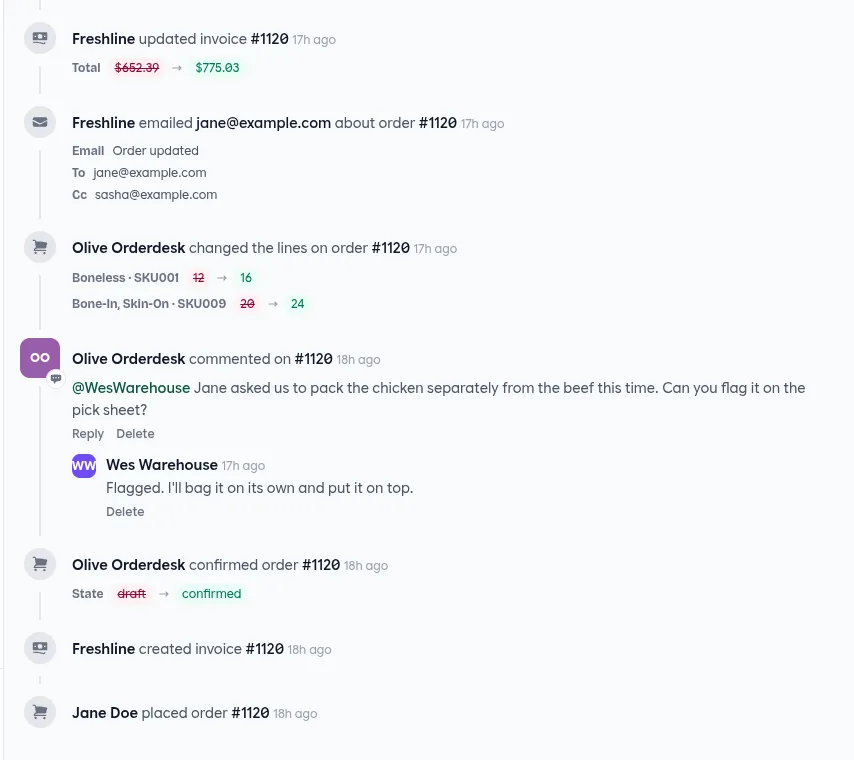
The next morning, the entries above it show Olive assigning it to Dana, Dana marking it delivered, Olive completing it, and the payment that closed the invoice. Anyone who opens the order sees the whole story without asking around.
Comments and Mentions
Every Activity section starts with a comment box. Type @ and the start of a teammate's name, and Freshline suggests up to five people. Picking one inserts a handle that belongs to that person alone, such as @WesWarehouse.
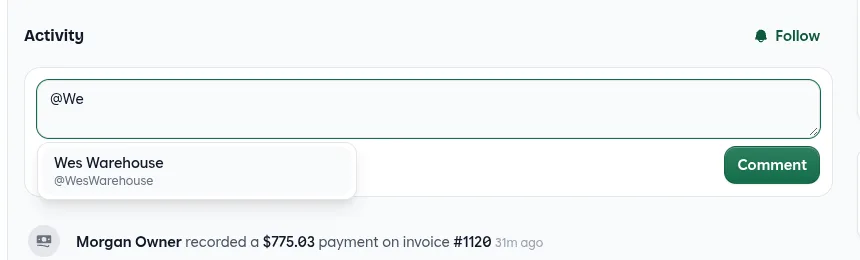
- Replies go one level deep, under the comment they answer.
- Edit your own comments. An edited comment says so.
- Delete your own comments. Owners and managers can delete anyone's. A deleted comment leaves “Comment deleted” in its place, so the thread still makes sense.
- Mentioning someone puts the comment on their activity feed and follows the record for them.
Following
Each Activity section has a Follow button. Following a record puts what happens on it in your activity feed on your staff page. You don't have to remember to press it: creating, editing, commenting on or being mentioned on a record follows it for you for 30 days. If you unfollow, it stays unfollowed.
Everything About a Customer
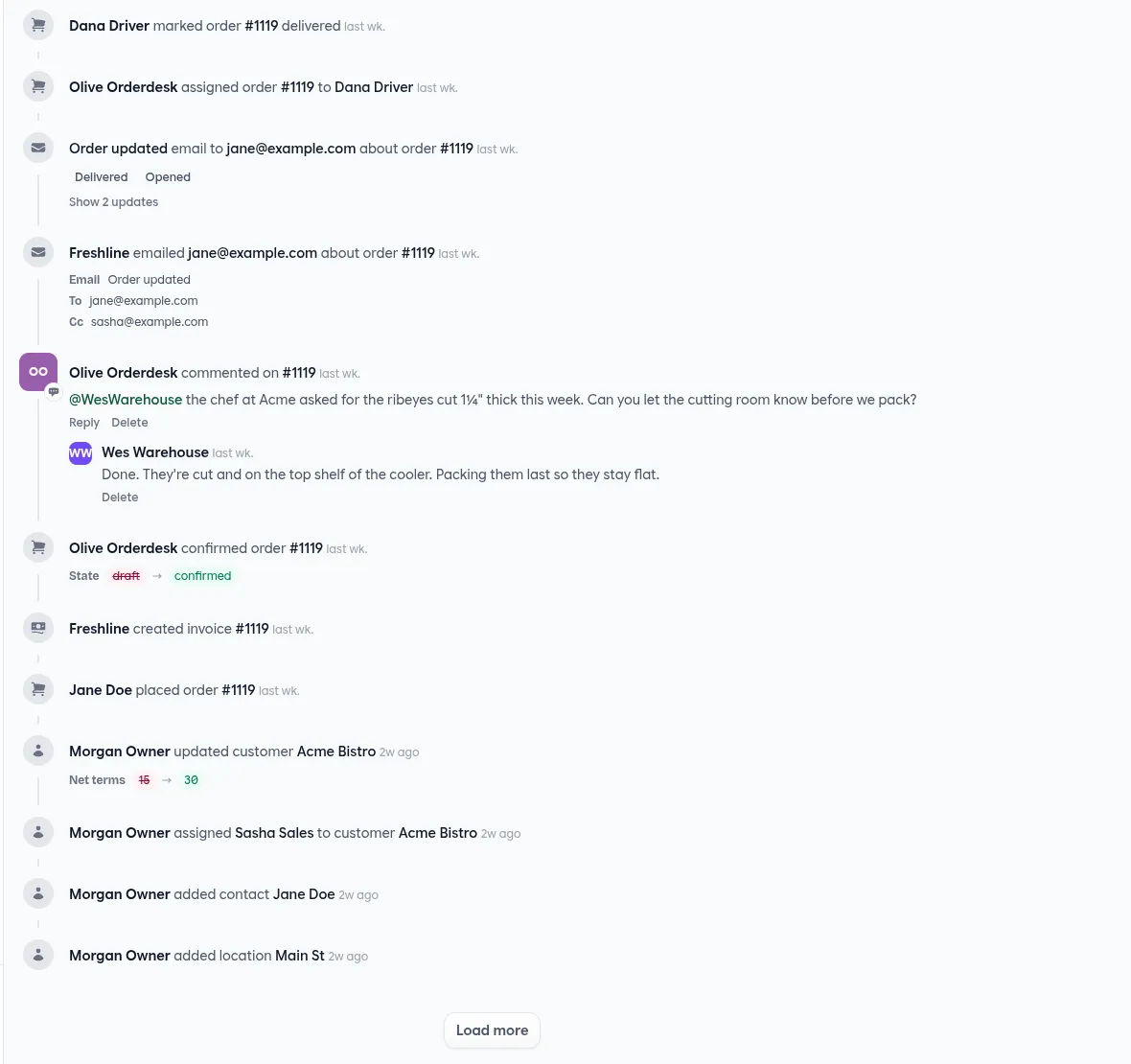
A customer's Activity brings together their account and everything that hangs off it: each order from placed to paid, invoices and payments, contacts and locations, the reps assigned to them, and changes to their terms. Their price list's changes show there too.
Your Team’s Activity
Each teammate's staff page has an Activity feed of “what they did, and what happened on their customers and the records they follow”, grouped under Today, Yesterday and earlier dates. It includes:
- What they did themselves.
- Orders, invoices and payments for the customers assigned to them.
- For drivers, the orders assigned to them that haven't been delivered yet.
- The records they follow, and comments that mention them.
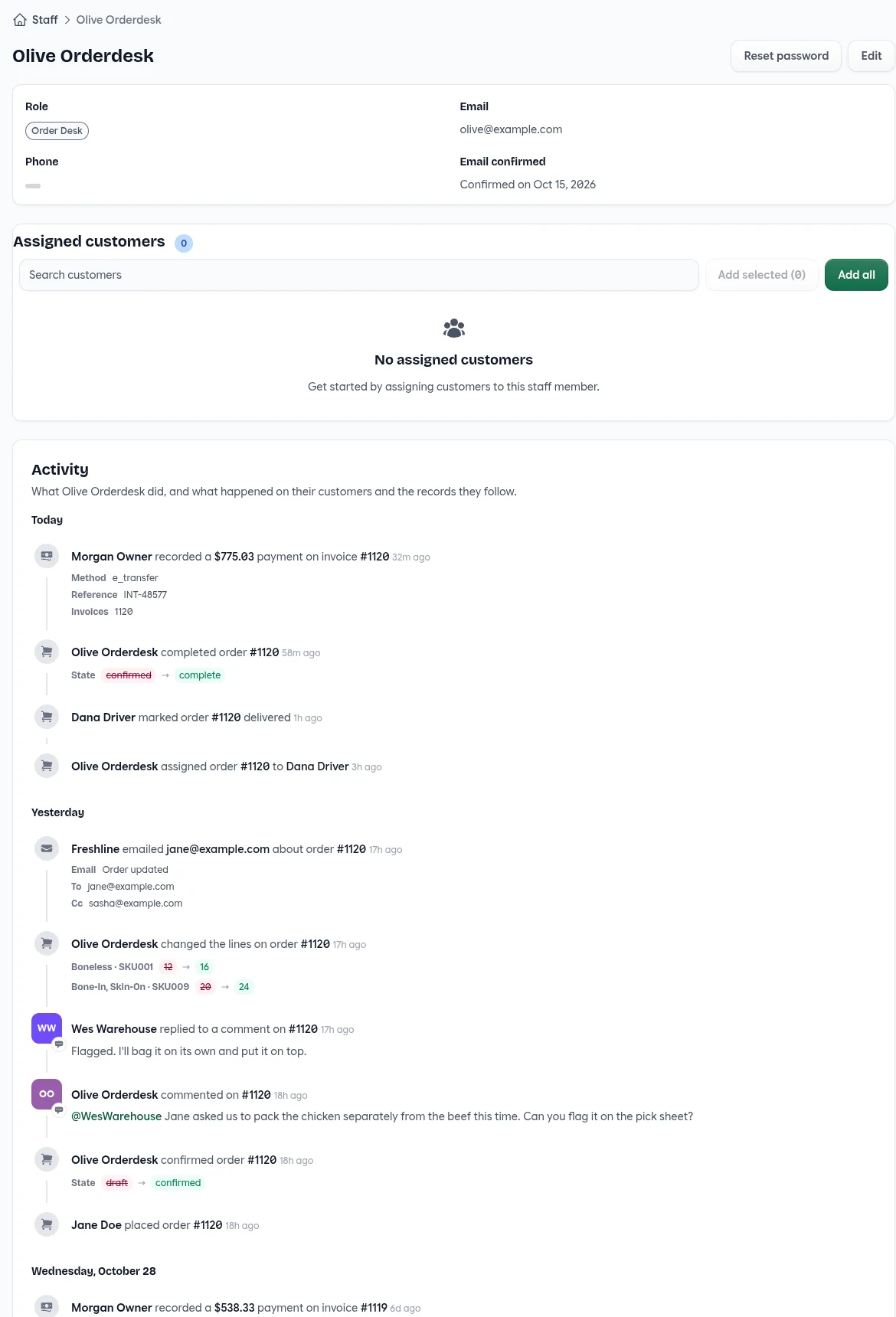
A staff page's feed leaves out minor entries, such as a draft invoice being created, to keep the day readable. They're still on the record itself.
Emails
Emails Freshline sends a customer about an order or their account, such as order updates, invoices and reminders, show on that order or customer with who they went to. Each email is one entry, marked Delivered, Opened, Bounced or Marked as spam as that happens. When a customer says they never got the invoice, you can see whether it bounced.
Who Sees What
The activity log follows the same permissions as the rest of Freshline. Staff see entries about what their role lets them see, and drivers see their own orders' entries.
- Money stays private. Staff who can't see revenue don't see payment and store credit entries, and order and invoice entries show without amounts.
- Comments and emails are seen by anyone who can open the record.
- Staff pages, and the activity feeds on them, are for owners and managers.
Quick Reference
Where to Find Activity
| Page | What its Activity shows |
|---|---|
| Order | The order, its lines and files, its invoice, payments and emails, and comments. |
| Customer | The account, its contacts and locations, and everything on its orders, invoices and payments. |
| Product | The product and its variants. |
| Price list | The list, its prices and the customers on it. |
| Purchase order | Ordering, changes, receiving and cancelling. |
| Staff page | A teammate's own work, their customers, and what they follow. |
What's Recorded
| Area | For example |
|---|---|
| Orders | Placed, confirmed, lines changed, files added, driver assigned, delivered or couldn't be delivered, completed, cancelled. |
| Invoices and payments | Invoice opened, past due or paid, payments recorded, failed or refunded, credit memos, store credit. |
| Customers | Created, changed, blocked, merged, imported, reps assigned, contacts and locations. |
| Catalog | Products and variants added, changed, archived or deleted. |
| Pricing | Price lists created, changed or deleted, customers added or removed, and prices and tiers added, changed or removed. |
| Purchasing | Purchase orders placed, changed, received or cancelled, and suppliers. |
| Integrations | What was sent to your other systems, and what couldn't be, with the error. |
| Emails | Sent, delivered, opened, bounced or marked as spam. |
| Comments | Posted, replied to and deleted. |
Comments and Following
| Action | Who can |
|---|---|
| Comment, reply and mention | Anyone who can open the record |
| Edit a comment | The person who wrote it |
| Delete a comment | The person who wrote it, owners and managers |
| Follow or unfollow | Anyone, for themselves |
| See a staff page's activity | Owners and managers |
Good to Know
- Mentions and follows don't send emails or notifications. They put the record on that person's activity feed.
- An order's line changes show on the order and its customer, not on the products in it.
- Long histories load in pages. Press Load more at the bottom for older entries.
Getting the Activity Log
We're turning the activity log on account by account. If you'd like it for your team, email us at [email protected].