Most distributors track what they've bought in an email thread, a spreadsheet or a supplier's PDF. Until the truck shows up, Freshline doesn't know any of it is coming. Purchase orders fix that. Record what you bought, from whom and when it's due. It shows up as incoming stock, you can sell against it before it lands, and receiving it puts it on the shelf as lots, at the cost you actually paid.
What’s New
- A purchase order for every buy. Supplier, their reference number, the warehouse it goes to, when it's expected and what's on it, numbered PO-1042.
- Incoming stock in inventory. Every stock shows what's on the way and when, and late deliveries stand out in red.
- Sell what hasn't arrived yet. Turn on Sell incoming stock, and buyers and staff can order against a purchase order for delivery on or after it's due.
- Receive in one drawer. Fill as ordered, change what's short, add lot codes and best-before dates. Each item becomes a lot at its real cost.
- Partial deliveries are fine. What didn't come stays expected on the same purchase order until it arrives.
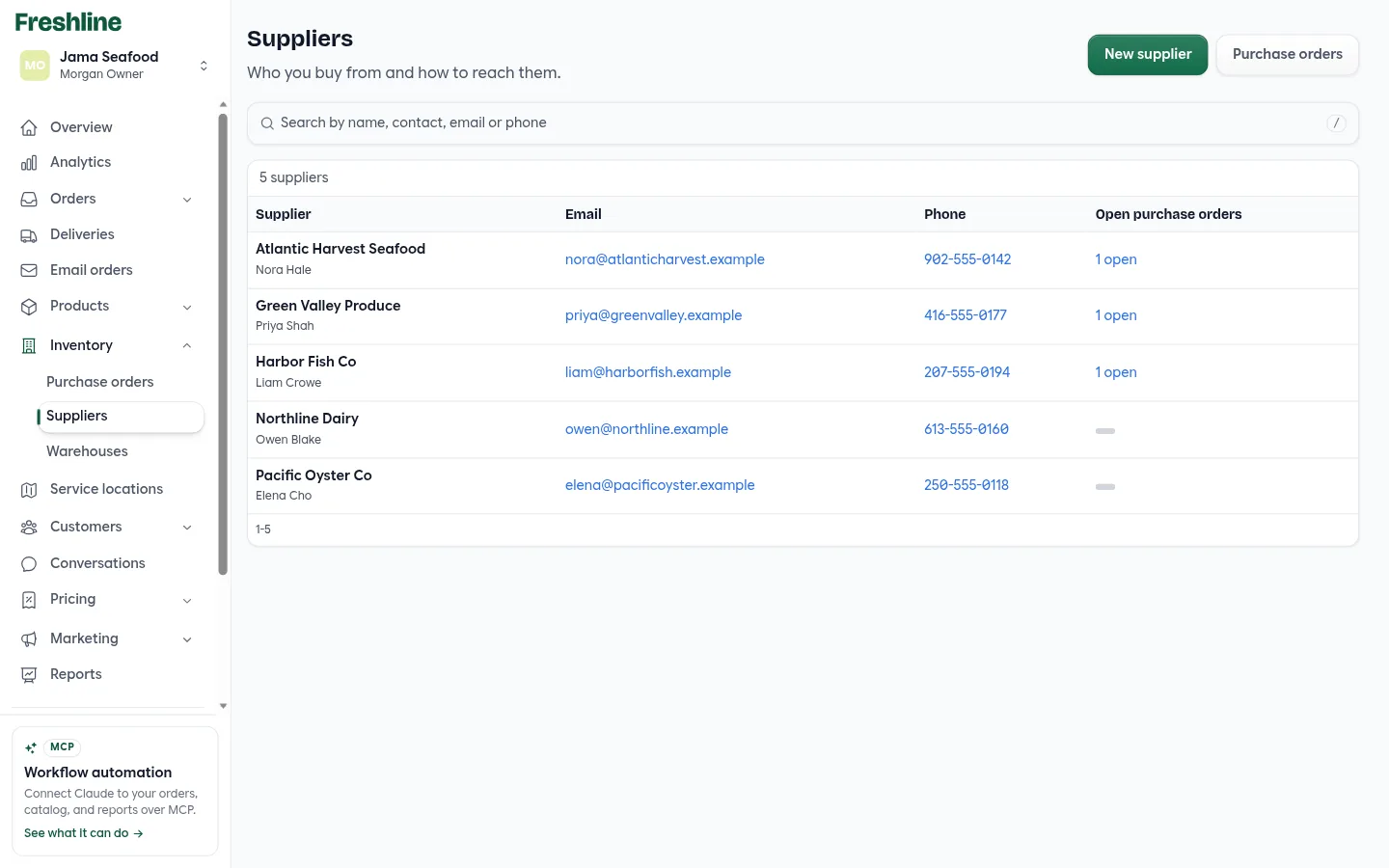
- Suppliers in one place. Contact, email, phone, address and notes, with a count of open purchase orders.
How It Works
A purchase order belongs to one supplier and one warehouse. Each line is a product you buy in packs, such as 30 bags of shrimp at 2 lb a bag, which Freshline turns into the stock's own unit.
From the order to the shelf
- 1
Order
Buyer
Create a purchase order with the supplier, warehouse, expected date and items.
- 2
Show incoming
Freshline
What's left on it appears as incoming on each stock, dated by the delivery.
- 3
Sell ahead
Customers
With Sell incoming stock on, orders for that date or later can count on it.
- 4
Receive
Warehouse
Enter what arrived. Each item becomes a lot, and waiting orders are filled.
- 5
Close
Freshline
Once every item has arrived, the purchase order is marked received.
Setting Up
Purchase orders work with Freshline's own inventory, with tracking turned on. Every product you put on a purchase order has to be tracked, so it has a stock to receive into.
- Suppliers are added as you go. Type a new name on a purchase order and it's saved when you save. Add contact details later under Inventory → Suppliers.
- Warehouses are where stock is received. Choose one on each purchase order.
- Sell incoming stock is under Store settings → Inventory, and it's off until you turn it on. With it off, purchase orders still show what's coming, but nothing is sold against them.
The Purchase Orders List
Purchase orders sits under Inventory, next to Suppliers and Warehouses. It opens on what's still to come, soonest first.
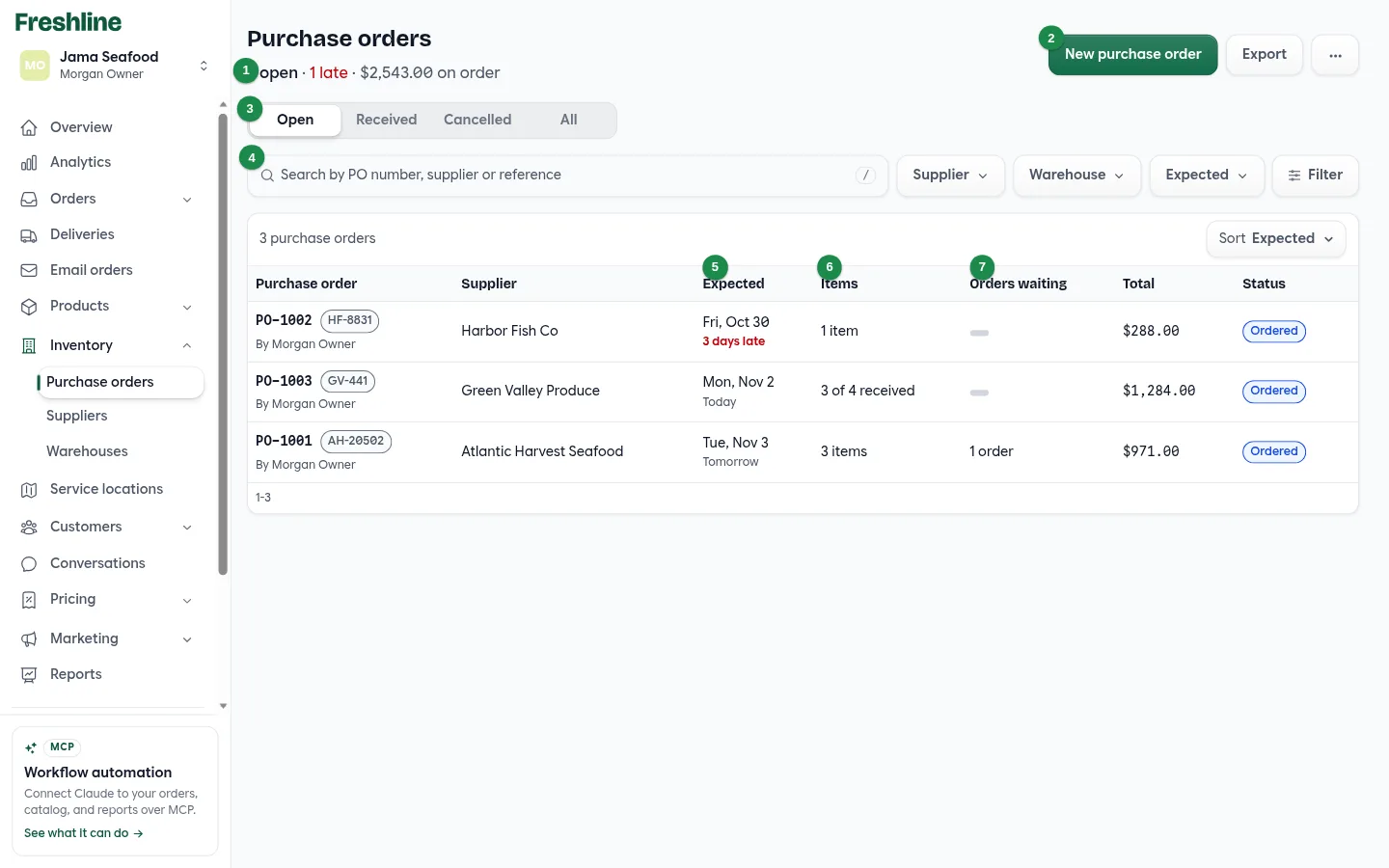
- 1The summary. How many are open, how many are late, and the total still on order.
- 2New purchase order and Export. Export downloads a CSV of the list as filtered and sorted.
- 3Open, Received, Cancelled, All. Open is everything still expected.
- 4Search and filters. Search by PO number, supplier or their reference. Filter by supplier, warehouse, or Expected: Late, In the next 7 days, or Later.
- 5Expected. Today, Tomorrow, In 3 days, or 2 days late in red. Received and cancelled orders show the date it happened.
- 6Items. How many, or 3 of 4 received when part of the order has arrived.
- 7Orders waiting. With Sell incoming stock on, how many customer orders are counting on this delivery.
Creating a Purchase Order
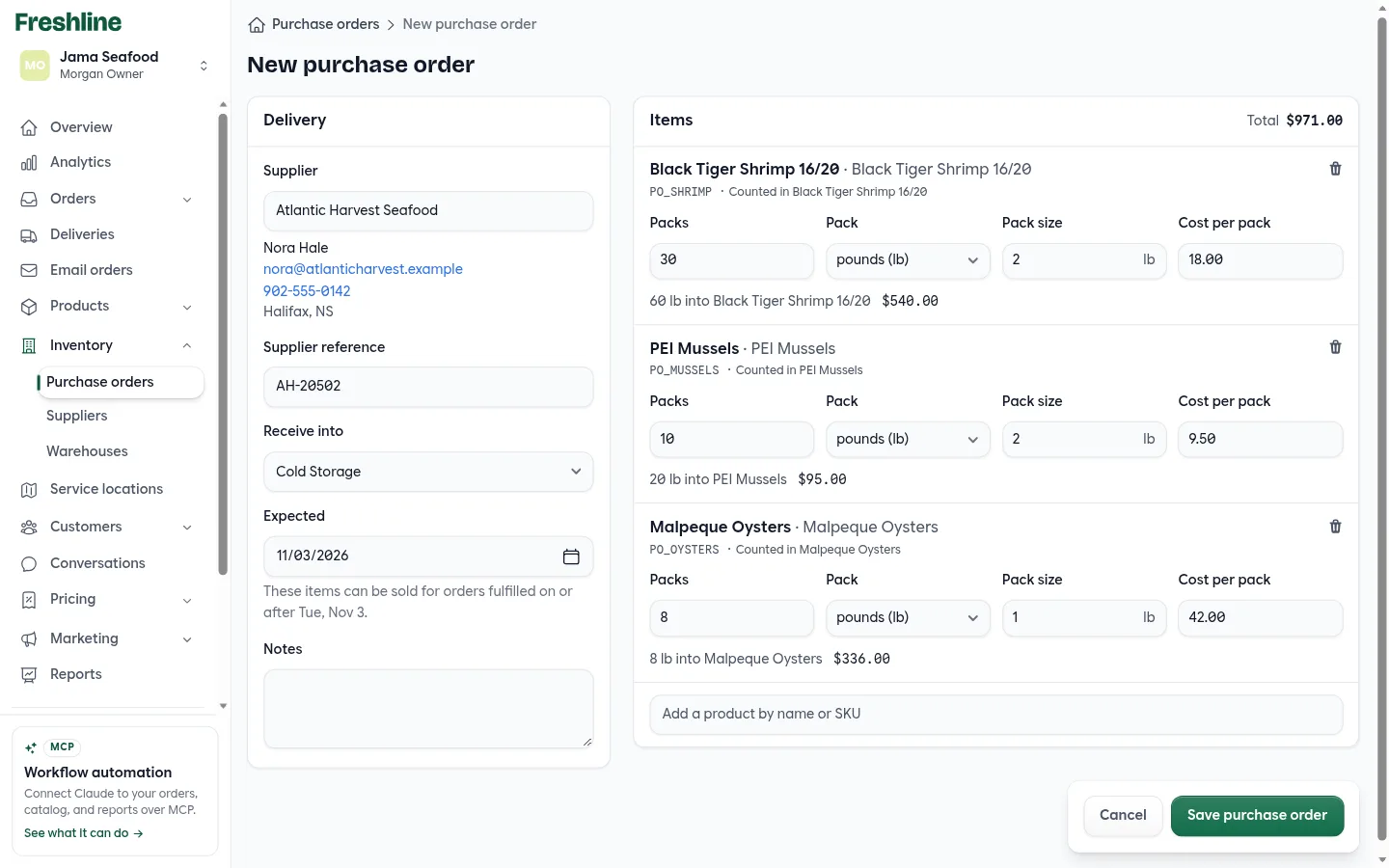
Under Delivery, choose the supplier, add their order or quote number, pick the warehouse to receive into, and set the expected date. The form tells you the first fulfillment date these items can be sold for.
Under Items, add products by name or SKU. Enter packs, pack size and cost per pack, and each line shows the result, such as “60 lb into Black Tiger Shrimp 16/20”. Cost per pack starts at what you last paid this supplier, or the stock's average cost if you haven't bought it from them before.
You can edit a purchase order until everything on it has arrived. If a change would leave customer orders without stock they were promised, Freshline tells you how many orders are counting on it before you save.
Selling Incoming Stock
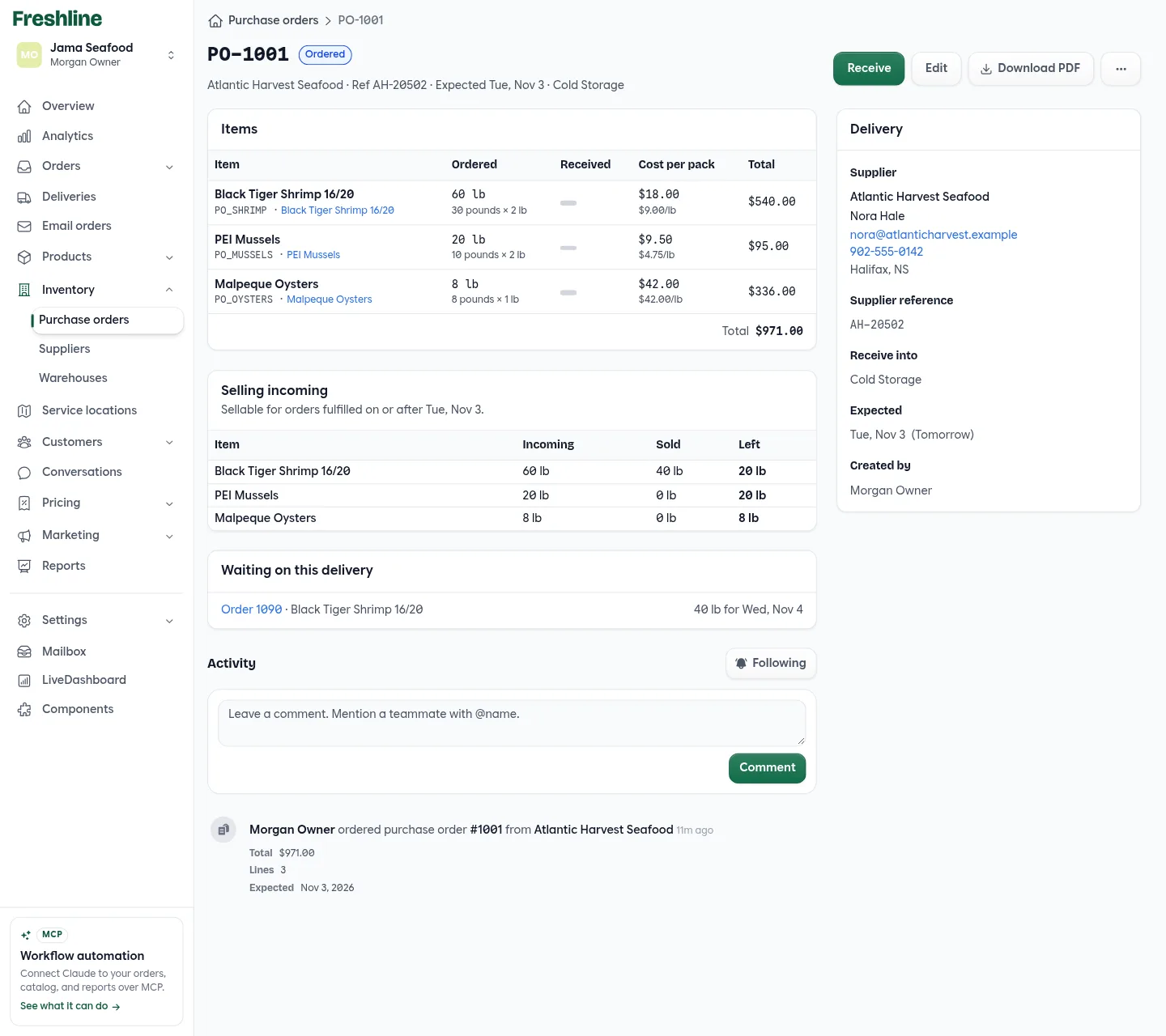
Fresh product is often sold before it lands. With Sell incoming stock turned on, what's on an open purchase order can be ordered for any fulfillment date on or after the day it's expected.
Black Tiger Shrimp 16/20 · Cold Storage
- On hand40 lb available now
- Nov 3+60 lb on PO-1001 · available for orders on Nov 3 or later
- Nov 4 orderOrder 1090 · 80 lb: 40 from stock, 40 waiting on PO-1001
When there's not enough, the order screen and the storefront cart say so plainly, for example “Only 40 available for Nov 1. More arrives Nov 3.” On the purchase order, Selling incoming shows how much of each item is sold and left, and Waiting on this delivery lists the orders counting on it.
When orders compete for a delivery, the one with the earliest fulfillment date gets the earliest purchase order. An order that can only be covered by a delivery after its date is marked “arrives late”.
Receiving
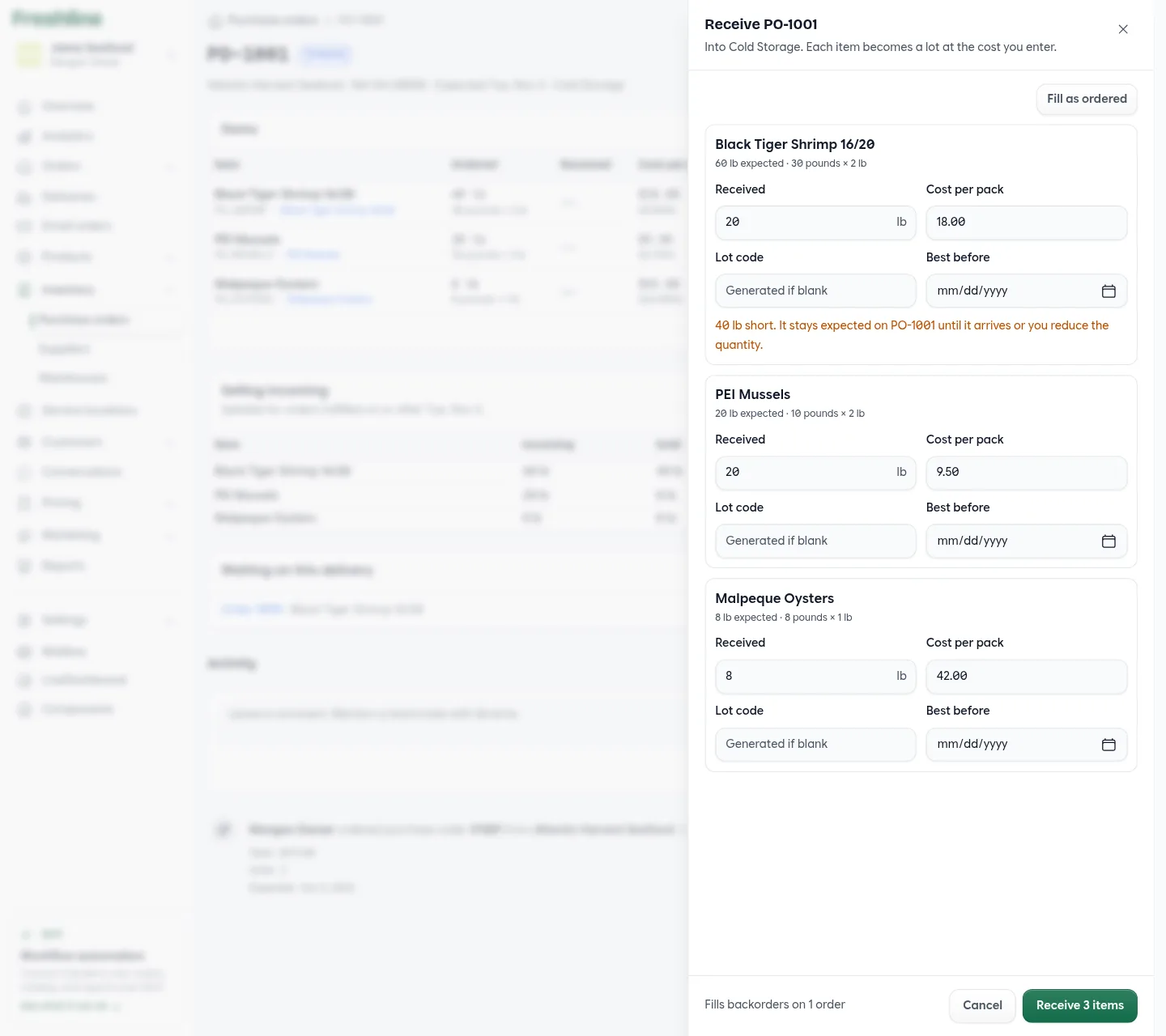
Press Receive on a purchase order when the delivery is at the dock. The drawer receives into the purchase order's warehouse, and each item becomes a lot at the cost you enter.
Receive PO-1044 · into Cold Storage
- Hass Avocados, count 48 case288 / 288
Lot AVO-48-1030 · best before Nov 20
- Yukon Gold Potatoes, 50 lb sack500 / 500 lb
- Honeycrisp Apples, 18 kg case72 / 144 kg
72 kg short. It stays expected on PO-1044 until it arrives or you reduce the quantity.
- Cremini Mushrooms, 5 lb tray65 / 60 lb
5 lb more than ordered. The extra is available to sell.
- Fill as ordered fills in everything still to come. Change what's different.
- Cost per pack starts at the purchase order's cost. Change it if the invoice says otherwise. The purchase order shows the new cost with “was” and the old one.
- Lot code is generated if you leave it blank. Best before sets the lot's expiry.
- Receiving is all or nothing. Either every line goes in or none do, so a half-saved delivery can't happen.
You can also receive from Inventory. In a stock's Receive stock drawer, choose which open purchase order it came in on, or “Not on a purchase order”.
Incoming in Inventory
The inventory list has an Incoming column, such as “+60 lb” with the delivery date under it, in red when the delivery is late. Filter by Incoming or Late delivery to see what's on the way or overdue.
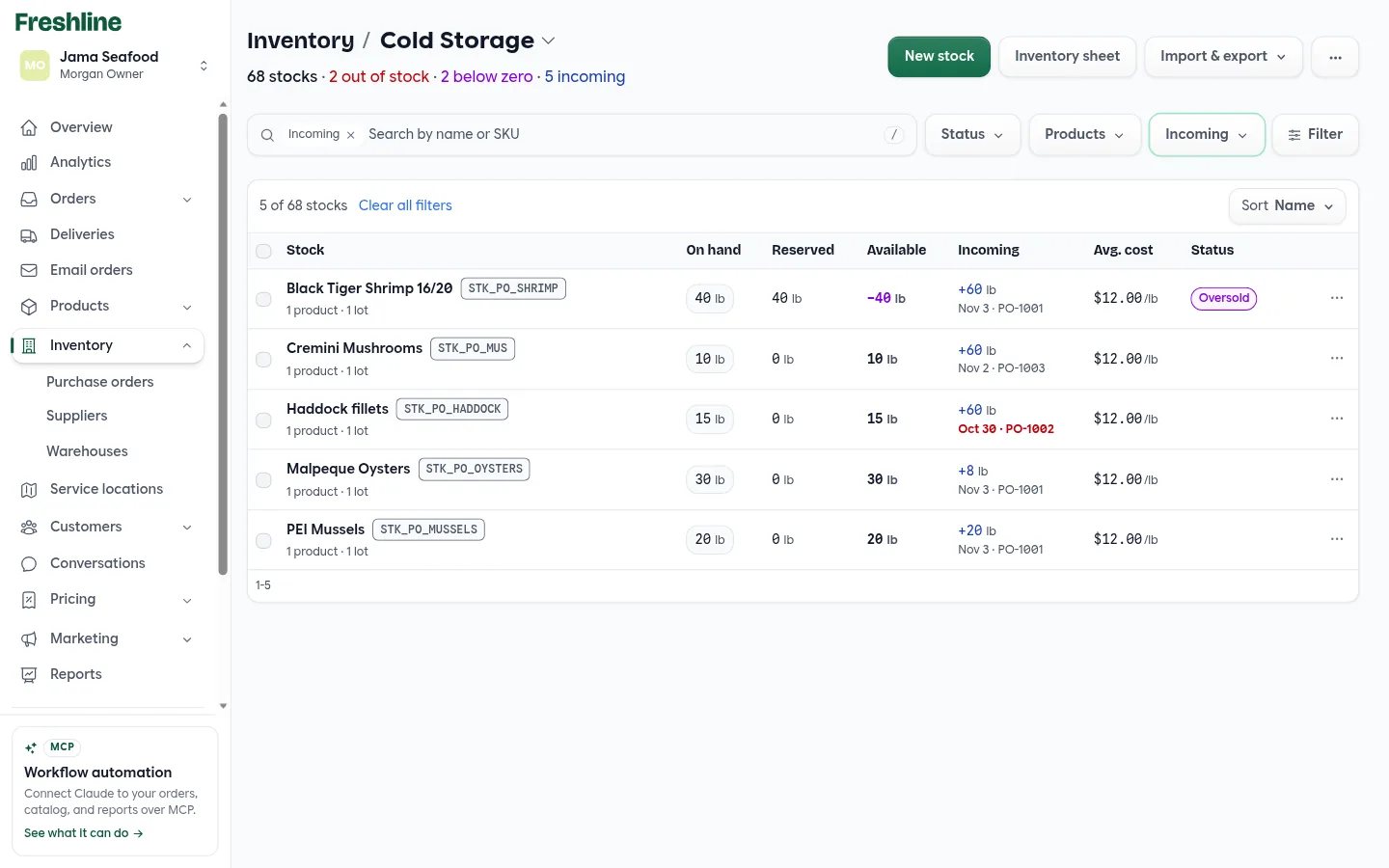
Open a stock to see every purchase order bringing it in, with quantity, cost and date, and when it's next “Available from”.
Suppliers
Suppliers keep the people you buy from in one place: contact name, email, phone, address, and notes for cut-offs, minimums and payment terms. The list shows how many purchase orders are open with each one. Rename a supplier and their purchase orders follow. A supplier with purchase orders can't be deleted.
Cancelling
Cancel purchase order is under More actions. Its incoming stock comes off inventory straight away, and anything already received stays on hand. Before you confirm, Freshline lists the customer orders that were counting on it. They keep their backorders, so nothing on them is lost.
Quick Reference
Purchase Order Status
| Status | What it means |
|---|---|
| Ordered | Bought, not all here yet. Can be edited, received or cancelled. What's left counts as incoming. |
| Late | Ordered and past its expected date. Not a separate status, just flagged in red. |
| Received | Every item has arrived. Set on its own after the last receipt. |
| Cancelled | Called off. Its incoming is gone. Anything received before stays on hand. |
When Receiving
| You enter | What happens |
|---|---|
| The full amount | The line is received. A new lot is added at the cost you entered. |
| Less than ordered | The rest stays expected on the same purchase order. |
| More than ordered | Everything goes in. The extra is available to sell. |
| Nothing | The line stays as it was, still expected. |
| A different cost | The lot uses your cost, and the purchase order shows what it was. |
Who Can Do What
| Role | Purchase orders |
|---|---|
| Owner, Manager | Create, edit, receive and cancel purchase orders. Manage suppliers. |
| Support | See purchase orders and suppliers. |
Settings
| Where | Setting |
|---|---|
| Store settings → Inventory | Track inventory, using Freshline's inventory |
| Store settings → Inventory | Sell incoming stock (off to start) |
| Products | Each item on a purchase order must be tracked |
| Inventory → Suppliers | Contact details and notes for each supplier |
Getting Purchase Orders
We're turning purchase orders on account by account. If you'd like it for your team, email us at [email protected] and we'll help you set up your suppliers and first purchase order.