Plenty of your customers still order by email: a few lines typed on a phone, a purchase order from their system, a photo of the list on the walk-in door. Someone on your team reads each one and types it in again. Email orders gives your store an order address. Freshline reads what arrives there, matches it to your customers, products and units, and puts it in front of you as an order to check. One click turns it into a draft order.
What’s New
- An order address for your store, and, for customers who order from a shared or automated mailbox, an address of their own.
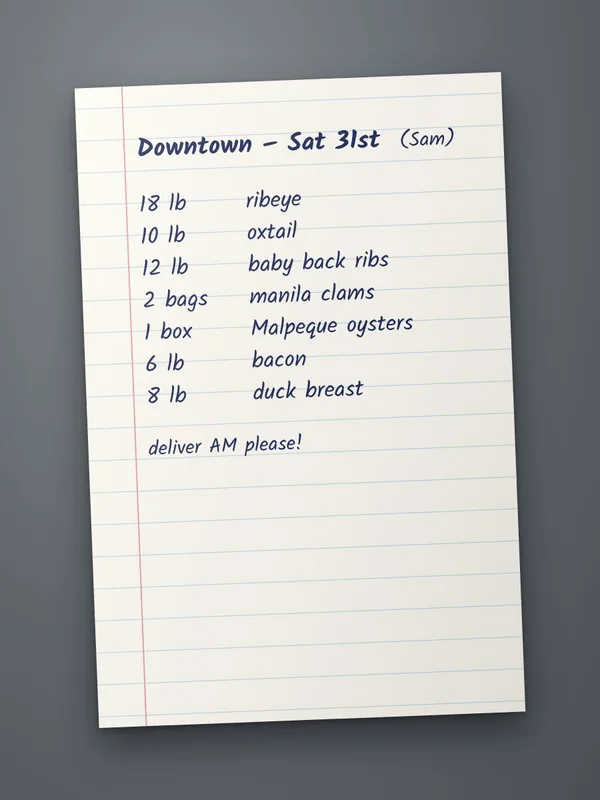
- It reads what customers actually send: the email itself, PDFs, Excel and CSV files, Word documents, and photos or scans of a handwritten list.
- Customers, locations and dates are filled in from who sent it and what it says. “Thursday” means this Thursday.
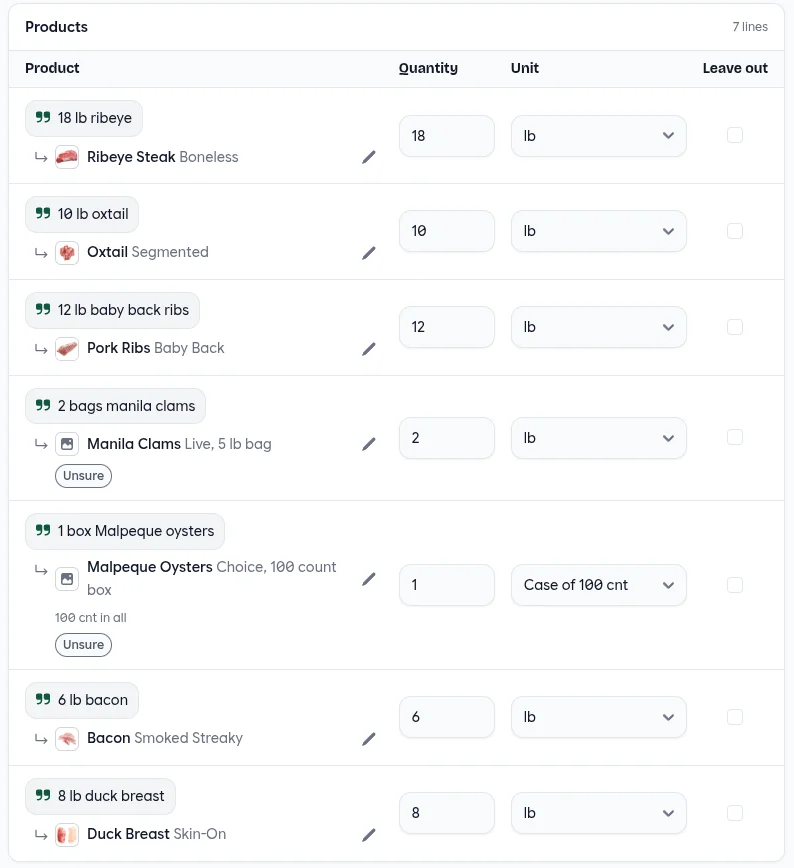
- Every line shows its source. The customer’s own words sit above the product they were matched to, so you can check a match at a glance.
- Units and cases are worked out for you. “3 bags” of shrimp sold in 2 lb bags is read as 3 cases, 6 lb in all, and a unit it isn’t sure of is flagged.
- It tells you what it isn’t sure of, line by line, and says why an order needs a look.
- It learns your customers’ words. Once you’ve confirmed that “baby back ribs” means your Pork Ribs, it finds them straight away next time.
- Nothing is ordered without you. Every order waits for someone to press Create draft order.
How It Works
Freshline uses AI to read the email and its attachments, the way a person on your order desk would: what’s being asked for, how much, by when and where to. It reads first without looking at your catalog, then matches what it read against your customers and products, and checks each line against the customer’s prices.
From an email to a draft order
A customer emails your order address. It shows at the top of Email orders right away, and the reading starts.
- 1
Screened
Automatic replies, bounced mail, spam and mail sent from the order address itself are set aside.
Inbox showsChecking the email
- 2
Sender found
A customer’s own address, a contact’s email, or one of your staff forwarding it.
Inbox showsFinding who it’s from
- 3
Attachments opened
PDFs, spreadsheets, Word documents and photos are turned into text or read as images.
Inbox showsOpening the attachments
- 4
Order read
What’s asked for: products, quantities, units, the date, where it goes, a PO number and notes.
Inbox showsReading the order
- 5
Matched
Each line is matched to a product and unit the customer can buy, and checked against their prices.
Inbox showsMatching products
It waits in Needs review. You check it, fix anything flagged, and press Create draft order.
Prices never come from the email. Each line is priced from your price lists, exactly as if you’d added it to the order yourself. A price written in the email is only used to tell two packs of the same product apart.
Your Order Address
Your store’s address is under Settings → Email orders, and at the top of the Email orders page. It’s your store’s short name at freshlinestore.com, and it doesn’t change if you rename your store. Give it to customers, put it on your order guide, or have a customer’s purchasing system send purchase orders to it.
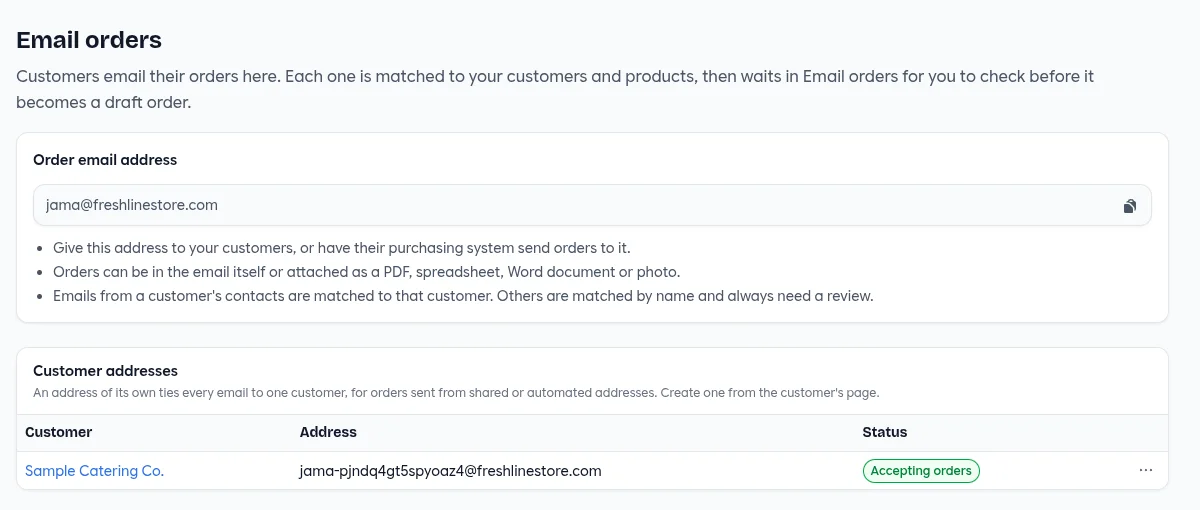
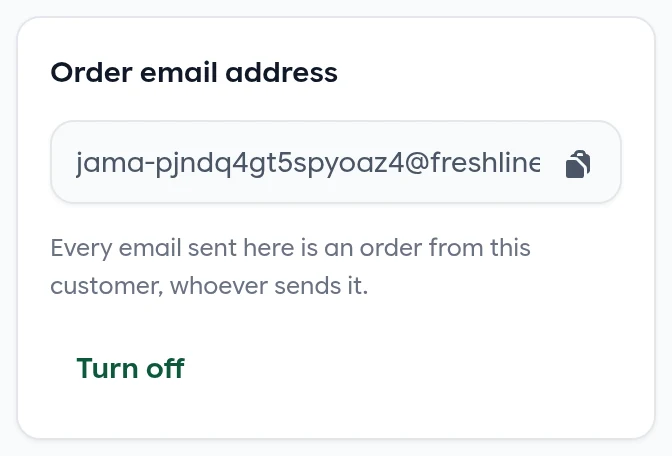
Emails from a customer’s contacts are matched to that customer by their email address. That doesn’t work when orders come from a shared inbox or a no-reply address, like a purchasing system’s. For those customers, Create address on the customer’s page gives them an address of their own. Every email sent to it is an order from that customer, whoever sends it.
Customer addresses are hard to guess, and Turn off stops one accepting orders. A turned-off address can’t be turned back on, so it never starts routing orders to someone else.
The Inbox
Email orders in the sidebar works like a mail client. The count beside it is what’s waiting for review. Emails appear the moment they arrive, show how far the reading has got, and update on their own when it’s done.
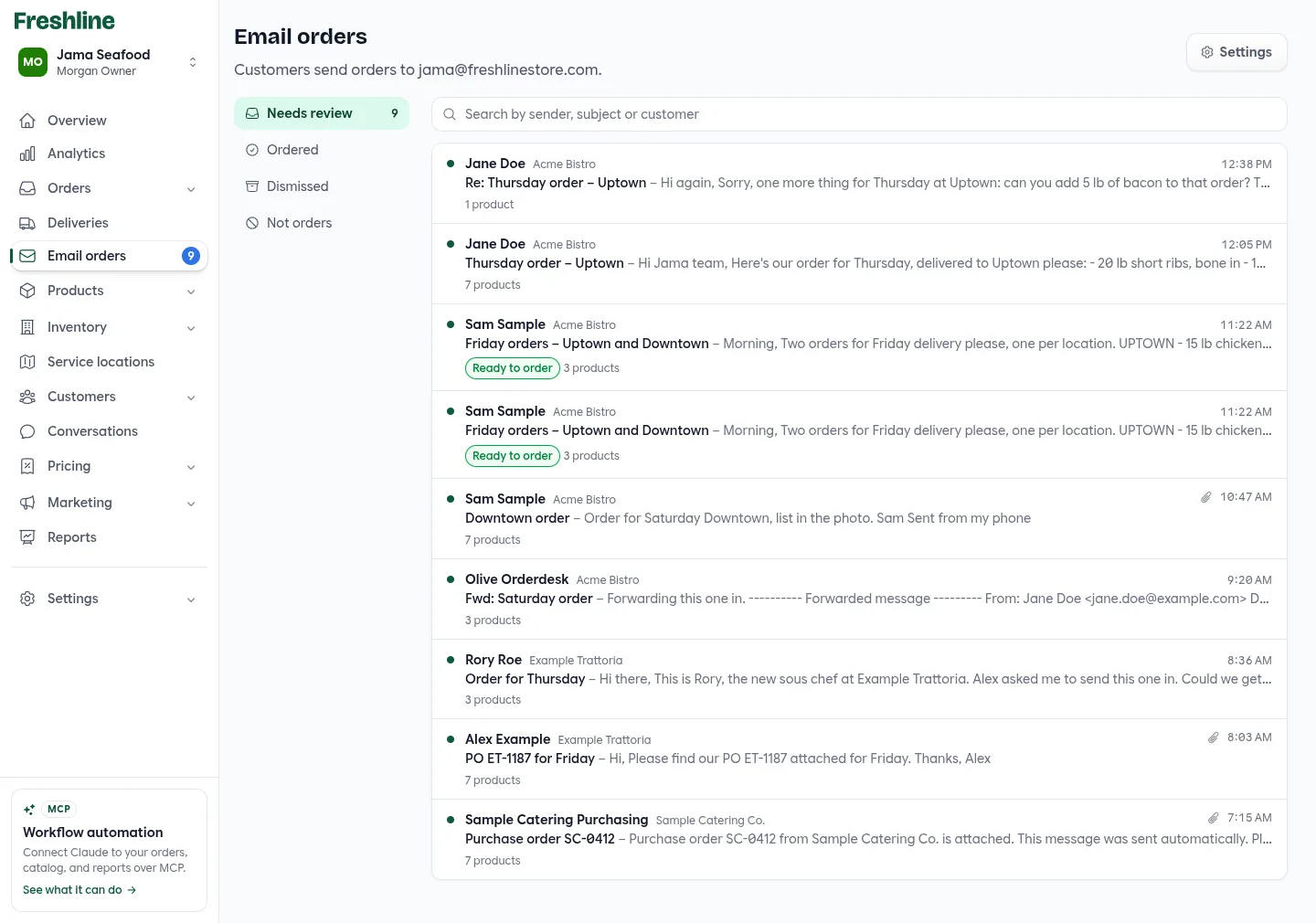

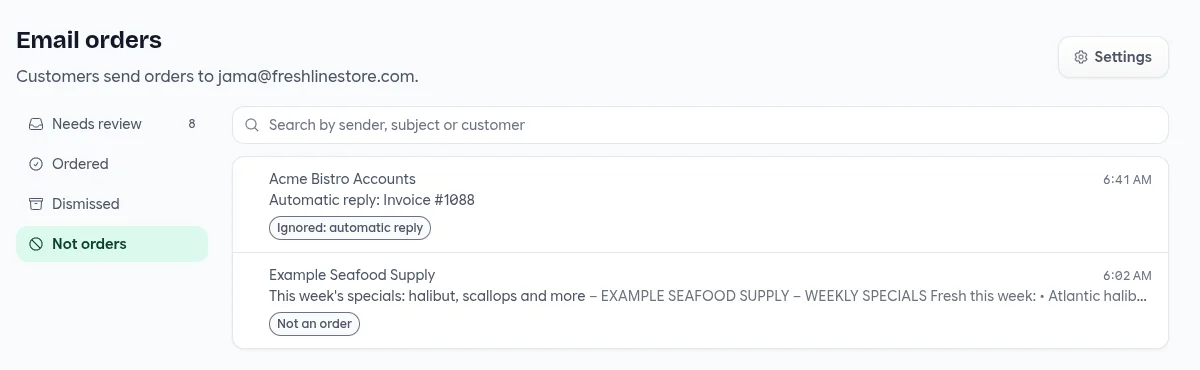
Search finds emails by sender, subject or customer. Ready to order marks an order that was read with full confidence, with nothing missing or guessed. Emails that held no order go to Not orders, with the reason.
Reviewing an Order
Open an order and you see it the way it will be created, with the original email beside it. Everything on the page can be changed, and each change is saved as you make it.
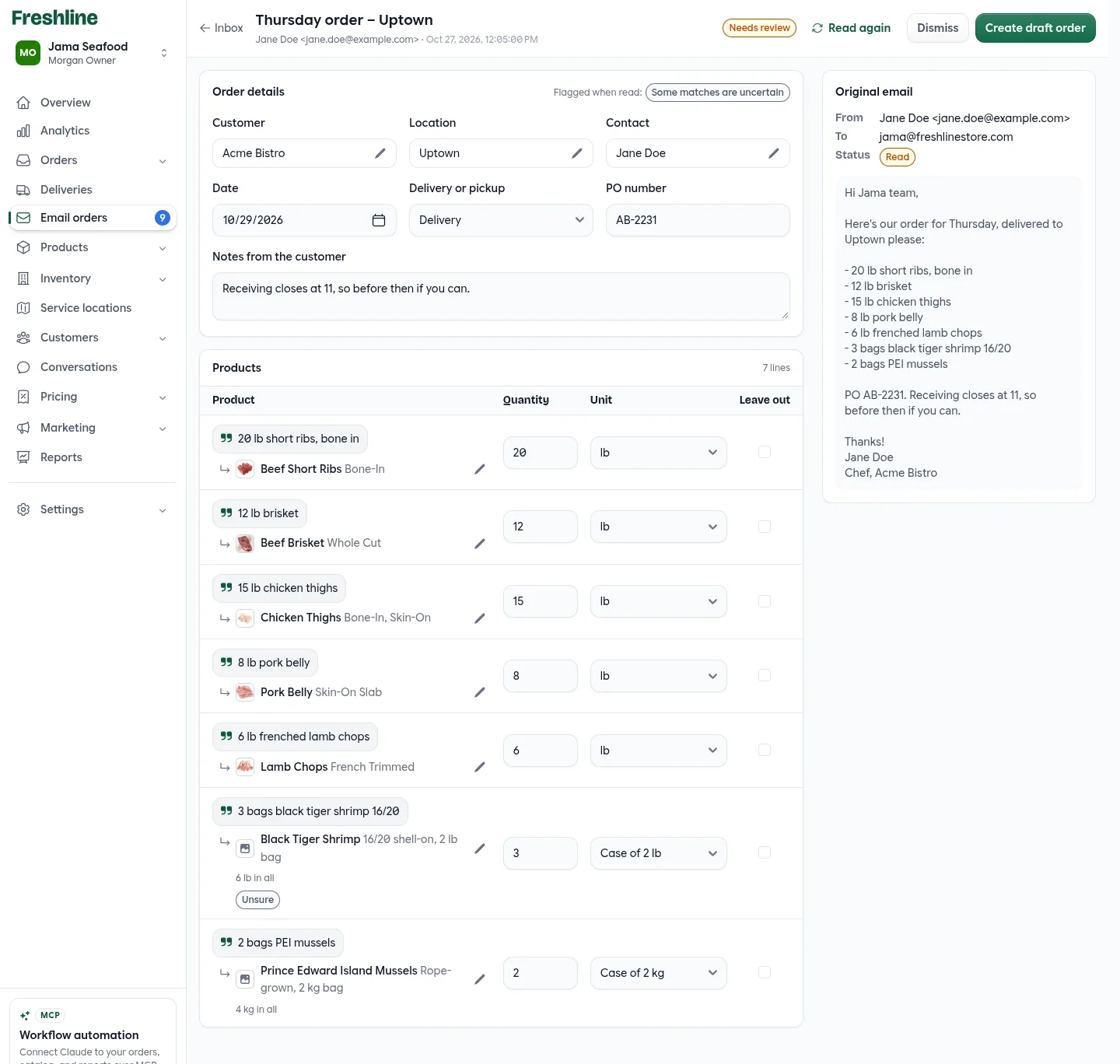
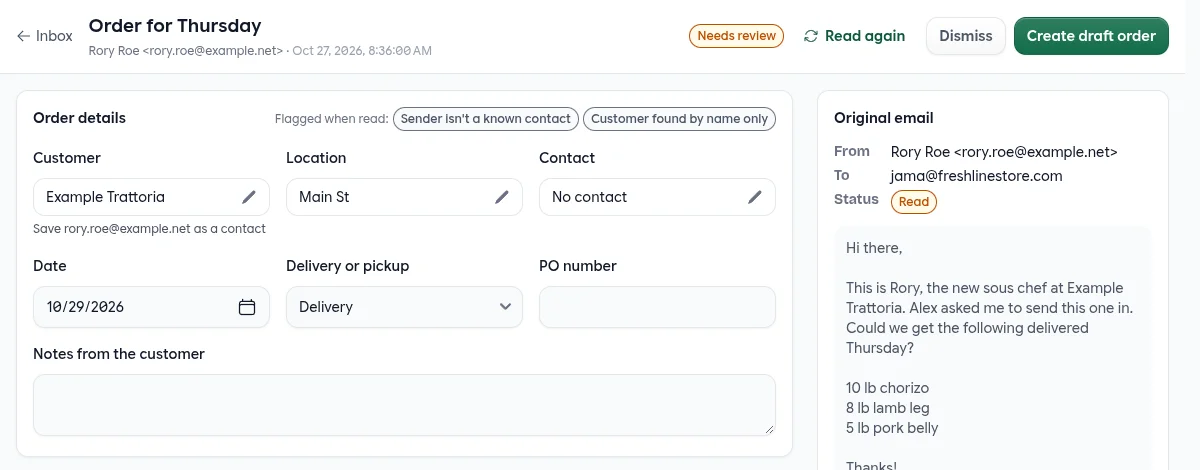
- 1Why it needs a look. The reasons it wasn’t marked Ready to order. Here, two of the matches are uncertain.
- 2Customer, location and contact. Filled in from the sender and the email. Click any of them to choose another.
- 3Date, delivery and PO. The date the customer asked for, delivery or pickup, the PO number and any notes for you.
- 4The customer’s words. Each line starts with what the email said, quoted.
- 5What it matched. The product and variant it was matched to. The pencil opens the product picker.
- 6Quantity and unit. By the unit or by the case. A case shows what it adds up to: 6 lb in all.
- 7Unsure. Matched, but not with full confidence. Check the product and unit before creating the order.
- 8Original email. The email as it arrived, with its attachments to open. It stays in view as you scroll.
- 9Create draft order. Creates the order once nothing is blocking it. Dismiss sets the email aside instead.
Fixing a Line
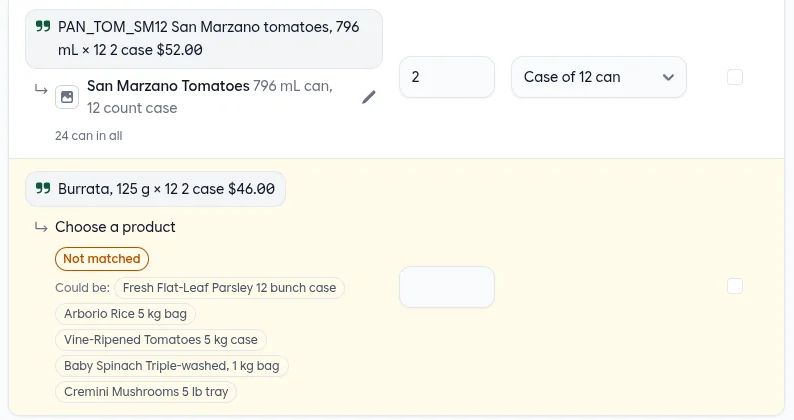
Change the quantity or unit right on the line, or click the pencil to pick a different product. Tick Leave out to skip a line without deleting it. When nothing in your catalog fits, the line is highlighted and says so. A few products that came closest are offered under Could be, one click each.
Before Creating the Order
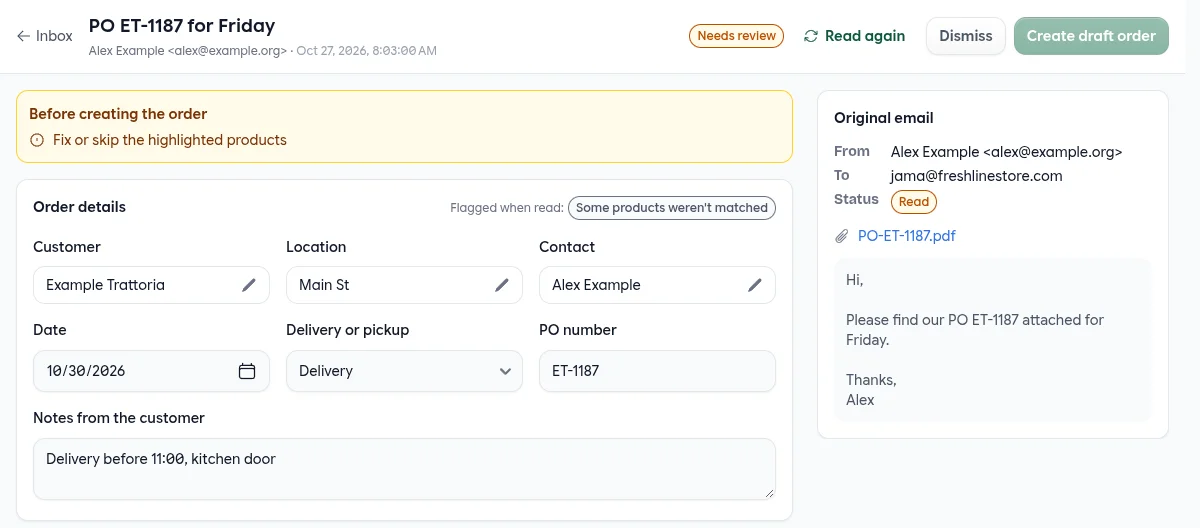
Create draft order stays off until the order has a customer, a location, a date, delivery or pickup, and at least one product, and every highlighted line is fixed or left out. A yellow box at the top says what’s left.
If there isn’t enough stock when you create the order, nothing is created. The lines that ran short are marked with what’s left, including when several lines draw on the same stock.
One Email, Several Orders
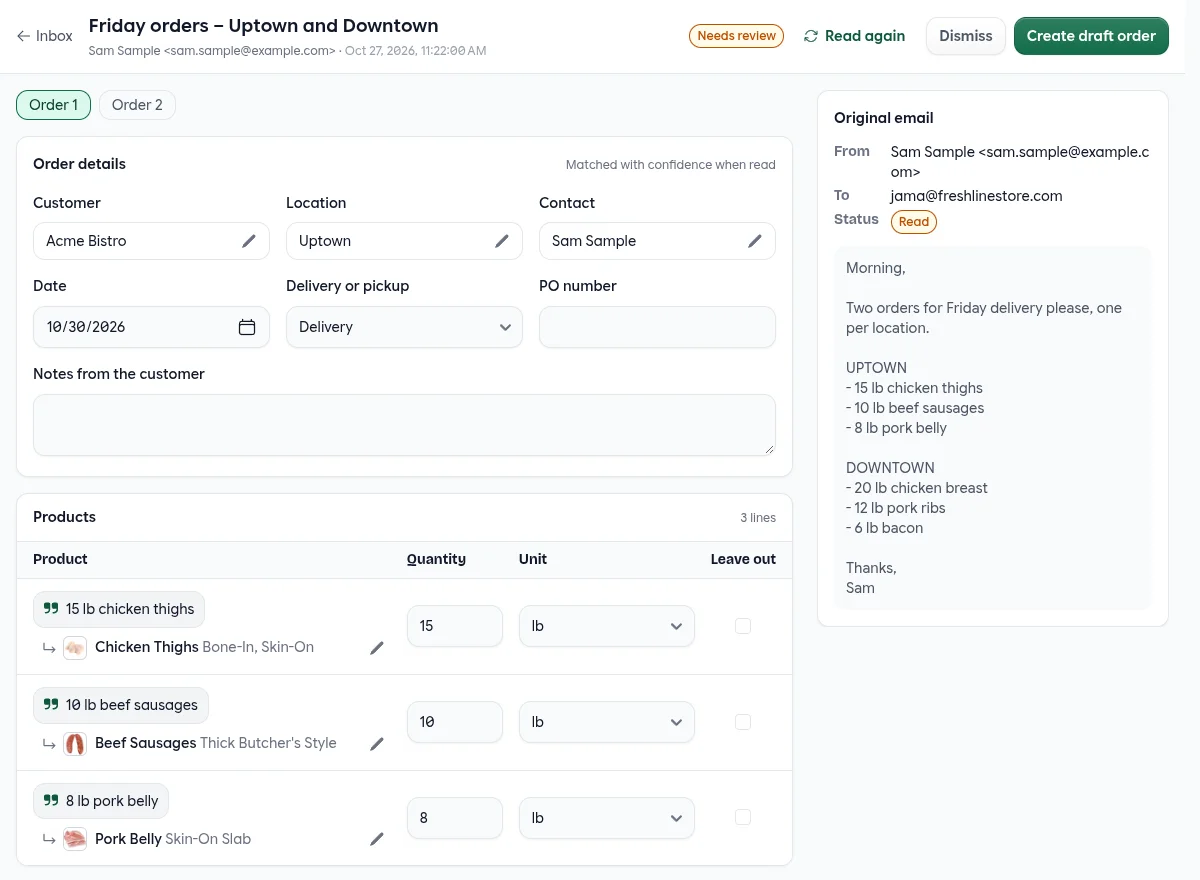
An email with orders for two locations, or two days, becomes one order each. They sit side by side as Order 1 and Order 2, and each is reviewed and created on its own.
After You Create It
The order is created as a draft, with the products priced from your price lists. Your customer isn’t emailed about it; confirm it when you’re ready, like any draft. The email moves to Ordered with a link to the order, and the order links back to the email.

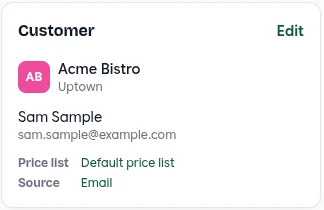
Creating the order also teaches Freshline the customer’s wording. Each line’s words are remembered against the product you confirmed, for that customer, and matched straight away the next time they write it.
The PO number goes on the invoice note, and the customer’s notes go on the order.
Senders You Don’t Know Yet
When an email comes from an address that isn’t one of your contacts, the customer can still be found from the email, by name. That match is offered but never trusted, so the order is flagged. If the sender belongs to that customer, Save … as a contact adds them in one click, and their next email is matched like any contact’s.
Read Again, Dismiss
Read again matches the email again, with its sender looked up afresh: useful after you’ve added a product it should have found, or saved its sender as a contact. An email that was set aside or held no order is read again from the start. Changes you made on the page are replaced, and it isn’t offered once an order has been created from the email. Dismiss moves an order you won’t create to Dismissed, and Review again brings it back.
On a Phone
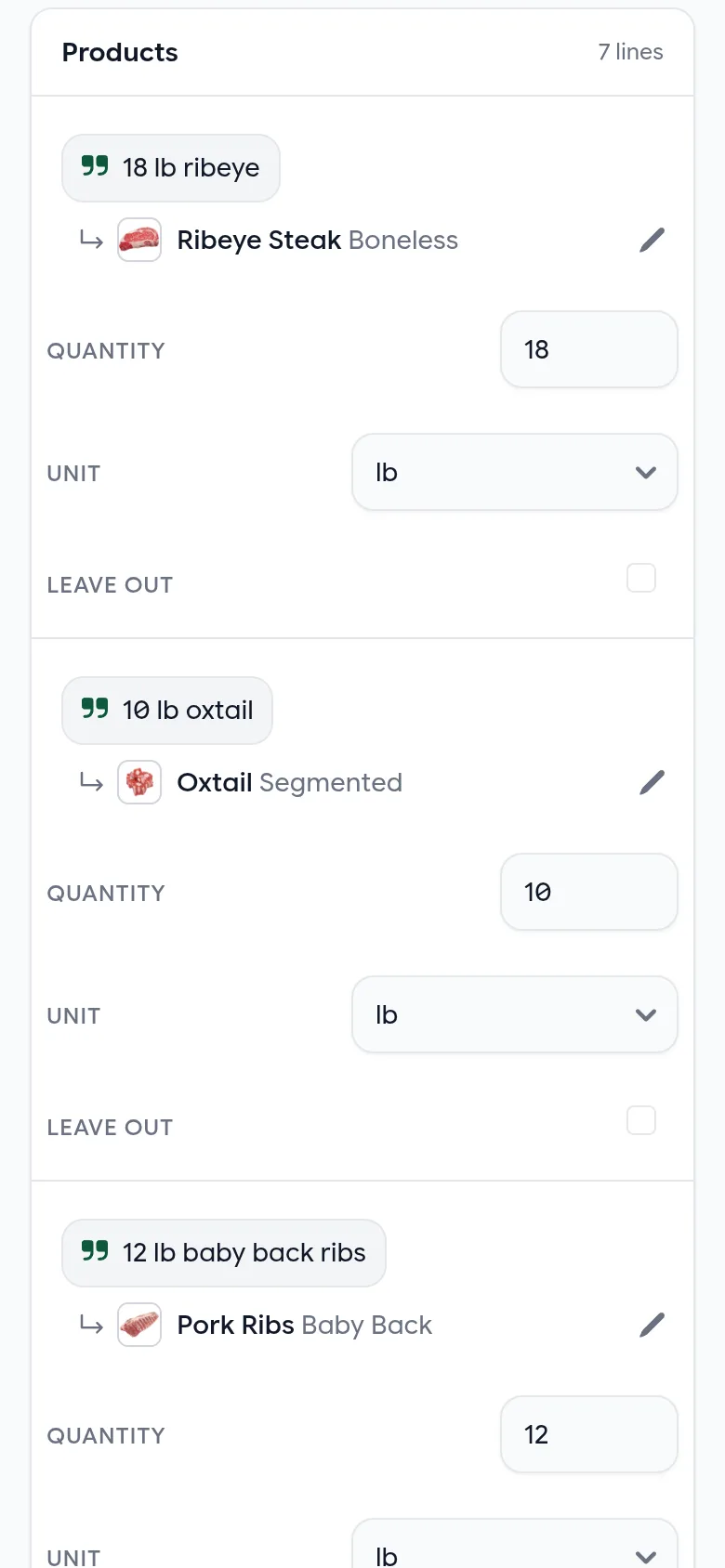
The inbox and the order page both work on a phone. Lines become cards, with the quantity, unit and Leave out stacked under the product, and the original email follows the order.
Email orders is open to the Owner, Manager, Sales Rep and Order Desk roles.
What It Reads
Orders can be in the email itself or in its attachments, and one email can mix both. Each attachment is opened on its own, so one file that can’t be read doesn’t stop the rest.
| What customers send | How it’s read |
|---|---|
| The email itself | Plain text or HTML, including forwarded emails and replies |
| Its text, laid out as on the page. A scanned PDF with no text is read as an image. | |
| Excel (.xlsx), CSV, TSV | Every sheet, row by row |
| Word (.docx) | Its text and tables |
| Photos and scans | Read as images, handwriting included |
| Older .xls and .doc, OpenDocument, zip files | Not read. The email is flagged so you can open the file yourself. |
Up to 20 attachments per email are read, each up to 25 MB. Logos and small images in a signature are skipped. A photo of an order sheet sent from a phone isn’t, even when it’s shown inline.
How It Matches
The Customer
Who sent the email decides the customer, before anything in it is read. A customer named in the email is only used when the sender is unknown.
How the customer is found, first match wins
- 1
It was sent to the customer’s own address
Every email to that address is theirs, whoever sends it.
- 2
The sender is one of the customer’s contacts
Matched by email address. If that address is a contact of several customers, the order is flagged and you choose.
- 3
One of your staff forwarded it
The original sender, from the forwarded message, is looked up as a contact.
- 4
The email names the customer
Offered as a match, never trusted. The order says “Customer found by name only”.
- 5
None of these
The order waits with “Choose a customer”.
The Location, Date and Delivery
- Location: the one the email names, matched against the customer’s locations and their addresses. Otherwise the contact’s only location, or the customer’s only location. Otherwise the one they last ordered to, flagged as “Location taken from the last order”.
- Date: what the customer asked for, read against the day the email arrived in your store’s time zone, so “Thursday” is the coming Thursday. A document’s own date, like a PO’s issue date, isn’t taken as the delivery date.
- Delivery or pickup: what the email says, otherwise what the customer’s last order was.
- PO number and notes: picked out of the email or the document.
The Products
Lines are matched against the products this customer can buy: active, and priced for them. The wording doesn’t need to match your catalog, or even be in the same language.
How a line finds its product
Product code
A SKU or barcode on the line, like SKU001 on a purchase order.
Wording you’ve confirmed
What this customer called the product on an order you created before.
Similar names
“frenched lamb chops” to Lamb Chops, French Trimmed.
Similar meaning
The line restated in your catalog’s language, so wording that shares no words can still match.
Choose the product and unit
Among the products the customer can buy, with their price at that location beside each one.
Settle the pack by price
When a price is written, a pack priced within 5% of it is the one meant.
Check the price
The line is priced from your price lists, the same way the order will be.
Units come with the product. A line in pounds of a product sold by the pound is a quantity in pounds. A line in bags, boxes or cases of a product sold in cases is read as whole cases, and the line shows what that adds up to. When it isn’t sure which unit was meant, the line is marked Unsure for you to check, and a quantity that doesn’t make a whole case is flagged rather than rounded.
When It Asks for a Look
Every order is checked when it’s read. When everything below holds, it’s marked Ready to order in the inbox and “Matched with confidence when read” on its page.
An order is marked Ready to order only when all of this holds
- It’s a new order, not a change or a cancellation
- It came from a contact or the customer’s own address
- The customer, location, date and delivery or pickup are all known
- The location was named, or it’s the only one that fits, not guessed from the last order
- The date isn’t in the past
- At least one product was found, and every one was matched with confidence
- Every quantity fits the product’s units, in whole cases
- Every product has a price for this customer
- The customer has no other order for that location and day
- Nothing in the email was left unread
Change and cancel requests are read too, and flagged “Asks to change or cancel an order”. Freshline doesn’t change existing orders from email: make the change on the order, then dismiss the email.
Quick Reference
Inbox Folders
| Folder | What’s in it |
|---|---|
| Needs review | Orders waiting for you, with emails still being read at the top. The sidebar count is this folder. |
| Ordered | Orders you created, with the order number. |
| Dismissed | Orders you set aside. Review again brings one back. |
| Not orders | Emails that held no order, and those that were set aside unread. |
Email Status
| Shown as | What it means |
|---|---|
| Waiting to be read | It just arrived and is next in line. |
| Reading | Being read, with the current step beside it. |
| Read | Read, and one or more orders were found. |
| Not an order | Read, and it held no order. |
| Attachments couldn’t be read | Nothing readable was found, but it had files that couldn’t be opened. Open them yourself. |
| Ignored: automatic reply | An out-of-office or other auto-reply. Not read. |
| Ignored: bounced email | A delivery failure report. Not read. |
| Ignored: spam | Marked as spam when it arrived. Not read. |
| Ignored: sent from the order address | Sent from the order address itself, so it can’t loop. Not read. |
| Couldn’t be read | Something went wrong while reading it. Read again to retry. |
Flagged When Read
| Flag | What it means |
|---|---|
| Asks to change or cancel an order | It isn’t a new order. Change the existing order yourself. |
| Sender isn’t a known contact | Not from a contact or the customer’s own address, including forwards from your staff. |
| Customer not found | Nothing in the email pointed to a customer. Choose one. |
| Sender is a contact of several customers | Choose which customer it’s for. |
| Customer found by name only | The email named the customer, but the sender isn’t theirs. |
| No location | The customer has several locations and none could be chosen. |
| Location taken from the last order | The email didn’t say, so the last order’s location was used. |
| No date given | Choose the date. |
| Date is in the past | The date asked for had already passed when the email arrived. |
| Delivery or pickup not given | Neither the email nor the customer’s last order said. |
| No products found | The email reads like an order but no lines were found. |
| Some products weren’t matched | At least one line has no product. |
| Some matches are uncertain | At least one line is marked Unsure. |
| Some quantities don’t fit the product’s units | A quantity is missing, can’t be converted, or isn’t a whole case. |
| Some products have no price for this customer | The customer can’t be charged for a product as matched. |
| This customer already has an order that day | For the same location. It may be a duplicate. |
| Part of the email couldn’t be read | An attachment couldn’t be opened or was too large. |
Line Badges
| Badge | What to do |
|---|---|
| Unsure | Check the product and the unit. It’s probably right, but not certain. |
| Not matched | Choose a product, from Could be or the picker, or leave the line out. |
| No matching product | Nothing in your catalog came close. Choose one or leave the line out. |
| No quantity | Enter one. |
| Quantity doesn’t fit this unit | Change the unit or the quantity. |
| Not a whole case | The product is sold in cases. Change the quantity or the unit. |
| No price for this customer | Add a price for them, or choose another product. |
| Not enough stock | Shown when you create the order, with what’s left. |
Before Creating the Order
| Message | What to do |
|---|---|
| Choose a customer | Click Customer and pick one. |
| Choose a location | Click Location and pick one of the customer’s. |
| Choose a date | Set the date. |
| Choose delivery or pickup | Pick one. |
| Keep at least one product | Every line is left out. Bring one back. |
| Fix or skip the highlighted products | Fix each highlighted line, or tick Leave out. |
What Goes on the Order
| On the email order | On the draft order |
|---|---|
| Customer, location, contact | The order’s customer, location and contact |
| Date, delivery or pickup | The order’s date and how it’s fulfilled |
| Products | Line items, priced from your price lists |
| PO number | The note on the invoice |
| Notes from the customer | The customer’s notes on the order |
| The email | Source: Email, linking back to it |
Getting Email Orders
We’re turning email orders on account by account. If you’d like it for your team, email us at [email protected] and we’ll set up your order address.
We’d love to see the emails it gets wrong. If an order needed more fixing than you’d expect, tell us; the trickiest emails are the ones that make it better.