Most visits to a product change one thing: a cost, a description, a photo. The old product page was a single form that saved everything at once, and that is where products lost data. The new page reads first and writes only what you change. Click a price, type, press Enter, and that price is saved.
What’s New
- Read first. Prices, how each variant is sold, stock, photos and where the product is priced are all on screen, without opening anything.
- Edit in place. Click a default price or cost, type, press Enter. Tab moves to the same field on the next variant.
- Each change saves on its own, and only if nobody else changed it while you were typing.
- A drawer for each variant, with every price list and customer price beside its default price.
- Remove archives. Deleting a variant that’s in use takes a confirmation, after a list of what will go.
- New products start as drafts, with a checklist of what customers need before they can order.
- Photos save as you add them, and one click puts a photo on every variant.
- It stays current. When someone else saves the product, your page refreshes on its own.
- It works on a phone.
Why We Rebuilt It
The old product page was one long form. Labels and custom fields saved the moment you changed them, and everything else waited for Save, which wrote the product, every variant, its photos, categories and custom fields in one go. It wrote them from the copy of the form in your browser, and that copy wasn’t always current.
Before the redesign, here’s what that cost:
Variants added on the page, then deleted by the next save
40%
over 90 days, most put straight back under a new id
Tables a removed variant was deleted from
12
its prices, carts, favourites, notes and integration links, with no undo
Saves that failed with one generic message
1.5%
over the two weeks we checked, and when the page crashed, the error never reached us
None of it was about big products: 97% of products have a single variant. It was about what one Save did. So the new page doesn’t save a form. It saves the field you changed, and checks first that nobody changed it while you were typing.
What changing one cost touches
Old product form
New product page
Faster, and It Stays Fast
Opening a product got about twice as fast for everyone after the October 23 release. More than half of the old page’s database time went into a warehouse menu that counted orders it never showed, and that’s gone. The fix reached every account, on the old page as well as the new one.
How long a product took to open, in production
Server time to load the product, across every account, before and after the October 23 release.
Typical
median
1 in 20
95th percentile
1 in 100
99th percentile
Show the numbers
| Page load | Before | After |
|---|---|---|
| Typical (median) | 120–130 ms | 64 ms |
| 1 in 20 (95th percentile) | 180–190 ms | 110 ms |
| 1 in 100 (99th percentile) | 340–350 ms | 174 ms |
| Slowest | 3.7 s | 572 ms |
“Before” comes from 10 ms buckets, so each value is within 5 ms.
The bigger change is how the time grows. On the old form every variant added a row of inputs to the page and a row to every save, so a 25-variant product took a third of a second to open, and the first keystroke after opening took as long again. The new page shows text until you click something. Opening a big product costs about what opening a small one does, and typing a price or cost sends nothing until you press Enter.
Server time to open a product
The old form drew an input for every field of every variant.
1 variant
5 variants
25 variants
100 variants
Show the numbers
| Product | Open: old / new | First keystroke: old | Save one price: old / new |
|---|---|---|---|
| 1 variant | 43 ms / 35 ms31 / 30 queries | 14 ms | 21 ms / 19 ms17 / 24 queries |
| 5 variants | 73 ms / 19 ms31 / 30 queries | 58 ms | 23 ms / 21 ms21 / 24 queries |
| 25 variants | 330 ms / 39 ms31 / 30 queries | 342 ms | 46 ms / 26 ms41 / 24 queries |
| 100 variants | 1.5 s / 77 ms31 / 30 queries | 1.9 s | 378 ms / 71 ms116 / 24 queries |
For a one-variant product, which is almost all of them, both pages were quick and still are. Saving a price on the new page takes about as long as it did on the old form at that size, with a few more database queries, and it stays there as the product grows.
Opening a product, typical
64 ms
in production since October 23, down from about 125 ms
Opening a 25-variant product
39 ms
down from 330 ms on the old form, in our tests
Server work while you type a price
None
until you press Enter; the old form’s first keystroke took 342 ms at 25 variants
A Tour of the Page
Everything about a product is on one page: its variants, photos and description on the left, and a card for availability, organization and pricing on the right.
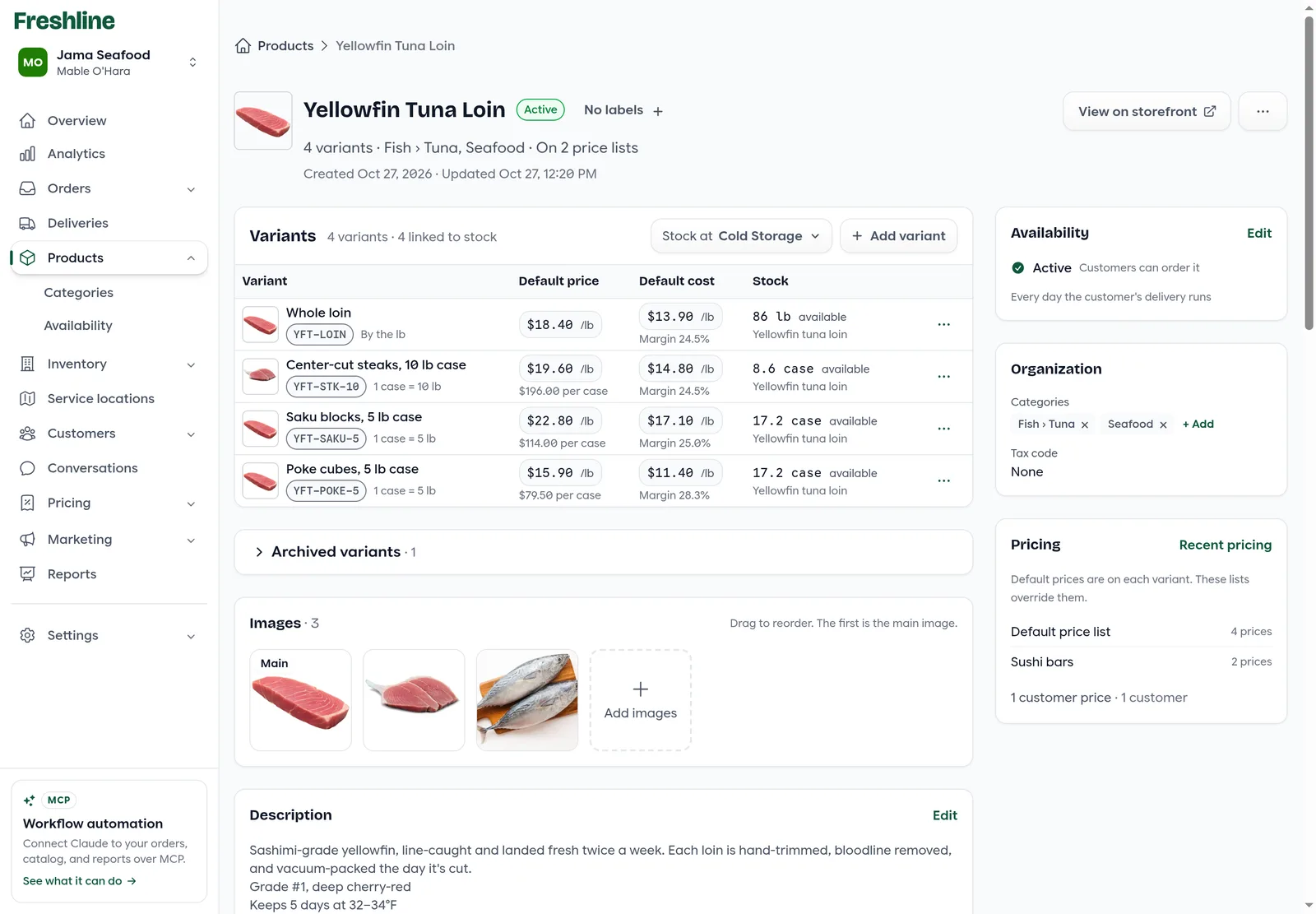
- 1Status and next step. Active, Draft or Archived, beside the name. The button on the right is the next step: Make active on a draft, Restore on an archived product, View on storefront once it’s live.
- 2Edit in place. Click a default price or cost to change it on the row. The margin and the price per case update when you save.
- 3How it’s sold. Each variant says it in a phrase: By the lb, or 1 case = 10 lb.
- 4Stock. What’s available at the warehouse you pick, in the variant’s own unit: 86 lb, or 8.6 cases.
- 5Variant menu. Edit opens the variant drawer. Remove archives it, and Archived variants under the table brings it back.
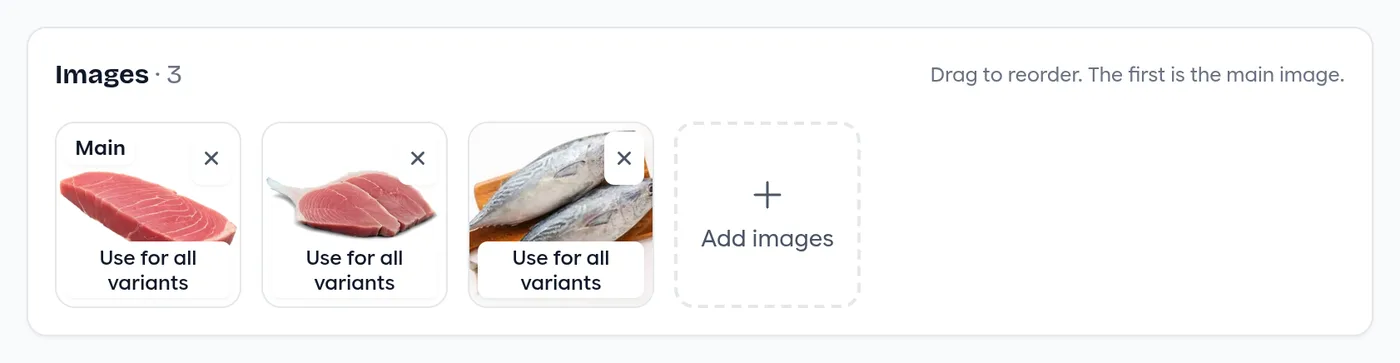
- 6Photos. They save as you add them. Drag to reorder; the first is the main image.
- 7Cards. Availability, Organization and Pricing, each changed in place. Pricing lists the price lists that cover the product and its customer prices.
Changing a Price or Cost
Click a default price or cost and type. Enter saves, Tab saves and opens the same field on the next variant, Shift+Tab goes back, and Esc cancels. Clicking somewhere else saves too. Under the box you can see what the value was.
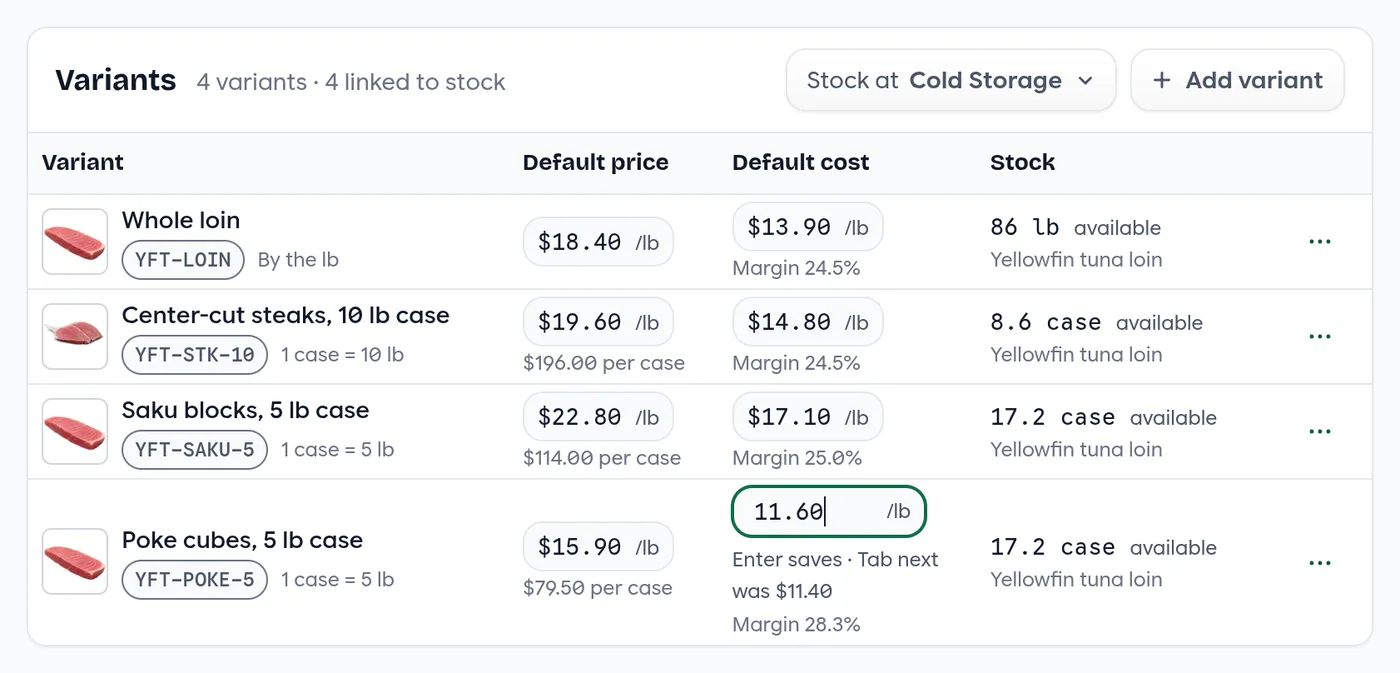
If someone changed that price while you were typing, your edit isn’t saved over theirs. The page tells you, for example “Someone changed the price of Per lb to $15.10 while you were editing.”, and shows their value.
The Variant Drawer
Click a variant’s name to open its drawer. It has the name and codes, how it’s sold, the default quantity and lead time, the price and cost with the margin, every price list and customer price for that variant, its stock, its custom fields and how it syncs to your integrations. Save writes only the fields you changed.
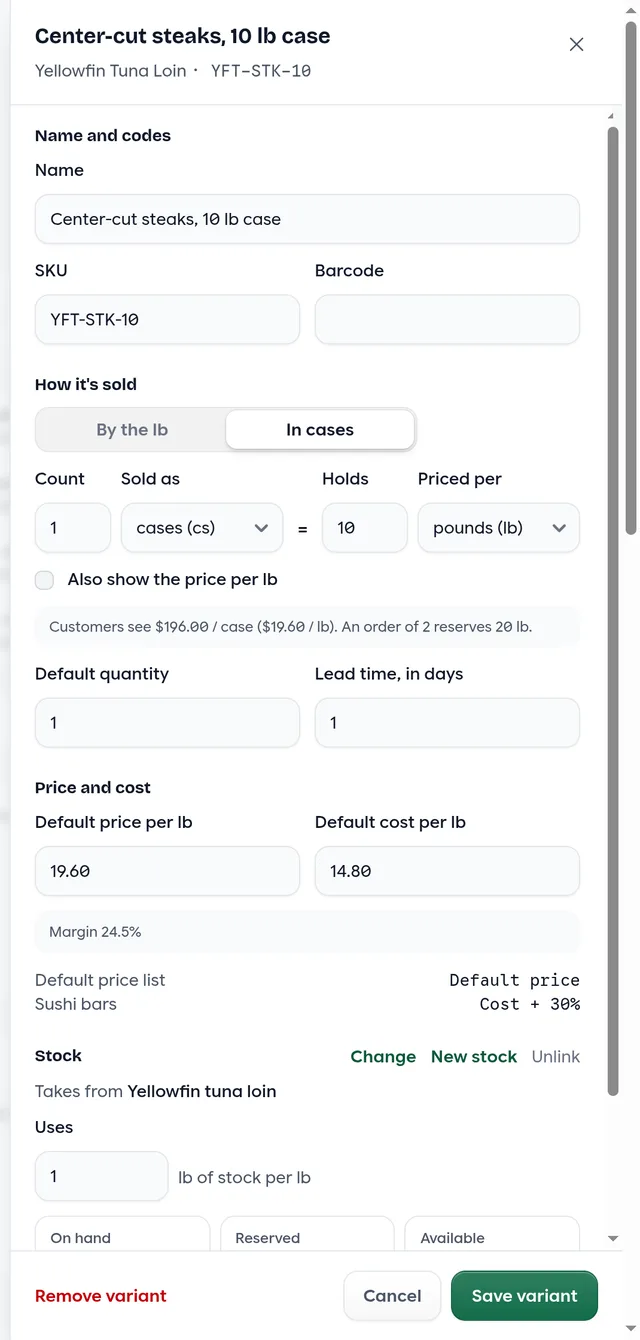
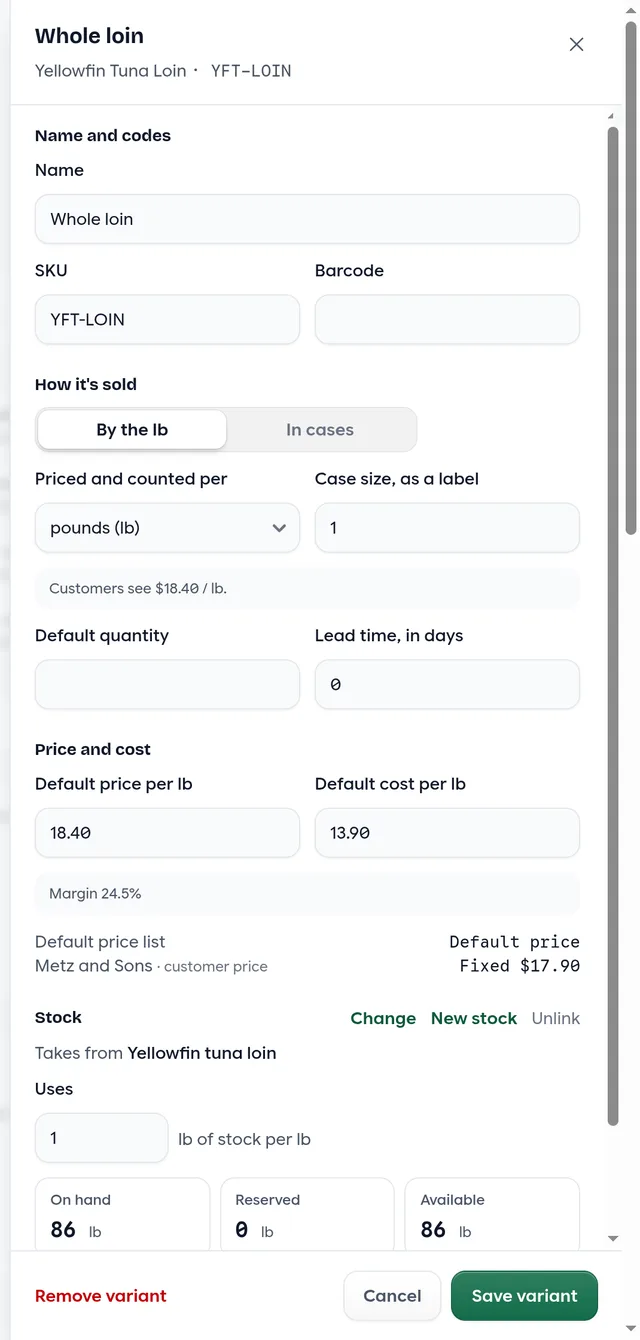
How it’s sold is one choice: By the lb, or In cases with one line, 1 case = 10 lb. The drawer then says what customers will see, such as “$196.00 / case ($19.60 / lb). An order of 2 reserves 20 lb.” Each list price links to that price on its list, and each customer price to that customer’s prices.
Photos
Drop photos on the Images card or pick them from your library. Each one saves as it’s added, and uploads finish processing in the background. Drag to reorder; the first is the main image. Use for all variants puts a photo on every variant in one step, and a variant you add starts with the main image. To give one variant its own photo, click its thumbnail.
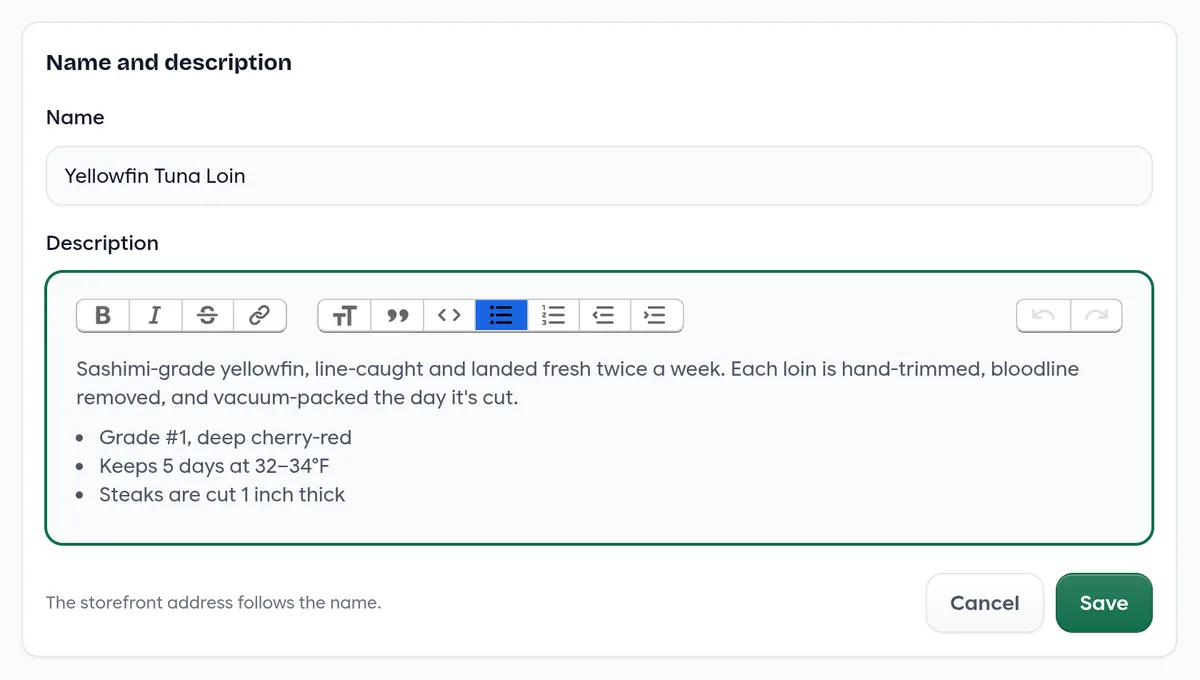
Name, Description and Categories
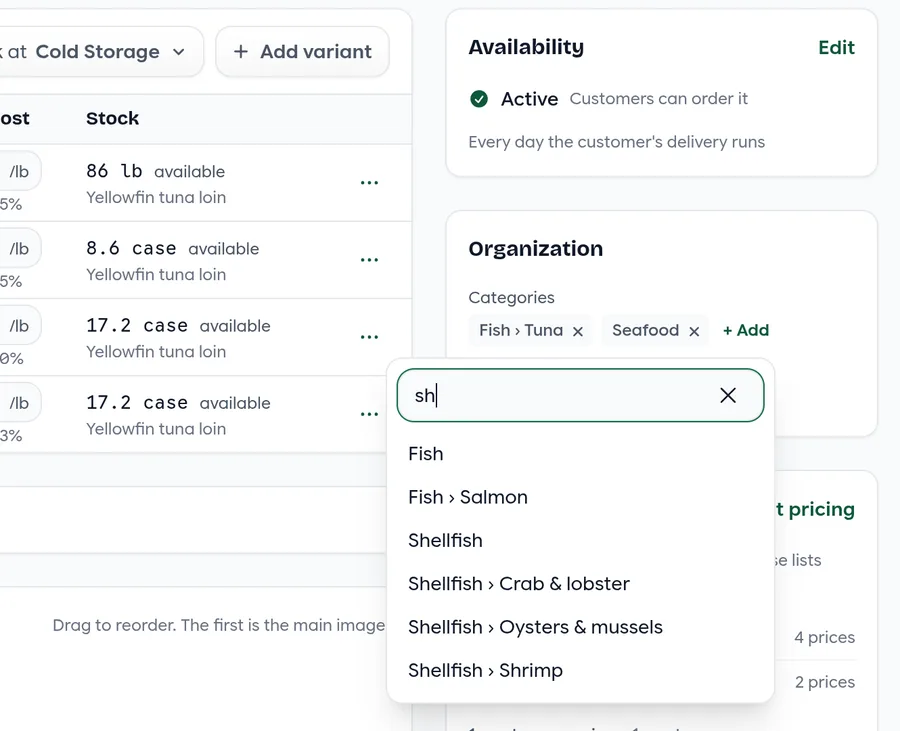
Edit on the Description card turns the card into a small form for the name and description, and leaves the rest of the page as it is. Categories are added and removed right on the Organization card: + Add, type, pick.
On a Phone
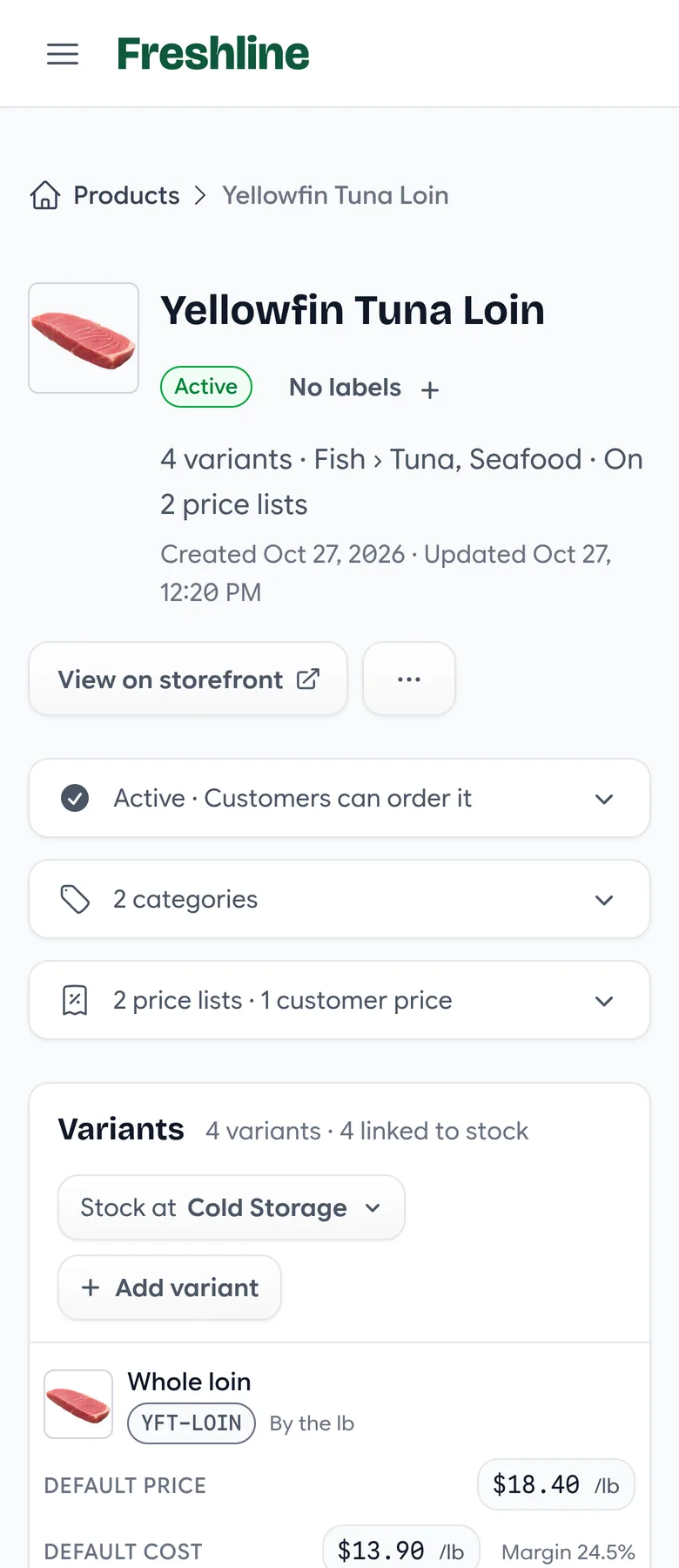
On a narrow screen the cards fold into one-line summaries, such as “Active”, “2 categories” and “2 price lists · 1 customer price”, that open with a tap. Variants stack with their price and cost labelled, and photo controls are always visible, since there’s no hover on a phone.
The page also keeps itself current. When someone else saves the product, or an integration updates it, your page refreshes within half a second. It waits while you have a drawer, dialog or edit open, so nothing moves under your cursor.
Staff who can view products but not change them see the same page, as text.
Removing a Variant
On the old page, removing a variant deleted it, and everything attached went with it: its price on every list and for every customer, carts, favourites, notes, and the links QuickBooks and Business Central use to find it. Orders kept the line but lost the link.
Now Remove, in the variant’s ⋯ menu, opens a dialog that says what the variant is on and offers Archive first.
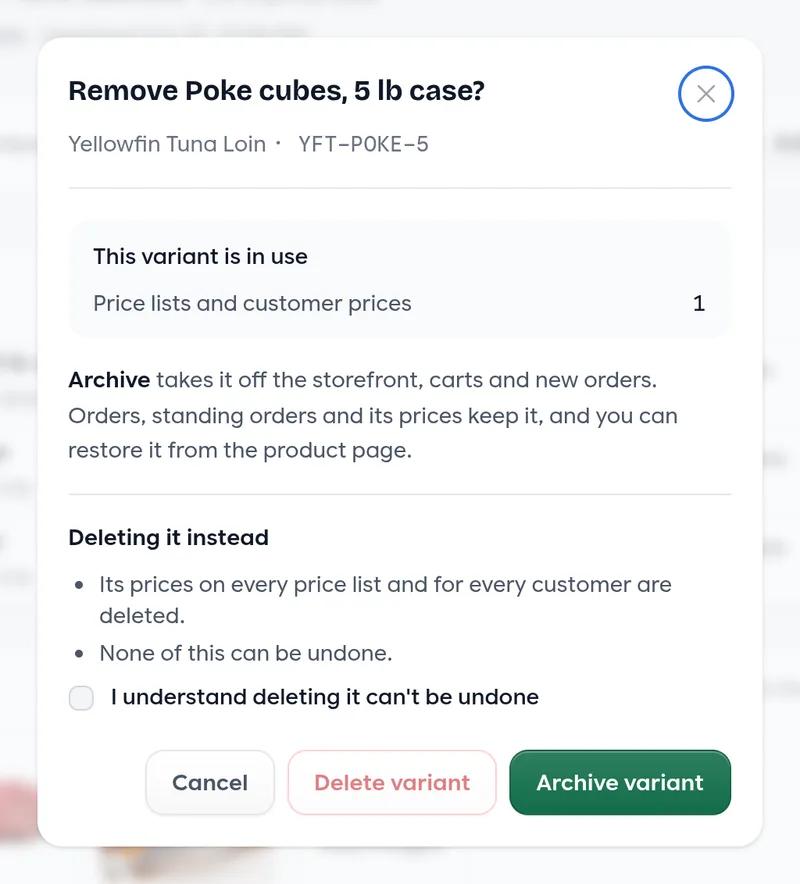
Archiving takes the variant off the storefront, carts and new orders, and frees its name for a new variant. Orders, standing orders and its prices keep it. If you sync items, QuickBooks marks the item inactive and Business Central blocks it.
Archived variants are listed under the variants table, with Restore to bring one back and Delete to remove it for good.
What Remove offers, depending on what the variant is on
Nothing uses it
Delete it for good in one click, or archive it.
It’s in use: on prices, orders, carts and more
Archive is the main button. Delete stays off until you tick “I understand deleting it can’t be undone”, after a list of what deleting removes.
A fee or discount applies to it alone
Delete is blocked. Without the variant, that fee or discount would apply to every product, so take it off first.
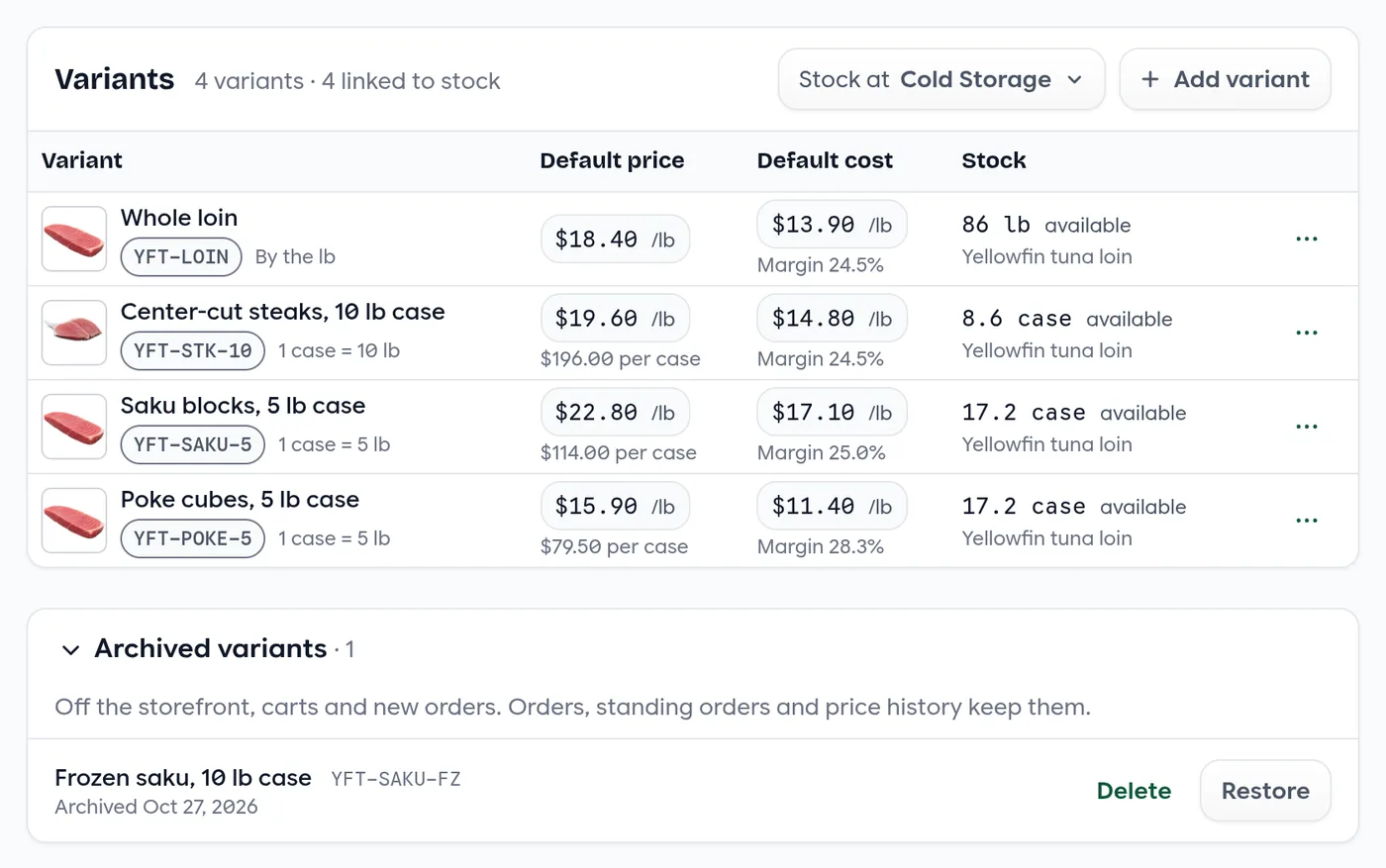
A standing order that includes an archived variant keeps ordering it until you take it off the standing order, so a regular customer isn’t surprised by a missing line.
Starting a New Product
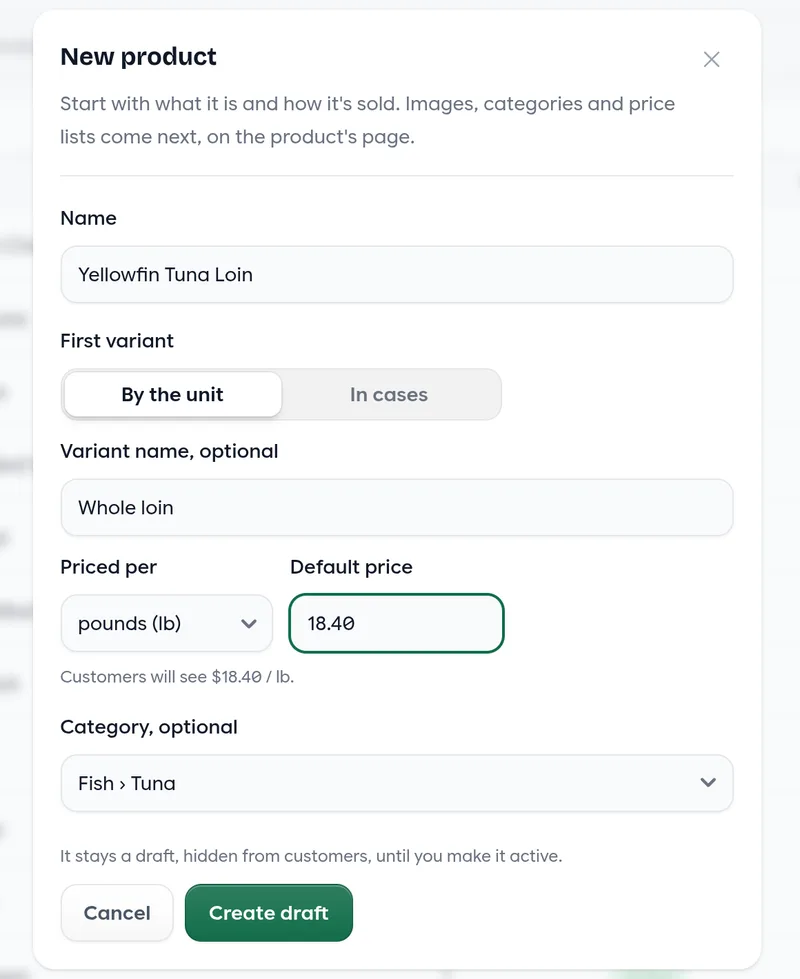
New product on the products list opens a short dialog: the name, the first variant (by the unit or in cases), its price and, if you like, a category. Create draft takes you to the product’s page.
A draft is hidden from customers. Its page lists what’s left before they can order it: name it and add how it’s sold, choose a category, price it on a price list, and add a photo. Customers only see products that a price list or customer price covers, which is why pricing is on the list.
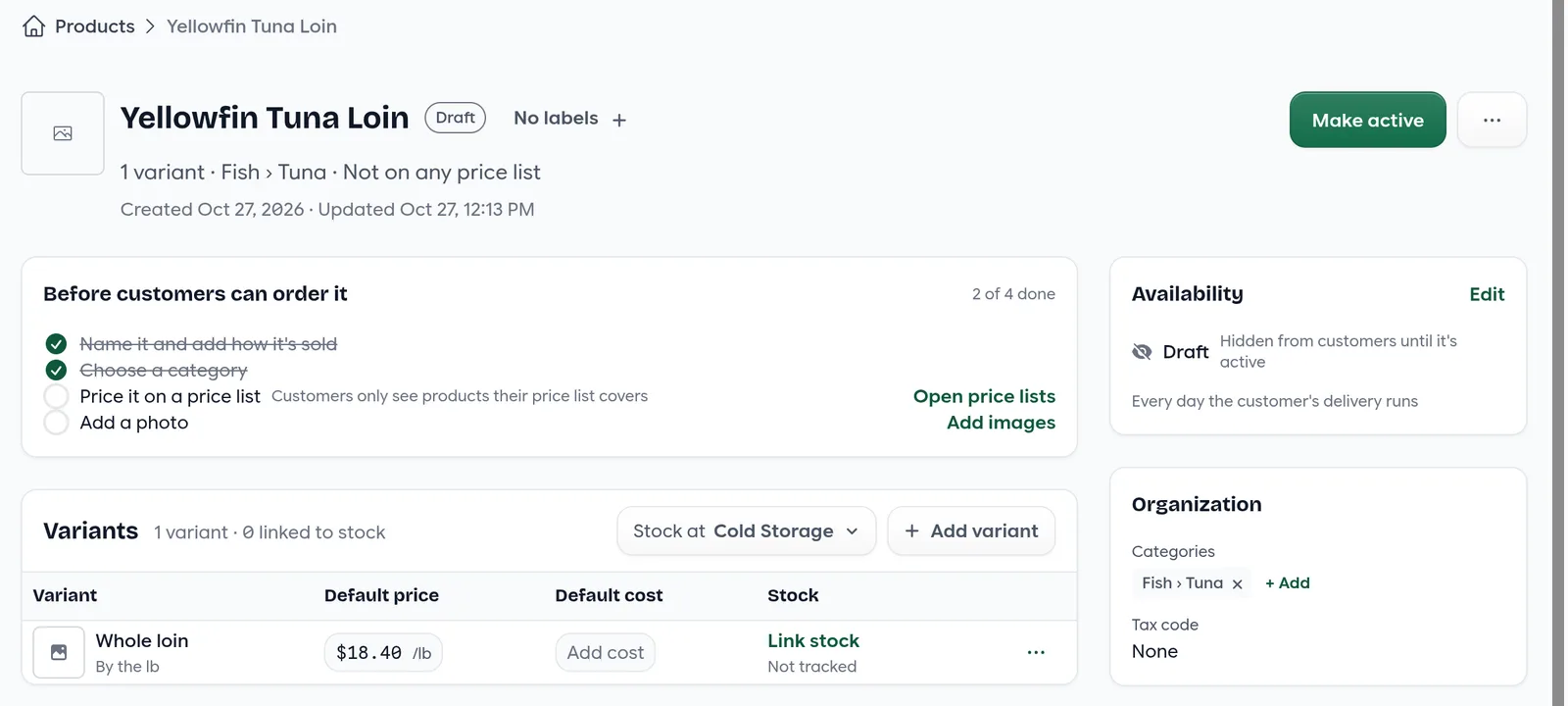
We added the checklist because, across all accounts, a third of products had no price on any list and seven in ten had no photo.
Already Better on Every Account
Some of this didn’t wait for the new page. Since October 23, on every account and on the old page too:
- New variants stay put. Adding a variant and saving again no longer deletes and re-creates it.
- Removing a variant archives it instead of deleting it, so its prices, orders and integration links are kept.
- Opening a product is about twice as fast.
- Staff with view-only access can open every product. Products with a tax code used to show them an error.
- A save that fails no longer changes the lot cost.
- Saving without changes writes nothing. Connected apps hear only about the variants that changed, and new and removed variants reach QuickBooks and Business Central as new and removed items.
- Errors reach us. When the product page hits a problem, we’re told, so we can fix it.
Quick Reference
Keyboard
| Key | Where | What it does |
|---|---|---|
| Enter | Editing a price or cost | Saves it |
| Tab | Editing a price or cost | Saves and opens the same field on the next variant |
| Shift+Tab | Editing a price or cost | Saves and opens the same field on the previous variant |
| Esc | Editing a price or cost | Cancels the change |
| Click elsewhere | Editing a price or cost | Saves it |
| Esc | In a drawer | Closes a menu if one is open, otherwise the drawer |
How It’s Sold
| Choice | What it means | Customers see |
|---|---|---|
| By the lb | Priced per lb. Customers order any amount. | $18.40 / lb |
| In cases, 1 case = 10 lb | Priced per lb and ordered in whole cases. Each case takes 10 lb of stock. | $196.00 / case, and ($19.60 / lb) with Also show the price per lb |
Archive or Delete
| Archive | Delete | |
|---|---|---|
| Storefront, carts, new orders | Hidden | Gone |
| Existing orders and invoices | Unchanged | Keep the line by name and price, unlinked |
| Standing orders | Keep ordering it until you take it off | Keep ordering it, unlinked, until you take it off |
| Price lists and customer prices | Kept | Deleted |
| QuickBooks and Business Central | Marked inactive, or blocked | Links removed |
| Undo | Restore | Not possible |
Product Status
| Status | What it means |
|---|---|
| Draft | Hidden from customers. The page shows what’s left to do, and Make active. |
| Active | Customers can order it, if a price list or customer price covers it. View on storefront opens it. |
| Archived | Hidden from customers. Restore brings it back. |
Where Things Moved
| You used to… | Now |
|---|---|
| Press Save at the bottom | Each change saves on its own |
| Change the status in the form | Make active or Restore in the header; ⋯ → Move back to draft or Archive product |
| Trash a variant, then Save | Variant ⋯ → Remove |
| Set case size and masked units | Variant drawer → How it’s sold |
| Edit lot cost on the row | The stock’s page, linked from the variant drawer |
| Edit other variant fields | Variant drawer: default quantity, lead time, barcode, custom fields |
| Pick a variant image in the row | Click the variant’s thumbnail |
| Use the category picker | Organization card → + Add |
| Read the price lists sidebar | Pricing card, with customer prices; ⋯ → Recent pricing |
| Fill in the new product form | New product dialog, then the draft’s page |
For Developers
Variants now have an archived_at. Through Workflow automation (MCP), variants_search leaves archived variants out unless you pass include_archived, and three tools follow the dialog’s rules: variants_archive, variants_restore, and variants_delete, which refuses a variant in use unless confirm_in_use is set, and always refuses one that a fee or discount targets alone.
Getting the New Page
We’re turning the new product page on account by account. If you’d like it switched on for your team, email us at [email protected].
We’d love to hear how it works for you, especially if you keep a large catalog.