Your customers, products, prices and stock rarely start in Freshline. They come from a spreadsheet: a sales rep's customer list, last season's price sheet, a count from the warehouse. Bulk imports is a new importer for all of them. It reads the file the way it was written, fixes what it safely can, checks every row against your Freshline data, and shows you anything else before a single row is saved. And when you fix something once, it remembers.
What’s New
- One importer for products, customers, orders, price rules and inventory, with the same four steps and the same history for each.
- Bring the file you have. CSV, Excel or OpenDocument, or a link to a Google Sheet. Title rows are skipped, and columns are matched by name in any language Freshline speaks.
- Every problem before anything is saved. Each row is checked against your customers, SKUs and price lists, and flagged rows wait in a spreadsheet you can edit.
- Fixes for a whole group at once: match “NET 30” to 30 on every row, pick the date order, fill in blanks, find and replace.
- A preview of every change, field by field, before you press Import.
- It learns your spreadsheets. Fixes you remember and the way you mapped the columns are applied to the next file on their own.
How It Works
Every import goes through the same four steps, whatever it holds. Each step does as much as it can on its own, then hands you only what needs a decision.
Every import, four steps
- 1
Upload
You
A CSV, Excel or OpenDocument file, or a link to a Google Sheet. Freshline finds the header row and skips any title rows above it.
- 2
Map columns
Freshline, then you
Each column is matched to a Freshline field by name, in any language Freshline speaks, or by the mapping you used last time. You confirm or change each one.
- 3
Review
Freshline, then you
Every row is checked against your Freshline data. Safe fixes are made for you; anything else is flagged in a spreadsheet, grouped by problem, with a fix for each group.
- 4
Import
Freshline
A preview shows what will be created, updated, left alone and skipped. The import then runs in the background, one row at a time.
An import is saved as you go. If you close the tab during review, it's waiting under Imports when you come back, with your mapping and fixes in place.
Starting an Import
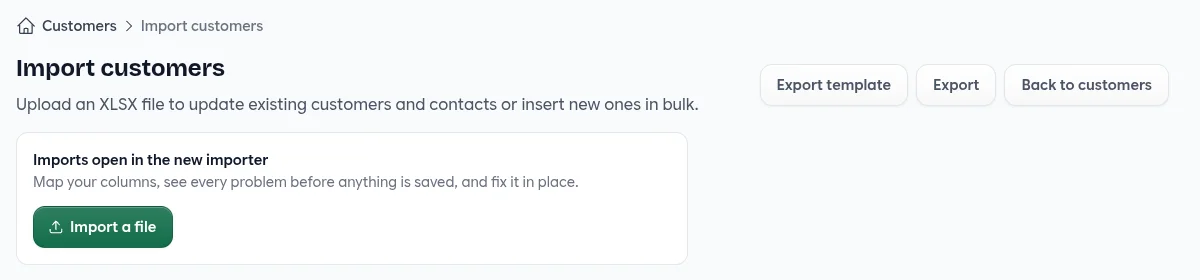
Imports live under Settings → Imports, and the import buttons on the products, customers, inventory, price list and order import pages lead there too. Choose New import and the kind of data in your file.
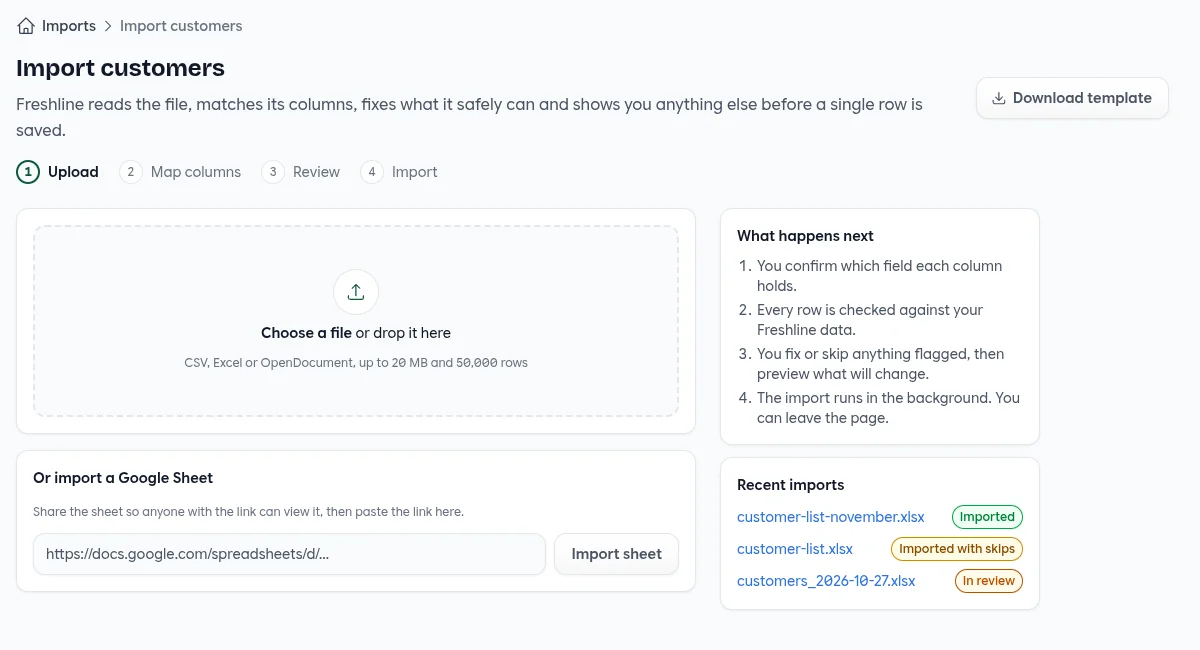
- Files: CSV, Excel (.xlsx and .xls) and OpenDocument (.ods), up to 20 MB, 50,000 rows and 10 sheets. Hidden and empty sheets are ignored, and a CSV's encoding and separator are worked out for you.
- Google Sheets: share the sheet so anyone with the link can view it, then paste the link. When the import is done, Import again from the sheet picks up the latest version.
- Templates: Download template gives you a workbook with a sheet for each part of the import, headed with every field it accepts. The exports you already use work too, since each import accepts the same columns as its export.
Matching Columns
Freshline reads the file in the background, finds the header row in the first ten rows, and matches each column to a field. Matched by says how it decided, and you can change any of them.
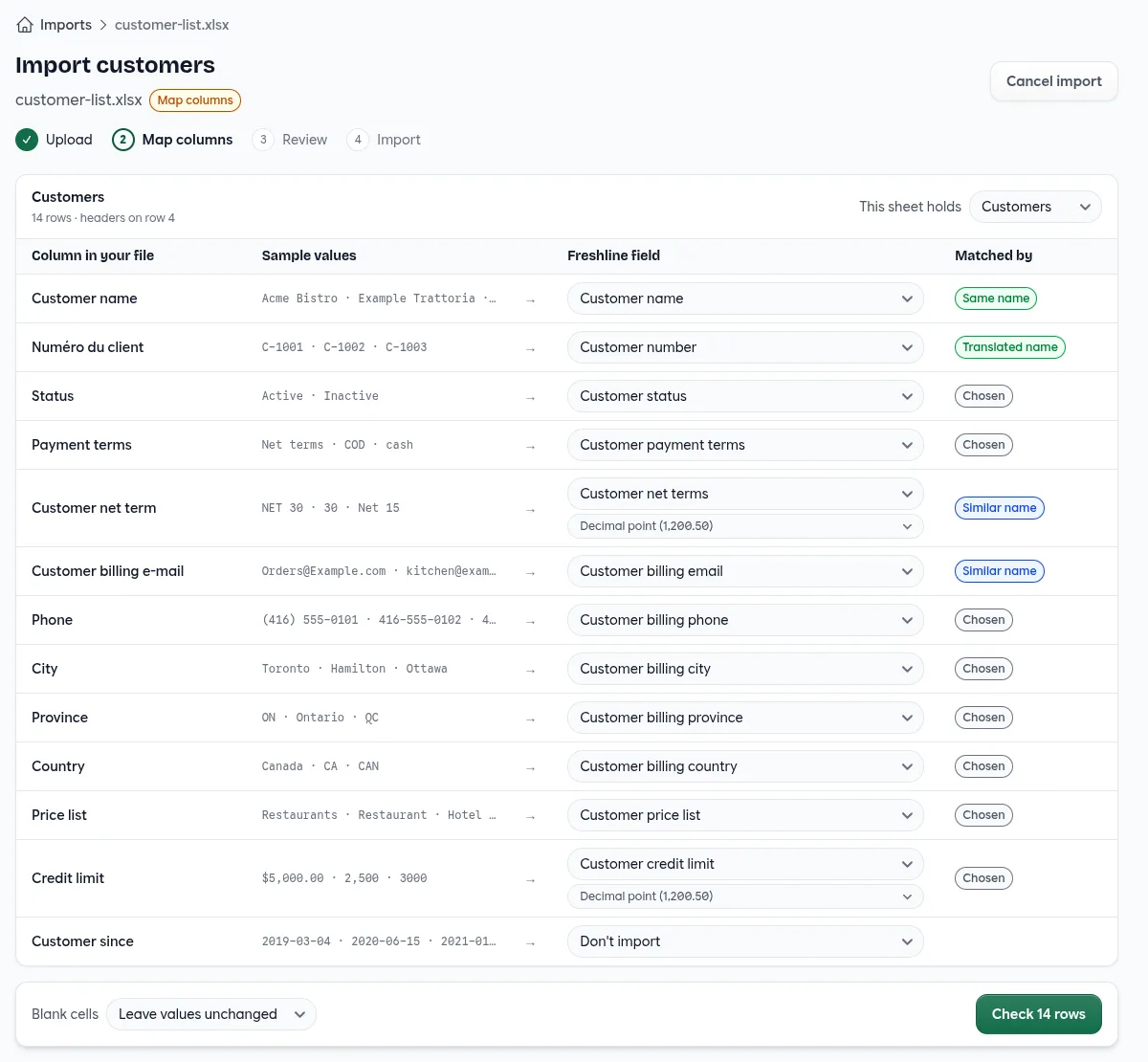
| Matched by | What it means |
|---|---|
| Same name | The header is the field's name, ignoring case, accents, punctuation and spacing. |
| Translated name | The header is the field's name in another Freshline language: English, French, Spanish, Japanese, Korean, Vietnamese or Chinese. |
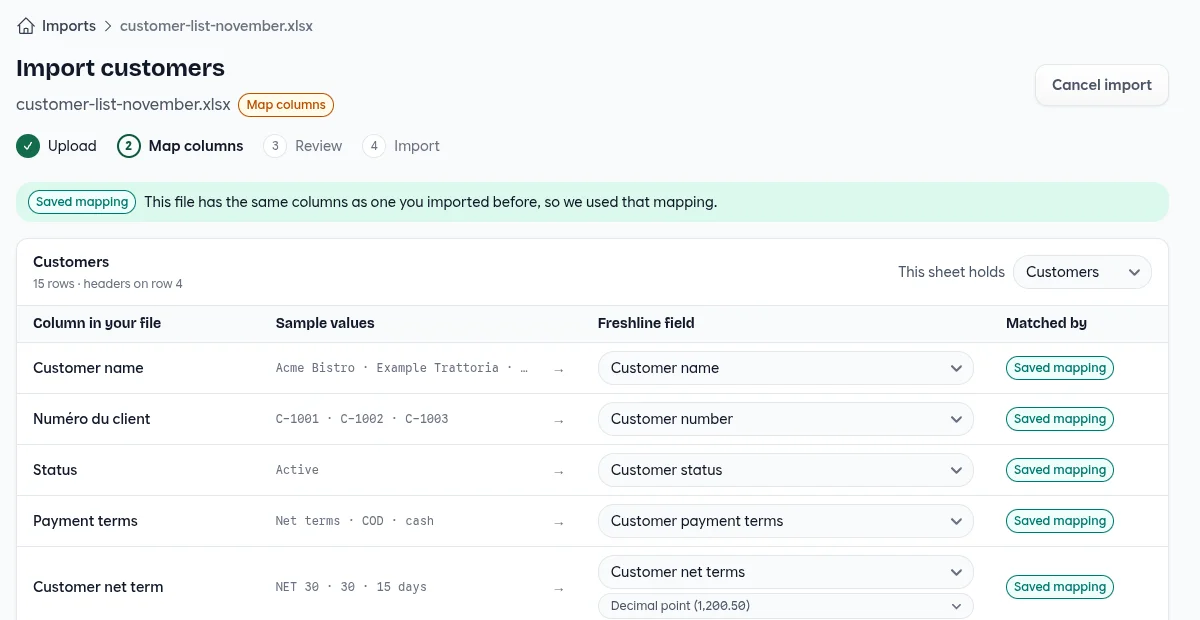
| Similar name | A close spelling, such as “Customer net term” for Customer net terms. |
| Saved mapping | You've imported a file with these same columns before, so last time's choices were used. |
| Chosen | You picked the field yourself. |
| New column | Nothing matched. Pick a field, or leave it as Don't import. |
Each field can be used once. Columns you don't need can stay on Don't import, and a sheet that doesn't belong can be set to Don't import under This sheet holds.
Dates, Numbers and Blank Cells
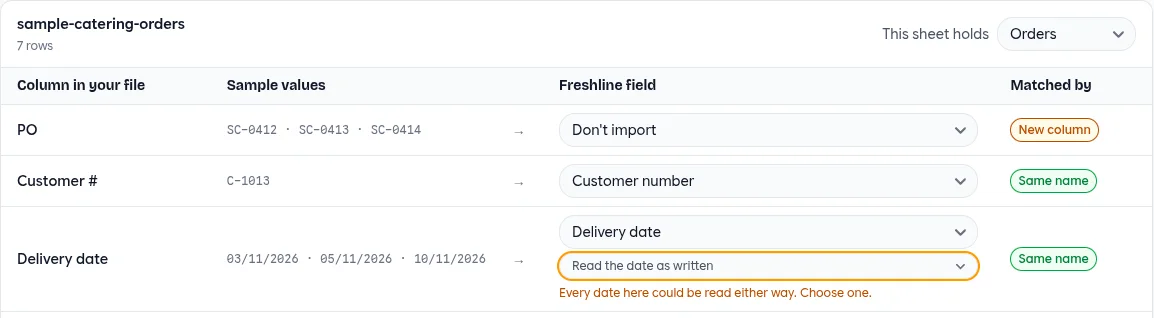
A date column can be read as written, day first or month first. When every date in it could go either way, like 03/11/2026, the choice is outlined until you make it. Number columns use a decimal point or a decimal comma; Freshline guesses from the values, and you can change it.
Blank cells leave the current value unchanged unless you choose Clear the value, so a half-filled spreadsheet never wipes data by accident.
When the mapping looks right, Check rows moves on to review.
Reviewing and Fixing
Every row is checked before anything is written, against the file and against your Freshline data.
Four layers of checks, before anything is saved
- 1
Each cell
Is it a number, a date, an email, one of the allowed options? Is it too long or below zero?
- “abc” isn't a number.
- “13/13/2026” isn't a date we can read.
- The cell holds the spreadsheet error #REF!.
- 2
Each row, and the file
Fields a new record needs, values that would be cleared, and the same record appearing twice.
- Product name is needed to create a new record.
- Row 4 has the same Product ID.
- 3
Your Freshline data
Customers, SKUs, price lists, sales reps and tax codes are looked up, one query per column.
- Nothing matches “Restaurant”.
- “Acme” matches more than one record.
- 4
What the import will do
Whether each row creates or updates a record, what it changes, and whether Freshline would accept it.
- Matched to the existing record named “Acme Bistro”.
- Freshline couldn't save this row: …
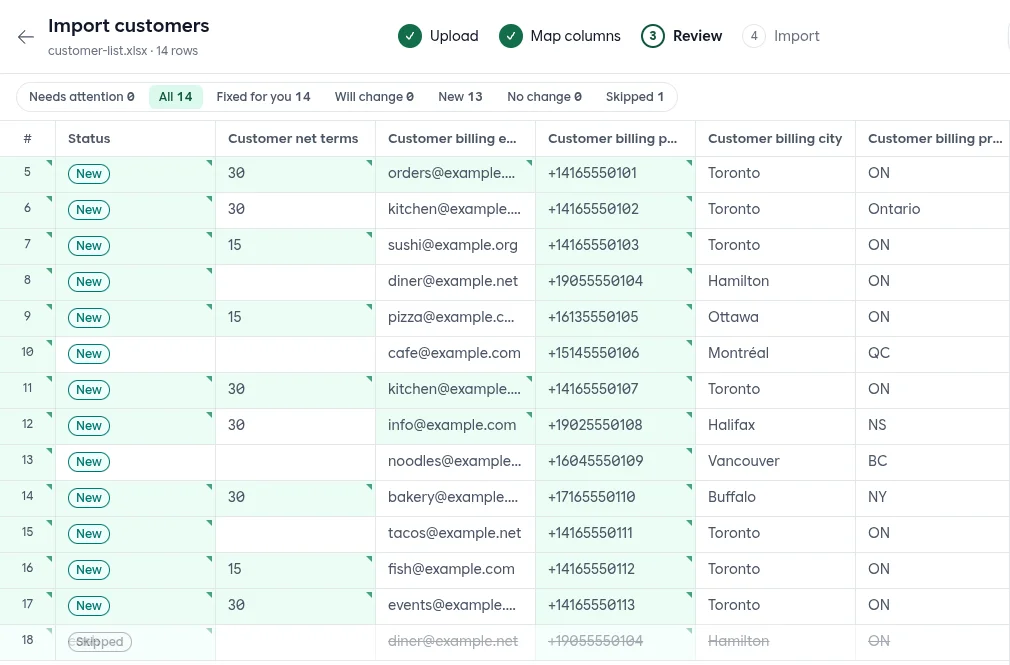
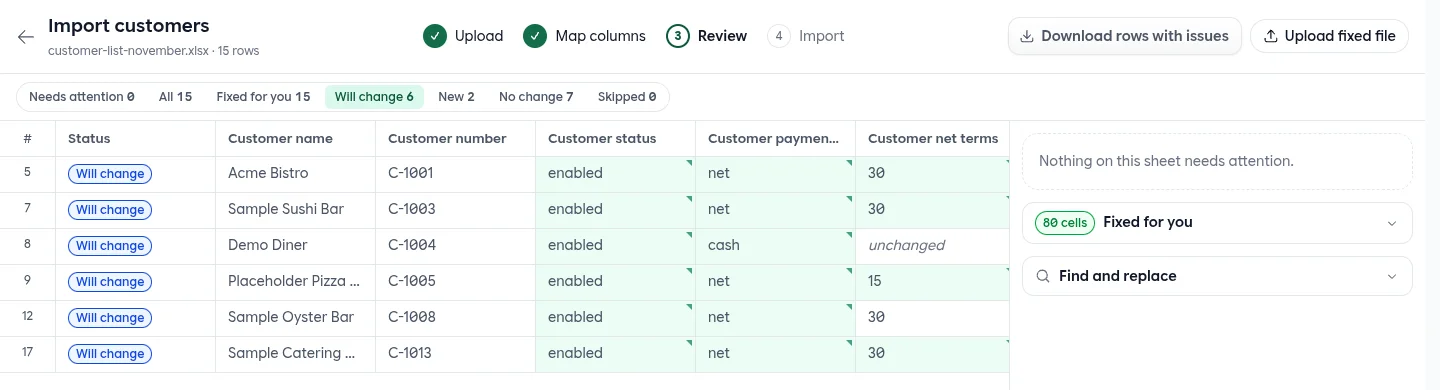
The results open in a spreadsheet, on the rows that need attention. Problems are grouped on the right, so a mistake repeated on fifty rows is one card, not fifty.
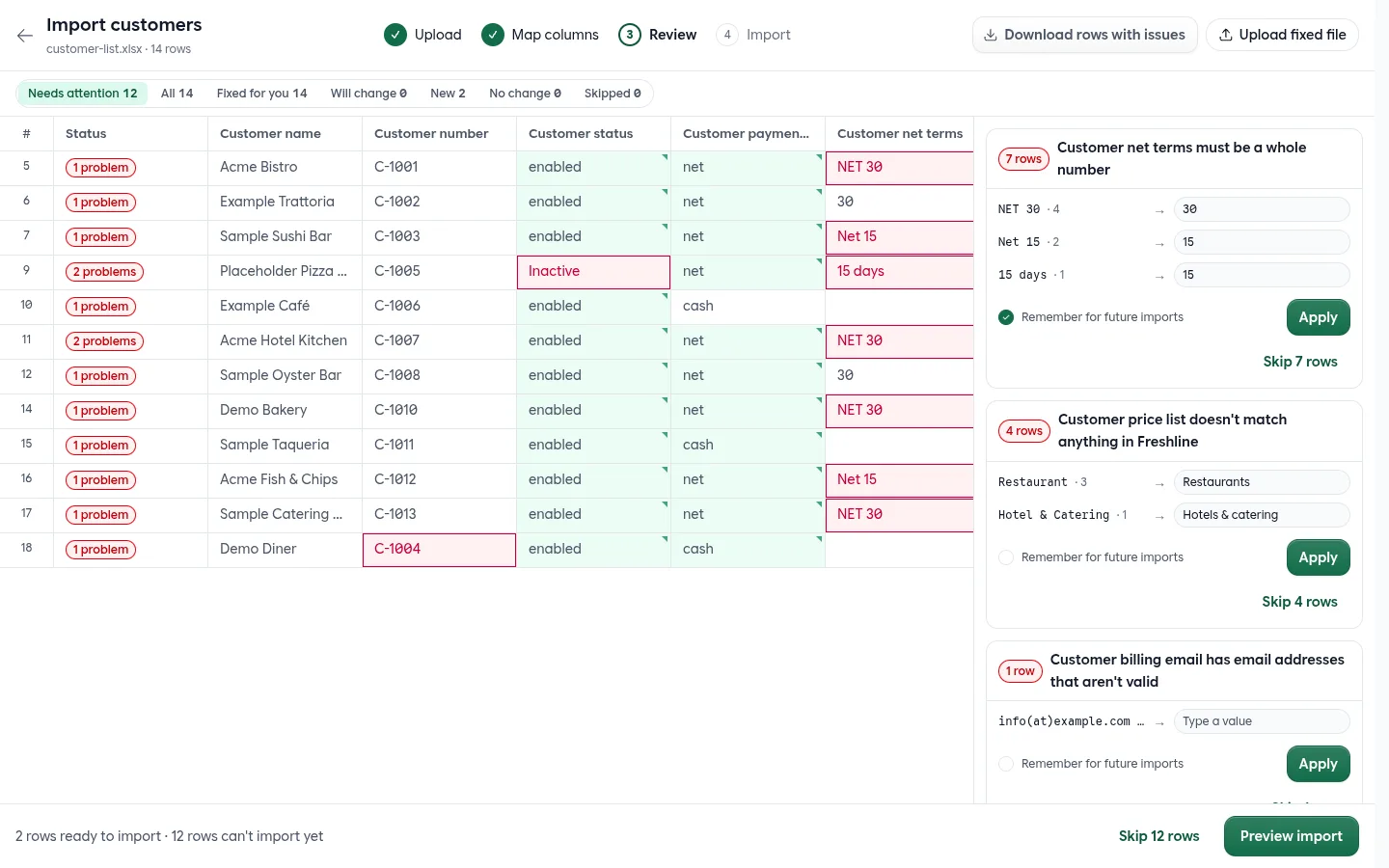
- 1Filters. Needs attention, All, Fixed for you, Will change, New, No change and Skipped, each with a count.
- 2Your row numbers. Rows keep their numbers from the file, so you can find them in your spreadsheet.
- 3Row status. How many problems a row has, or whether it's new, will change or has nothing to change.
- 4Fixed for you. Green cells were cleaned up. Hover one to see what the file had.
- 5Problems. Red cells can't import yet. Hover for the reason, or click to edit the cell.
- 6One card per problem. Every row with the same problem, the values involved, and a fix for all of them.
- 7Remember for future imports. Keep the fix as a rule, so the next file is fixed on its own.
- 8Fix it in Excel. Download the rows with issues, fix them in your spreadsheet, and upload the file again.
- 9Ready and not ready. How many rows will import. Skip the rest, or carry on to the preview.
How cells are marked in review
Error
The row can't import until this is fixed or the row is skipped. Hover for the reason.
Warning
The row will import, but check it, such as a record matched by its name.
Fixed for you
Freshline cleaned the value. Hover to see what the file had, here “Canada”.
Unchanged
The cell was blank, so the current value stays.
Skipped
You skipped the row. Bring skipped rows back at any time before importing.
Fixes That Apply to Every Row
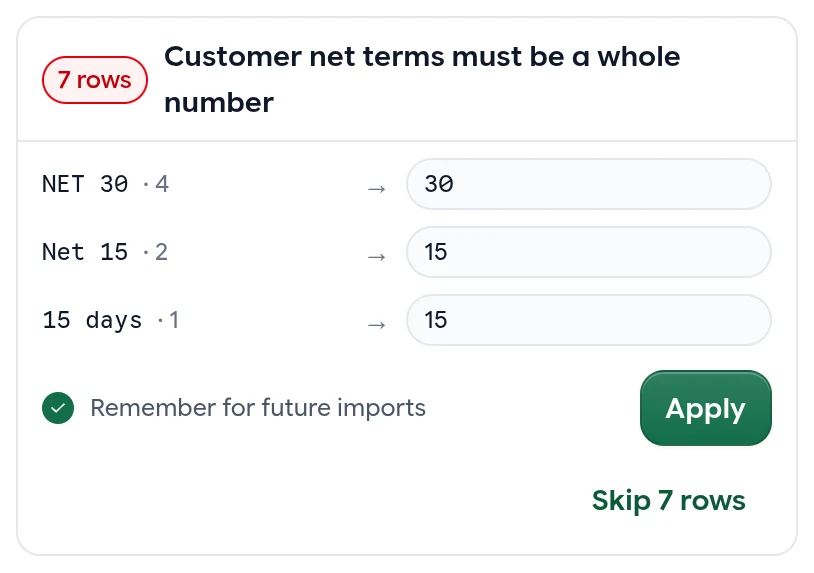
Each card offers the fix that suits its problem. Apply fixes every row in the group, and the rows are checked again right away.
- Match values for anything that isn't an option or doesn't match a record. When something close exists, it's filled in for you, like Restaurant → Restaurants.
- Day first or Month first for dates that read both ways.
- A value to fill blank required fields, on rows that create records.
- Leave the current values or Clear them when a blank cell would erase something.
- Skip the rows, and deal with them another time.
You can also click any cell and type, or use Find and replace on a column. Fixes made during an import are listed with an Undo, so trying one costs nothing.
What Freshline Fixes by Itself
Some fixes don't need you. They're made before review and counted under Fixed for you, so nothing changes without you being able to see it.
Fixed for you, before you look
- Spacing␣Acme Bistro␣␣Acme Bistro
- Numbers$5,000.005000.00
- Decimal comma1 200,501200.50
- Money12.49912.50
- Dates46329Nov 3, 2026
- Month names1er janvier 2027Jan 1, 2027
- CountriesUnited StatesUS
- Email[email protected][email protected]
- Phone(416) 555-0101+14165550101
- Unitslbspound
- Yes and noouiYes
- IDs01M5ZK…buyr_01M5ZK…
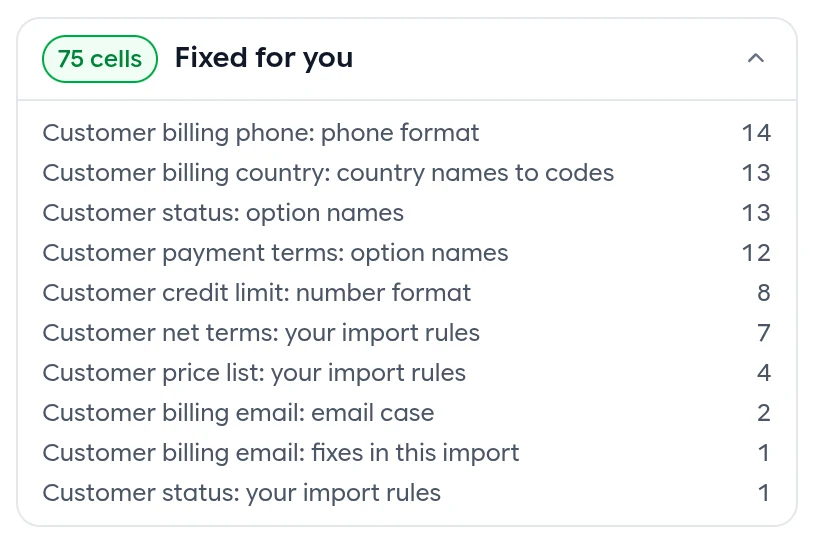
The Fixed for you card lists every fix by column: how many cells, and what kind of fix it was, including the ones your own import rules made.
The Fixed for you filter shows the rows it touched, and each cell still shows what the file had when you hover it.
Fixing It in Your Spreadsheet
Some things are easier to fix in Excel. Download rows with issues gives you a workbook of the rows that need attention, with their original columns, a Row column and an Issues column, and the problem cells highlighted. Fix them, then Upload fixed file: rows are matched by their row number and each changed cell is applied as an edit.
Previewing and Importing
Preview import shows what the import will do: how many records will be updated, created, left unchanged and skipped, and for updates, every field that changes with an example.
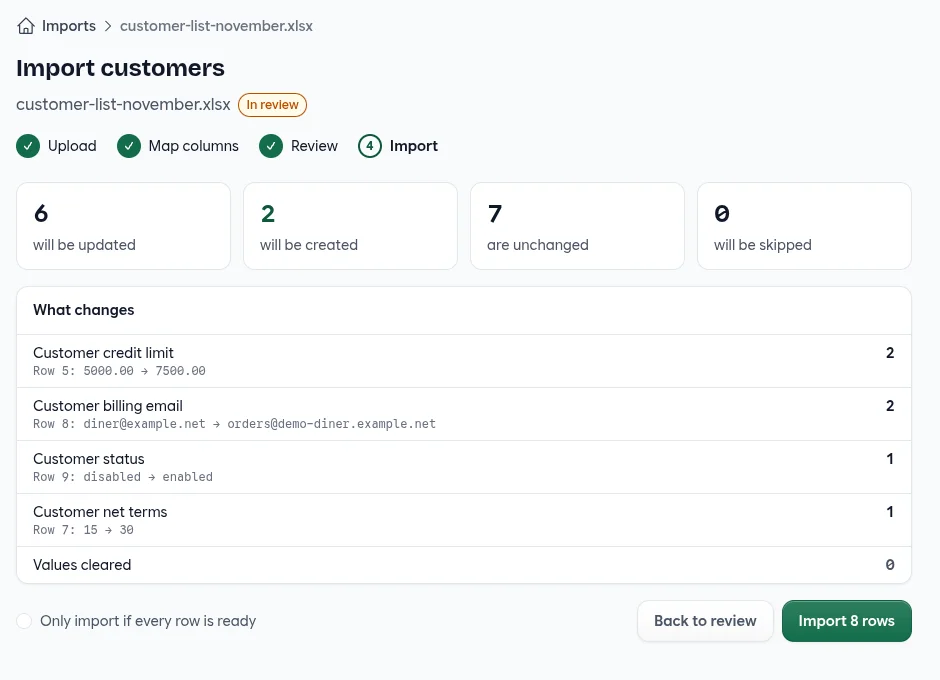
- Values cleared counts any value the import would erase, and turns red when there are some.
- Tick Only import if every row is ready when the file has to go in whole, or import the rows that are ready and deal with the rest later.
- Import runs in the background. You can leave the page; the import keeps going, and its status on the Imports page changes when it's done.
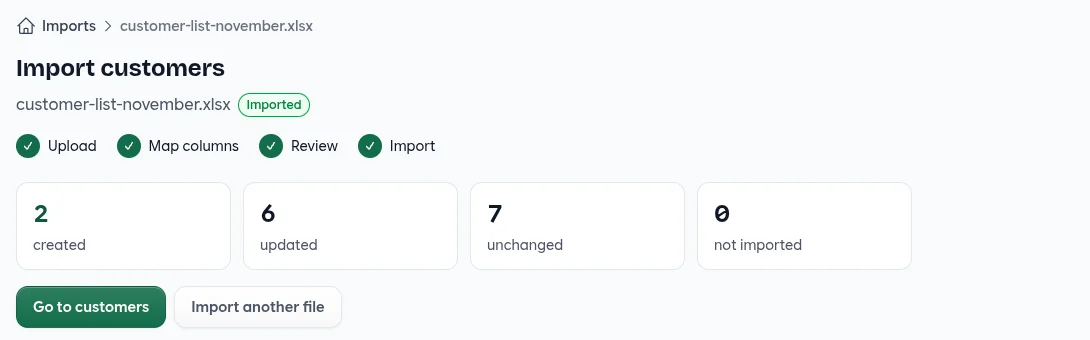
A few things are true of every import:
- Each row is saved on its own. A row that fails changes nothing, and the rows around it still import. Rows that belong together, like the lines of one order, are saved together or not at all.
- Unchanged rows aren't touched, so re-importing last week's file doesn't rewrite records that haven't changed.
- Imports run one at a time for each account, so two imports never write over each other.
- Every change is recorded as part of the import, by the person who ran it. The customers, products and price rules it touched show it in their activity.
- Files are deleted after 30 days. The import stays in your history with its counts.
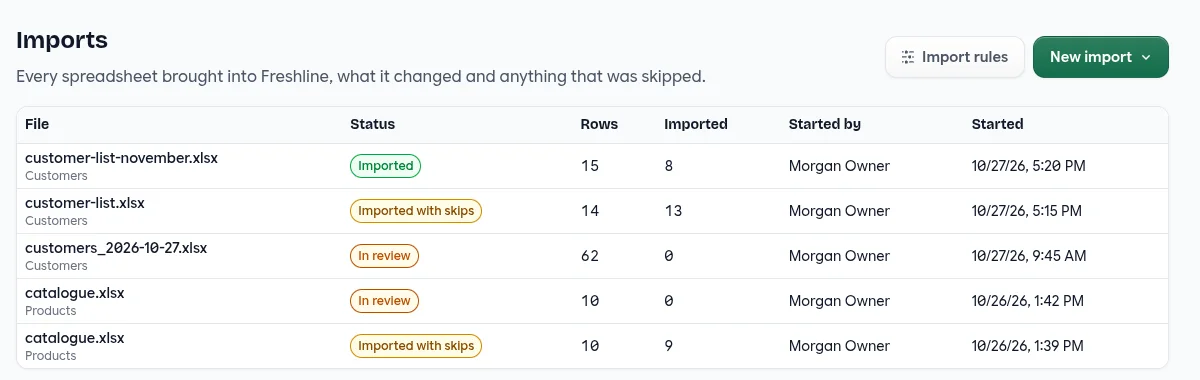
Fix It Once
Most spreadsheets come back. The same customer list every month, the same price sheet every season, the same export from the same system. Bulk imports remembers two things so the second file is easier than the first.
Fix it once
The first file
- “NET 30” isn't a whole number, on 4 rows.
- You match NET 30 → 30 and tick Remember for future imports.
- You pick the field for each column the file names its own way.
Every file after
- Same columns: the saved mapping is used, so there's nothing to match.
- NET 30 becomes 30 on its own, under Fixed for you.
- You review only what's actually new.
Saved mappings. When you confirm a mapping, it's saved against the file's columns. The next file with the same columns, in any order, is mapped the same way.
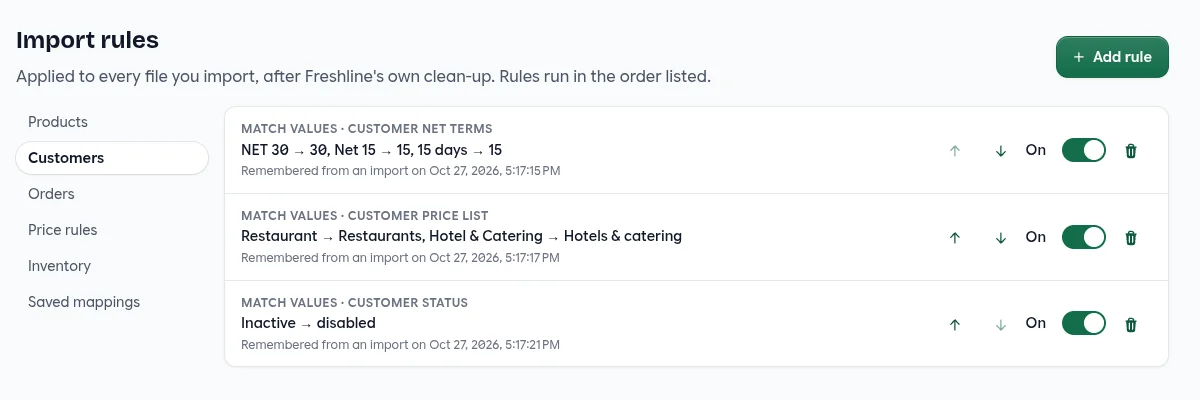
Import rules. Tick Remember for future imports on a fix and it becomes a rule. Rules run on every file of that type, after Freshline's own clean-up, so in the next file “NET 30” is 30 before you see it.
Rules are listed under Settings → Imports → Import rules, one tab per import type. Turn one off, move it up or down, delete it, or add one there with Add rule. Saved mappings lists your mappings, and Forget removes one.
Quick Reference
What You Can Import
| Import | Sheets | Notes |
|---|---|---|
| Products | Products, Variants, Categories | New categories are created as needed. Products match by ID, then by exact name. |
| Customers | Customers, Locations, Contacts, Price rules | Customers match by ID, then customer number, then exact name. Sales reps match by email or name. |
| Orders | Orders, one row per line | Lines are grouped into orders by external ID, or by customer, delivery date and order number. Orders are staged for review on the Orders import page. |
| Price rules | Price rules | For a price list or a customer. A row that names neither uses the price list its sheet is named after. |
| Inventory | Lot | Add lots, update stock and lots, or create new stock. For stores that track inventory. |
Custom fields import alongside the built-in ones for products, variants, customers, locations, contacts and price rules, under the same headers as your exports. Linked records, like a customer's price list or an order line's SKU, are found by ID first, then by number, email, SKU or name. When nothing matches, the closest name is suggested if it's close enough, 90% alike to start.
Fixes
| Fix | When it's offered |
|---|---|
| Match values | A value isn't one of the options, or doesn't match a customer, SKU, price list or other record. |
| Day first or Month first | Dates in a column could be read either way. |
| Fill rows | A field a new record needs is blank. |
| Leave the current values or Clear them | Blank cells would erase existing values. |
| Find and replace | Any column, any time. Not case-sensitive. |
| Skip rows | Any problem. Skipped rows can be brought back until you import. |
Import Rules
| Rule | What it does |
|---|---|
| Match values | Turns one value into another in a column, like NET 30 → 30. |
| Dates | Reads dates that could go either way as day first or month first. |
| Numbers | Reads numbers with a decimal comma or a decimal point. |
| Default when blank | Fills blank cells in a column, for new records only or for all. |
| Clean up | Removes or replaces text, or changes the case of a column. |
| Blank cells | Makes a blank cell clear the value instead of leaving it. |
| Matching | How close a name must be to be suggested, from 50% to 100%. 90% to start. |
Import Status
| Status | What it means |
|---|---|
| Reading file | Freshline is opening the file. |
| Map columns | Waiting for you to confirm the columns. |
| Checking | Every row is being checked. |
| In review | Waiting for you to fix, skip and preview. |
| Importing | Rows are being saved. You can leave the page. |
| Imported | Every row was imported or had nothing to change. |
| Imported with skips | Some rows were skipped or couldn't be saved. Download them from the import. |
| Couldn't read file | The file was damaged, too big or not a spreadsheet. |
| Cancelled | Stopped before anything was saved. |
| Expired | Older than 30 days. The file and its rows are gone; the import stays in your history. |
Limits
| Limit | Value |
|---|---|
| File size | 20 MB |
| Rows | 50,000 across all sheets |
| Sheets | 10, not counting hidden or empty ones |
| Formats | CSV, XLSX, XLS, ODS, or a Google Sheets link |
| Kept for | 30 days, then the file and rows are deleted |
Who Can Import What
Each import follows the permission of the page it replaces. Staff who can edit products can import products, staff who can bulk-update customers can import customers, and the same goes for order imports, price lists and inventory. Import rules and saved mappings need access to settings.
Getting the New Importer
We're turning the new importer on account by account, one import type at a time. Once it's on, the import pages you use today point to it.
If you'd like it for your team, or you have a file that's given you trouble before, email us at [email protected]. We'd like to see it.