The order page is where your team spends most of its day, so we rebuilt it around one idea: the page you read an order on is the page you change it on. Click a quantity, type, press Enter. That line saves, and nothing else on the order is touched.
What’s New
- Edit in place. Quantities and prices change right on the line. There’s no separate edit screen to open, scroll and save.
- Each change saves on its own. Saving one line only touches that line, its stock and the order totals. Big orders save as fast as small ones.
- Drawers for each part of the order. The line, the customer, the delivery, fees and discounts, and payments each open their own drawer, with a preview of what a change will do before you save it.
- A pick mode for the warehouse. The same order, set up for picking: shelf order, picked amounts, shorts called out, prices hidden.
- Proof of delivery. Photos and a signature, captured on the order.
- New orders start on the order page. Choose the customer and you’re building the order right away. Nothing goes out until you place it.
- It works on a phone. The side cards fold into short summaries, so the page is usable on the go.
Why We Rebuilt It
On the old page, changing anything meant opening a separate edit form that held every line on the order. Change one quantity, press save, and the whole order was written again: every line re-saved, stock rechecked for every line, everything recalculated. On a typical five-line order you’d never notice. On a large one, you waited.
In early October we measured what that cost in production. Saving a 254-line order took 26 seconds, even when nothing on it had changed. Two saves on large orders ran past the 60-second limit and were lost. Every keystroke in the form was also checked with the server, and on big orders each one took between one and three seconds.
Saving a 254-line order
26 s
on the old edit form, even with nothing changed
Saves that gave up
60 s
two large saves hit the time limit and were lost
One keystroke on a big order
1–3 s
every key was checked with the server before you could save
The fix wasn’t to make the big save faster. It was to stop doing it: when you change one thing, only that thing should be written.
What changing one quantity touches
Old edit form
New order page
Faster Where It Counted
Most orders are small (half of all orders have two lines or fewer), and everyday saves on them were already quick, about a quarter of a second, and still are. The difference shows up on big orders and on the slowest saves, which is where people were actually waiting.
How long saving a change took, in production
Seconds from pressing save to the change being stored, measured on our servers.
Typical save
median
1 in 20 saves
95th percentile
1 in 100 saves
99th percentile
Show the numbers
| Save | Old edit form | New order page |
|---|---|---|
| Typical save (median) | 0.25 s | 0.27 s |
| 1 in 20 saves (95th percentile) | 3.2 s | 0.68 s |
| 1 in 100 saves (99th percentile) | 10.1 s | 1.1 s |
On the old form, 1 save in 20 took more than 3 seconds and 1 in 100 took more than 10. On the new page, 19 out of 20 quantity saves finish within 0.7 seconds.
Changing one quantity on a 341-line order
1.1 s
down from 26 s for a 254-line order on the old form
Database work for that change
150
queries, down from 2,644, and it no longer grows with order size
Order pages taking over 2 seconds to open
0
in the last two weeks, down from more than a dozen in late September and early October
Opening an order got faster too: the slowest 5% of page loads went from 454 to 224 milliseconds. That part came from performance work we shipped to every account in early October, on the old page as well as the new one.
A Tour of the Page
Everything about an order lives on one page: the items on the left, and a card for each part of the order on the right.
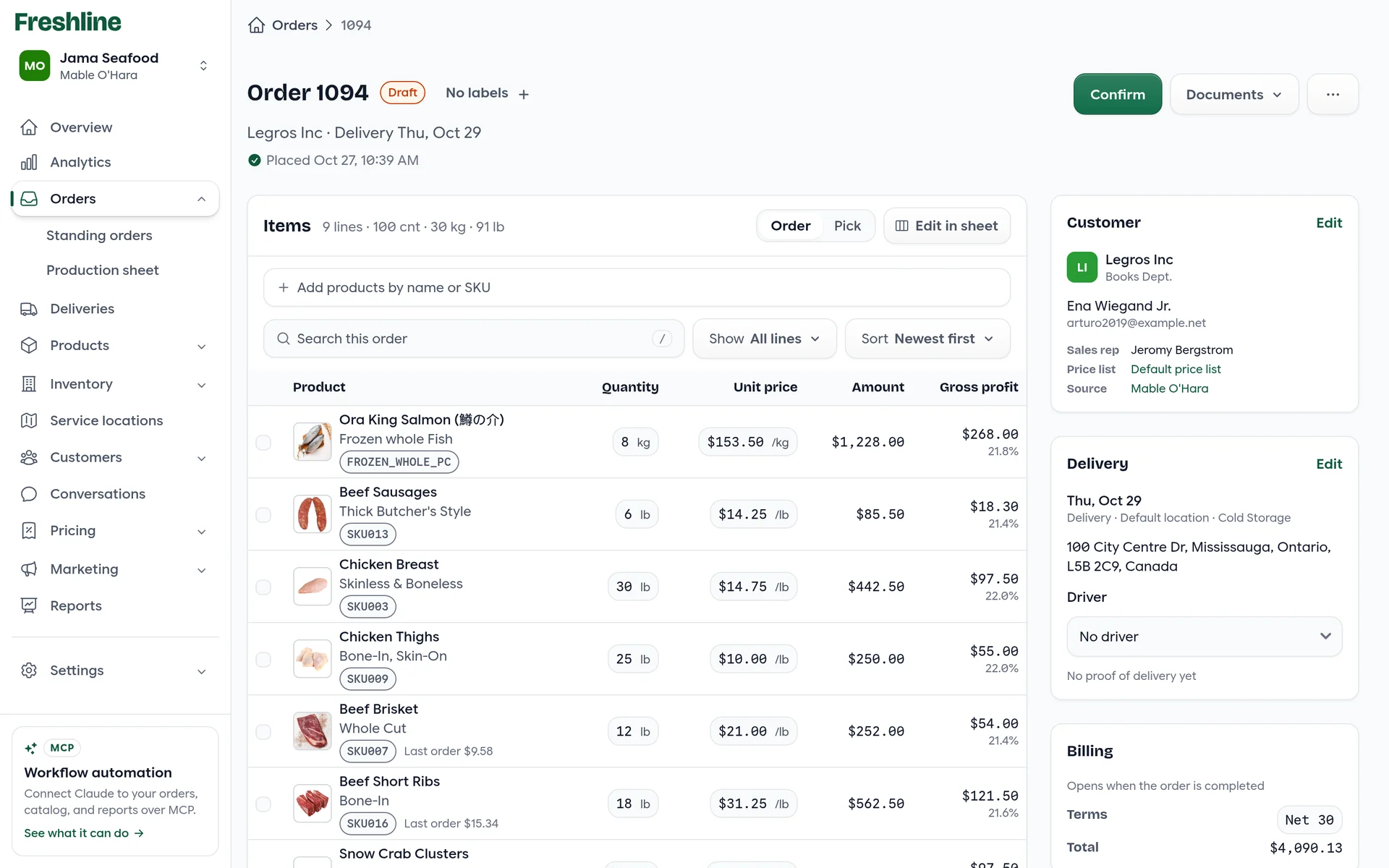
- 1Next step. The one green button is always the next thing to do: Place order, Confirm or Complete. Documents and more actions sit beside it.
- 2Order or Pick. The same items, shown for the office or for the warehouse.
- 3Add products. Search by name or SKU, with photos, prices and stock in the results.
- 4Find a line. Search, filter and sort a long order. Show “Needs attention” to see shorts and backorders.
- 5Edit in place. Click a quantity or price to change it. Click the product name to open the line drawer.
- 6Cards with drawers. Customer, Delivery and Billing each have an Edit that opens a drawer for just that part. Notes and files sit below them.
Adding Products
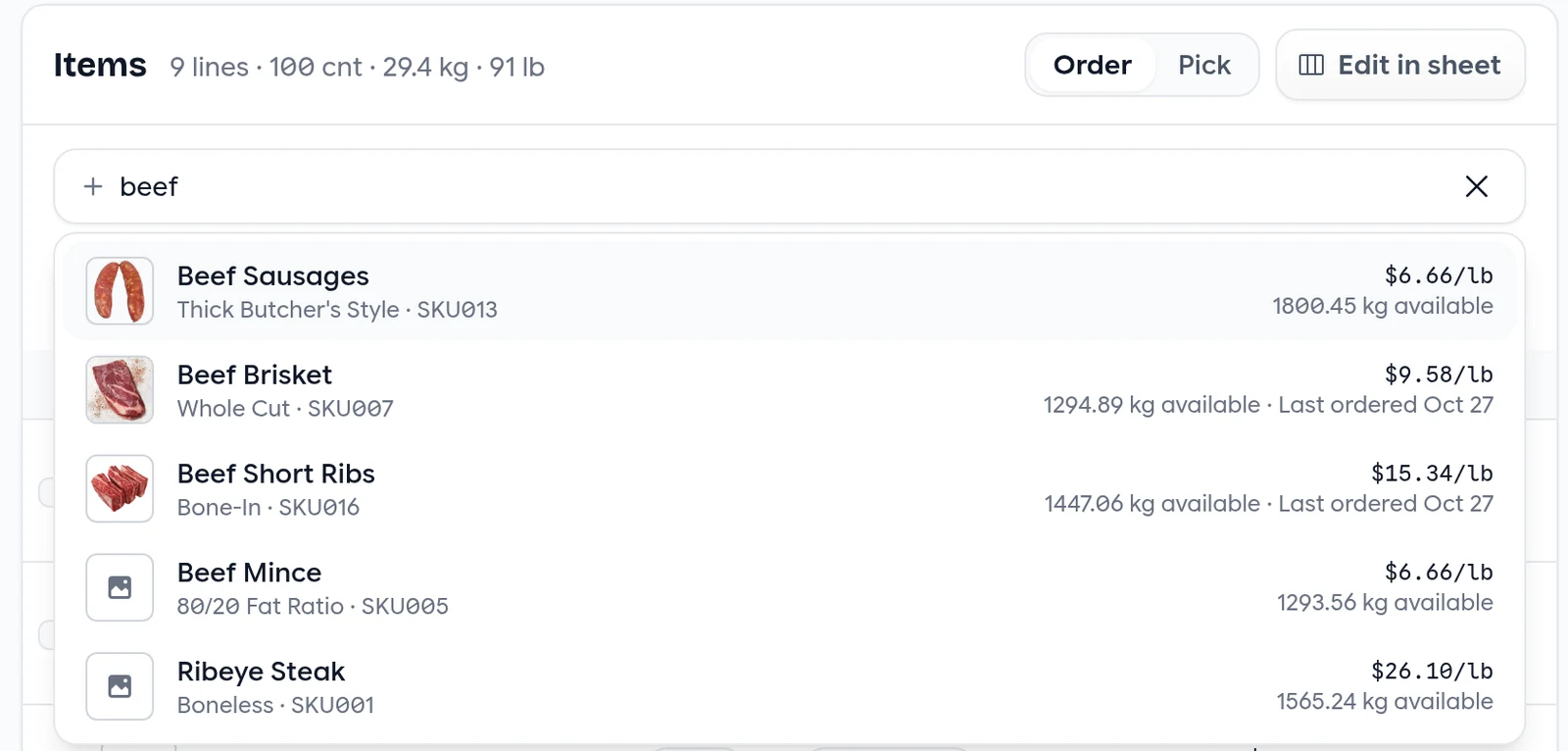
Start typing in Add products by name or SKU. Results show the product photo, your customer’s price, what’s in stock and when they last ordered it. Press Enter to add the top result, or use the arrow keys to pick another. The quantity opens straight away, ready for you to type. When you click into the empty box, your customer’s recent and frequent products appear under it as one-click suggestions.
Changing a Line
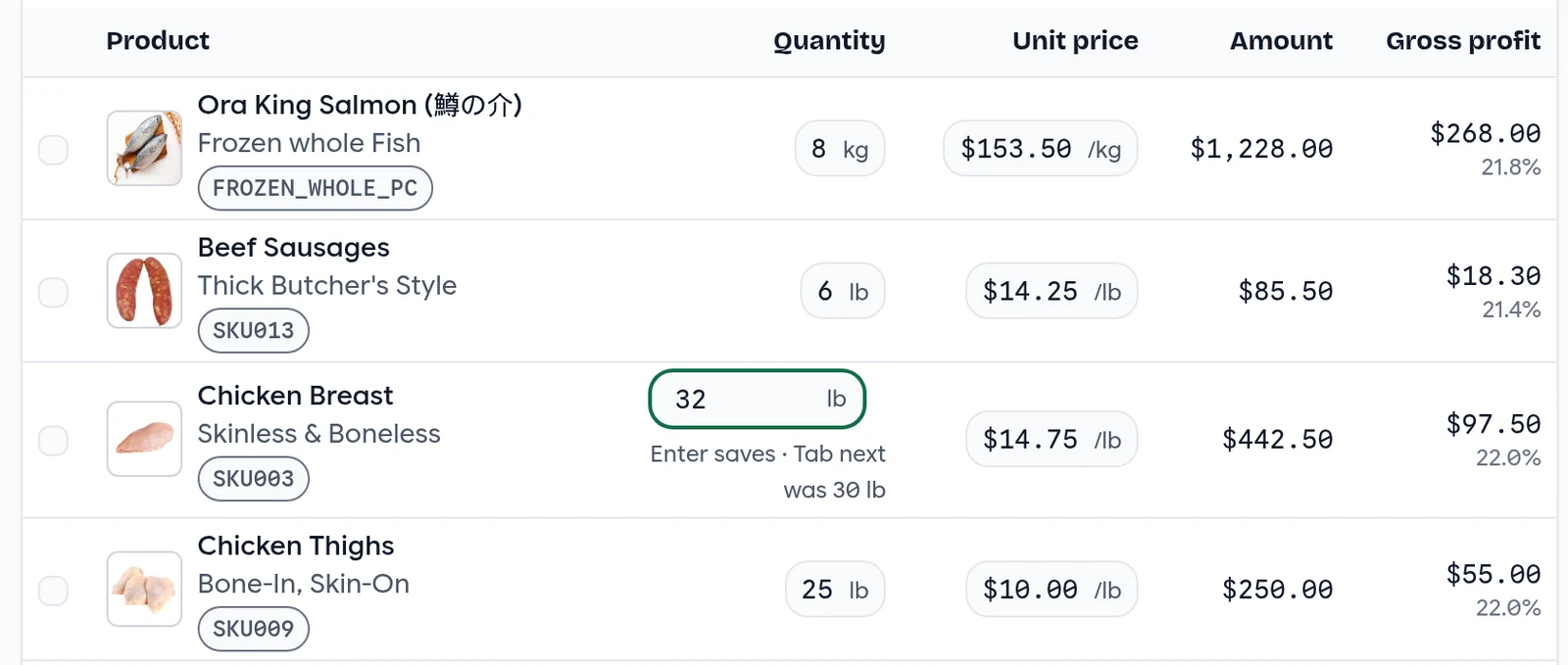
Click a quantity or price to edit it right on the line. Enter saves, Tab saves and moves to the next field, and Esc cancels. The box shows what the value was, so you can see what you’re changing.
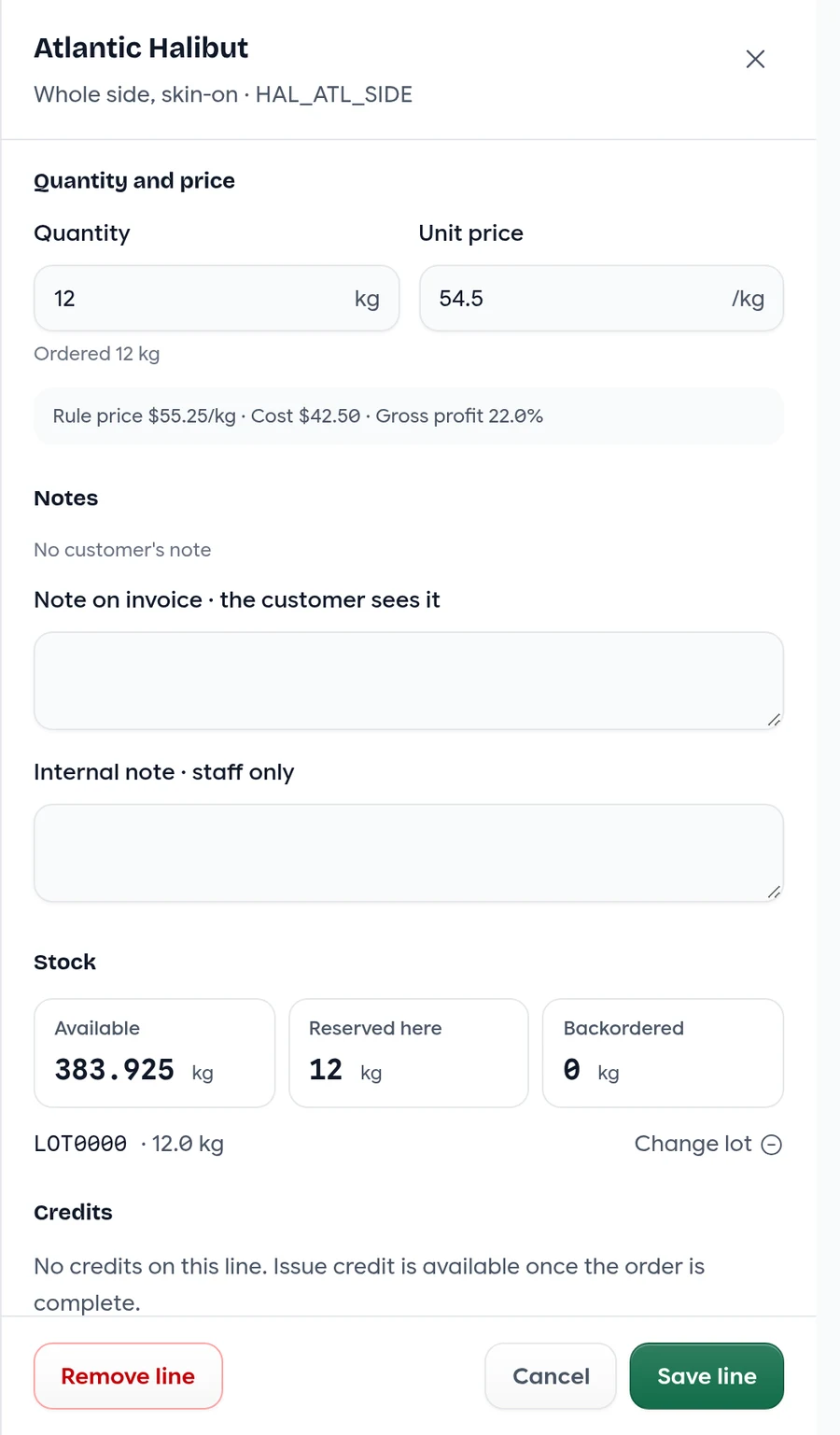
For everything else about a line, click the product name to open the line drawer. It has the quantity and price with the price-list price, cost and margin beside them, notes for the customer and notes for your team, the stock and lot it’s reserved from, and credits.
Customer, Delivery and Billing
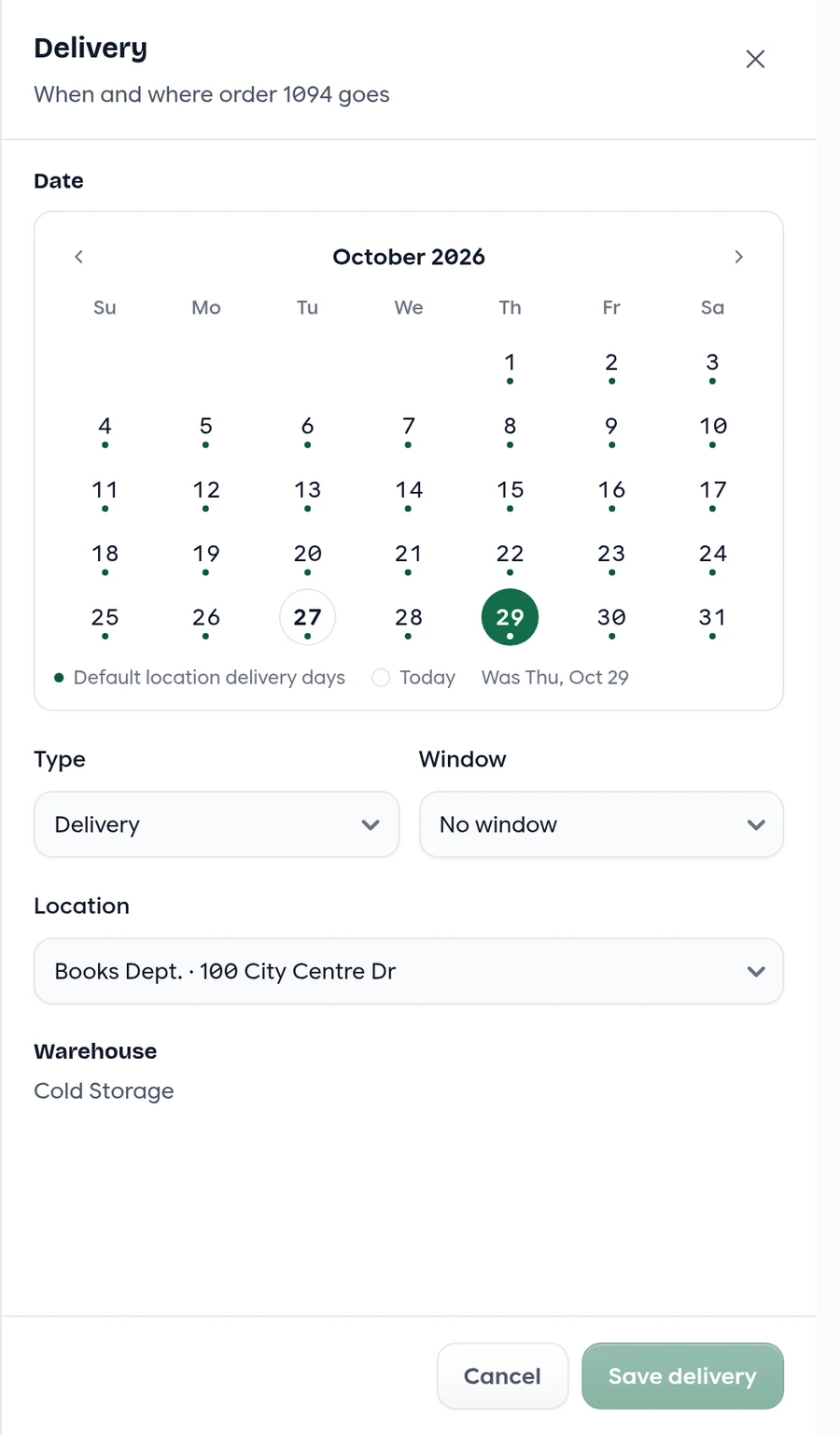
Each card on the right has its own drawer. The delivery drawer shows a calendar where a dot marks each of the location’s delivery days and a ring marks today. You can still choose any other day when a customer needs an exception, and the drawer tells you when a day isn’t on the schedule. Before you save, it says what the move will do: recheck stock, reprice lines priced from cost, re-tax the order or refresh its fees.
Under the items, Add a discount and Edit fees open their own drawer. For many changes at once, Edit in sheet opens the order (or just the lines you’ve selected) in a spreadsheet view.
If a line asks for more than you have in stock, it still saves. What’s on hand is reserved, the rest is backordered, and the line shows a Backorder badge so you can adjust it.
On a Phone
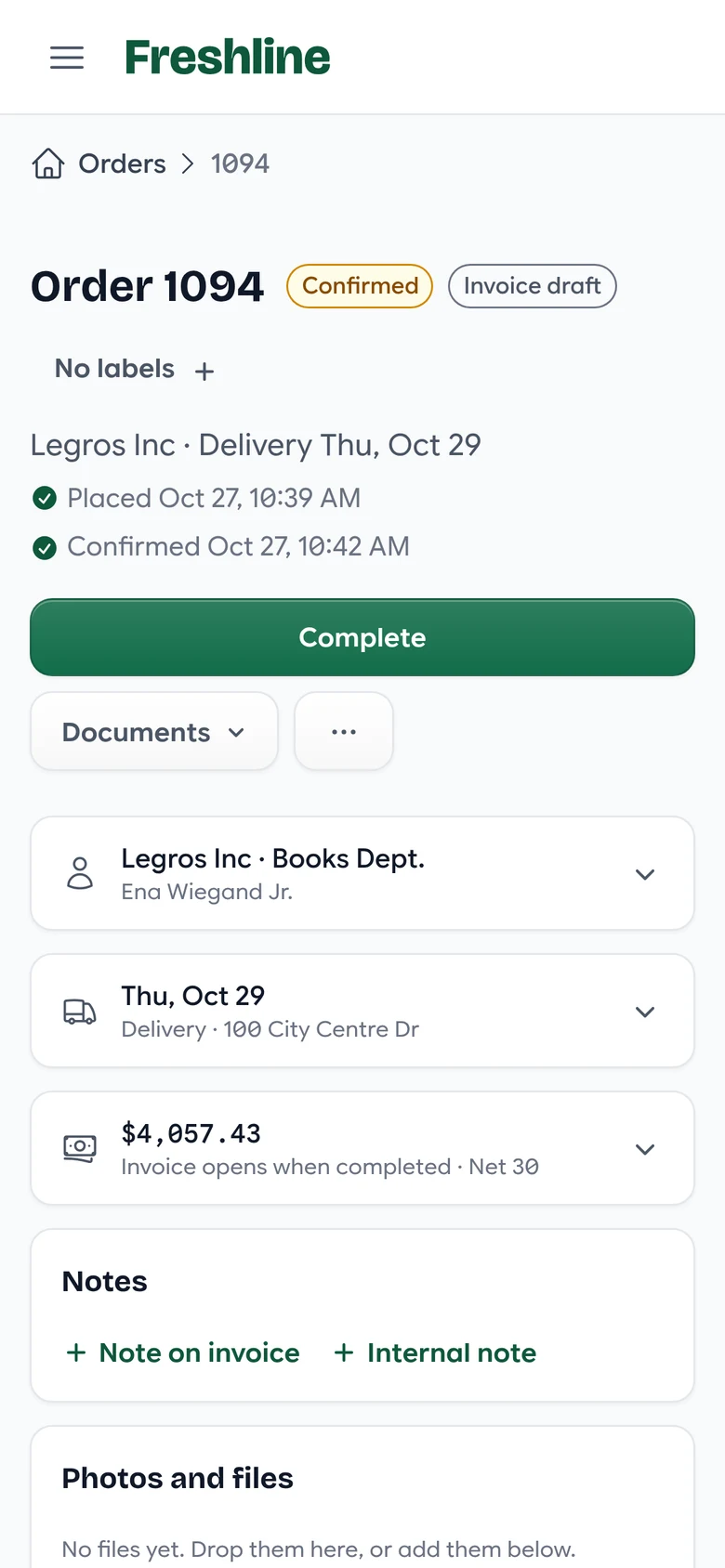
On a narrow screen the next step stays at the top as a full-width button, and the customer, delivery and billing cards fold into one-line summaries you can tap to open. It’s the same page, not a separate app, so anything you can do at a desk you can do from a phone.
Starting a New Order
New order now goes straight to the order page. Choose the customer and their location, contact and next delivery day fill in for you. You can change any of them on the order.
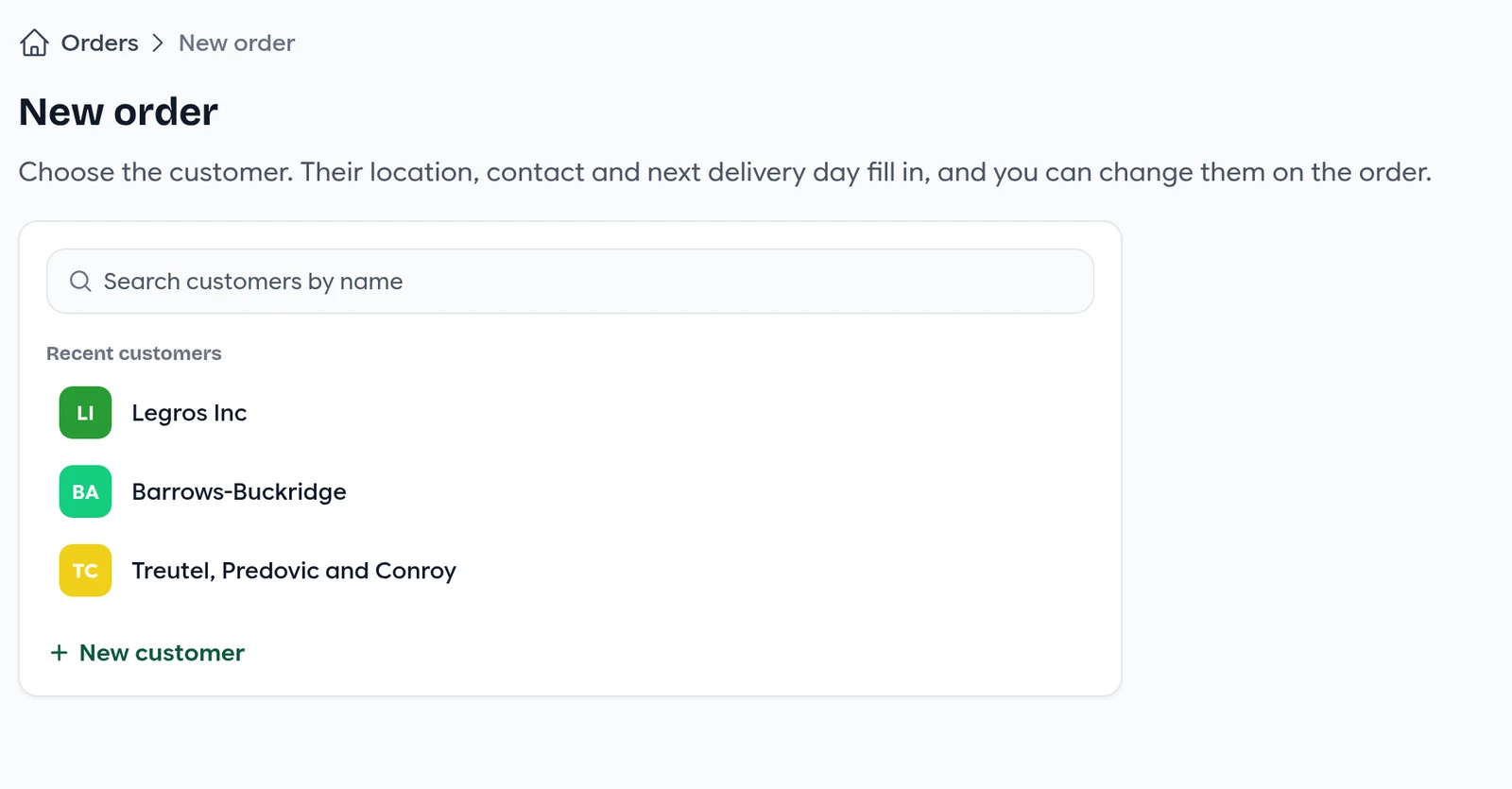
Until you place it, the order shows Not placed yet. You can add lines, change prices and set the delivery, and nobody is notified, nothing reaches the warehouse and nothing is invoiced. Place order sends it on its way; Discard throws it away.

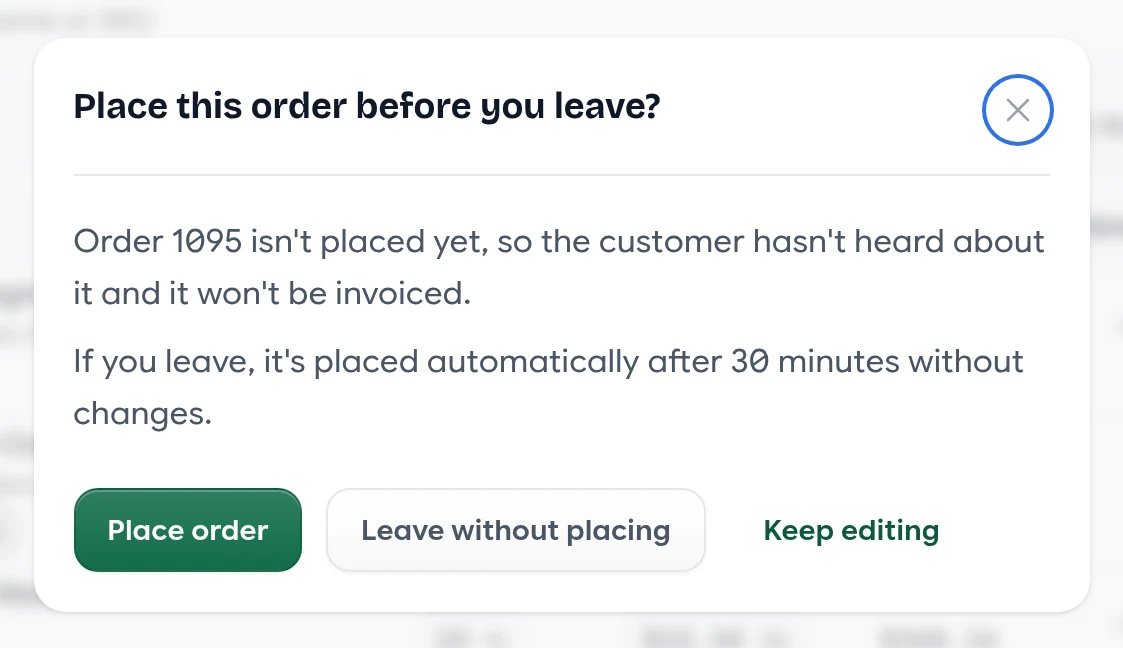
If you try to leave before placing it, the page asks first. And if an order with lines on it is left unplaced, it’s placed for you after 30 minutes without changes, so nothing gets forgotten. You can change that time, or turn it off, under Settings → Storefront, in the Orders section.
One page, from start to delivery
- 1
Start
Choose the customer. The order shows Not placed yet.
- 2
Build
Add lines. Nobody is notified yet.
- 3
Place
Your customer and team hear about it.
- 4
Confirm
The warehouse picks it in pick mode.
- 5
Complete
The invoice opens.
- 6
Deliver
Record photos and a signature.
Picking and Delivery
Switch the items to Pick and the same order is set up for the warehouse. Lines show their lot and shelf, and prices, cost and profit are hidden. Enter what was picked line by line, or use Fill the rest as ordered. Anything picked short is called out on the line, and a progress bar shows how much is done.
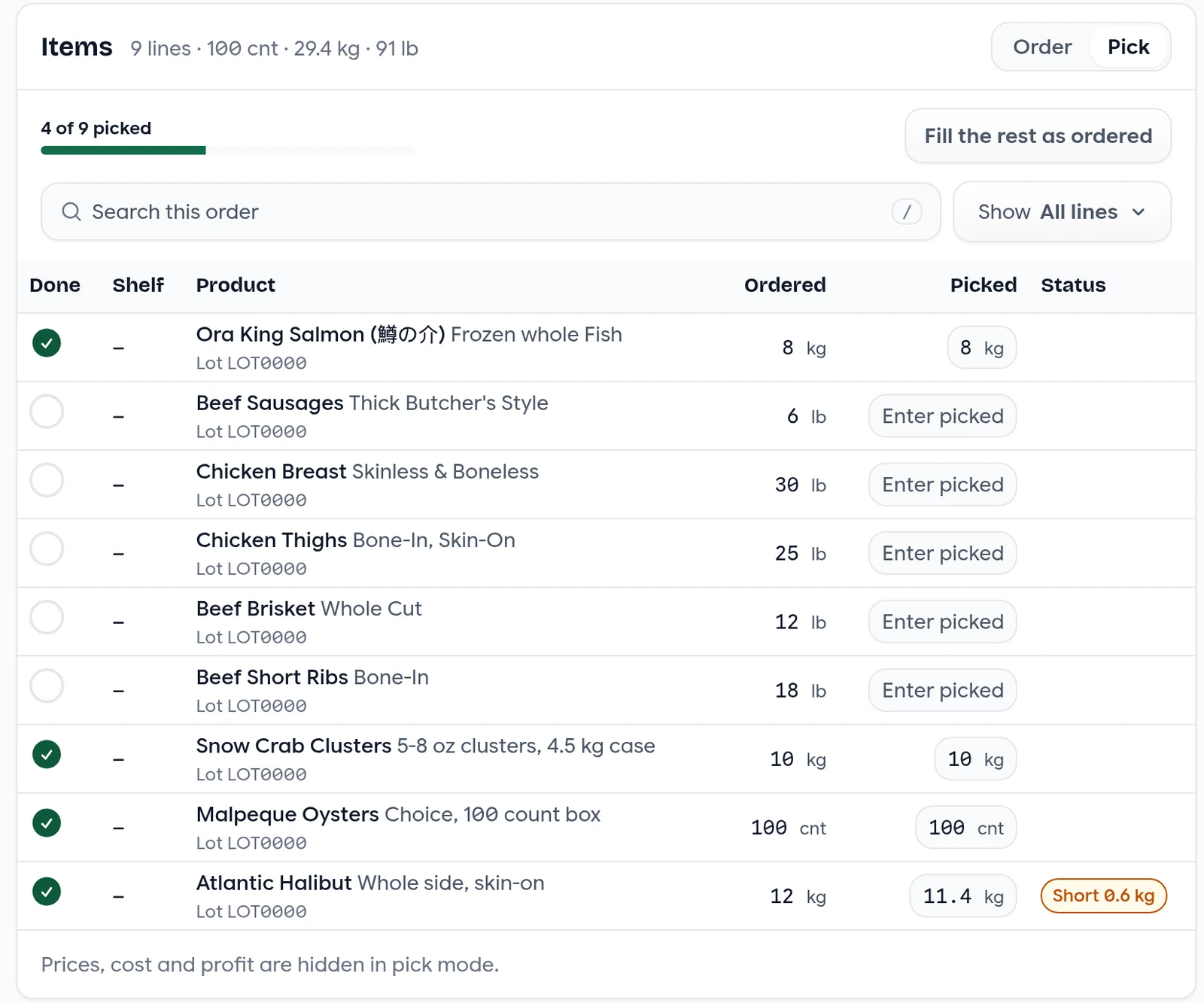
Warehouse staff open orders in pick mode only. They see what to pick, not what it costs.
When the order arrives, Proof of delivery on the Delivery card captures photos and a signature and marks it delivered. On a phone or tablet, Take photo opens the camera. Assign the driver from the same card.
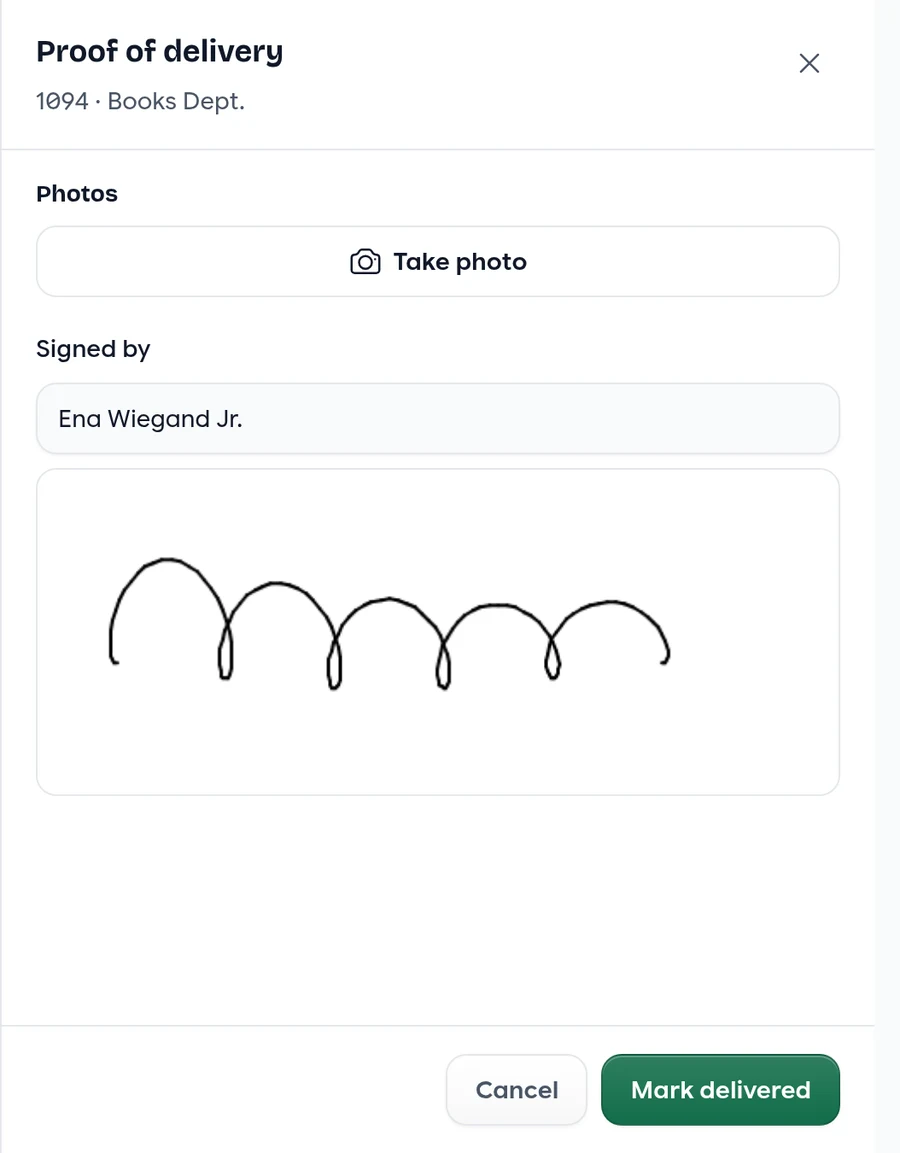
Photos are stored with the order alongside any other files, and you choose whether your customer can see each one. Delivery staff open the deliveries assigned to them and record proof of delivery there, without seeing prices.
Quick Reference
Keyboard
| Key | Where | What it does |
|---|---|---|
| Enter | Editing a quantity or price | Saves that line |
| Tab | Editing a quantity or price | Saves and moves to the next field |
| Esc | Editing anything | Cancels the change |
| / | Anywhere on the order | Jumps to Search this order |
| ↑ ↓ Enter | Add products results | Picks a result and adds it |
| Tab / Shift+Tab | Pick mode | Saves the picked amount and moves to the next or previous line |
Order Status
| Status | What it means |
|---|---|
| Not placed yet | You’re still building it. Nobody has been notified and it won’t be picked or invoiced. |
| Draft | Placed. If you use a draft window, it opens on its own when the window ends. |
| Open | Placed and waiting to be confirmed. |
| Confirmed | Ready for the warehouse to pick. |
| Complete | Done. The invoice is open. |
| Cancelled | Cancelled. It stays on record. |
Line Badges
| Badge | What it means |
|---|---|
| Short | Less was picked than ordered. The badge shows by how much. |
| Backorder | There wasn’t enough stock, so part of the line is backordered. |
| Out of stock | None of this product is available. |
| Credited | A credit was issued on this line. |
Where Things Moved
| You used to… | Now |
|---|---|
| Open Edit to change a quantity or price | Click it on the line |
| Change the contact in the edit form | Customer card → Edit |
| Change the date, window or location | Delivery card → Edit |
| Add fees or discounts in the edit form | Add a discount or Edit fees under the items |
| Edit many lines at once | Edit in sheet |
| Collect a signature | Proof of delivery on the Delivery card |
| Use the old edit form | Still in ⋯ → Open the old edit form, for now |
Settings
| Setting | Where | Default |
|---|---|---|
| Place unplaced orders after (minutes) | Settings → Storefront, Orders section | 30 minutes. Set it to 0 to turn automatic placing off. |
Getting the New Page
We’re turning the new order page on account by account. It’s already in daily use by a first group of distributors, and warehouse and delivery staff get it everywhere. If you’d like it switched on for your team, email us at [email protected].
We’d love to hear how it works for you, especially on your biggest orders.