Your storefront is where customers spend the most time with you: checking prices, building tomorrow's order, reordering what they always get. Today we're introducing a new default storefront, built around how wholesale buyers actually order. Their order guide is on the home page, the cart stays in view while they shop, and it works as well on a phone in a walk-in cooler as on a laptop in the office.
What’s New
- A cart that stays open beside the catalog, with quantities, the delivery date and the subtotal always in view.
- List or grid. A compact list for ordering by name and pack size, or photo cards for browsing. Each buyer’s choice is remembered.
- The order guide and recently ordered on the home page, so a regular order starts with one tap instead of a search.
- A category menu with photos, which turns into swipeable chips on a phone.
- A banner for your announcements, with up to five slides, each with its own image, words and button.
- “Often ordered with this” on product pages, priced for the buyer and ready to add.
- Dark mode, and a phone layout with a bottom bar and the cart a tap away.
- Settings you control, for the banner and the home page, under Settings → Storefront theme.
A Quick Tour
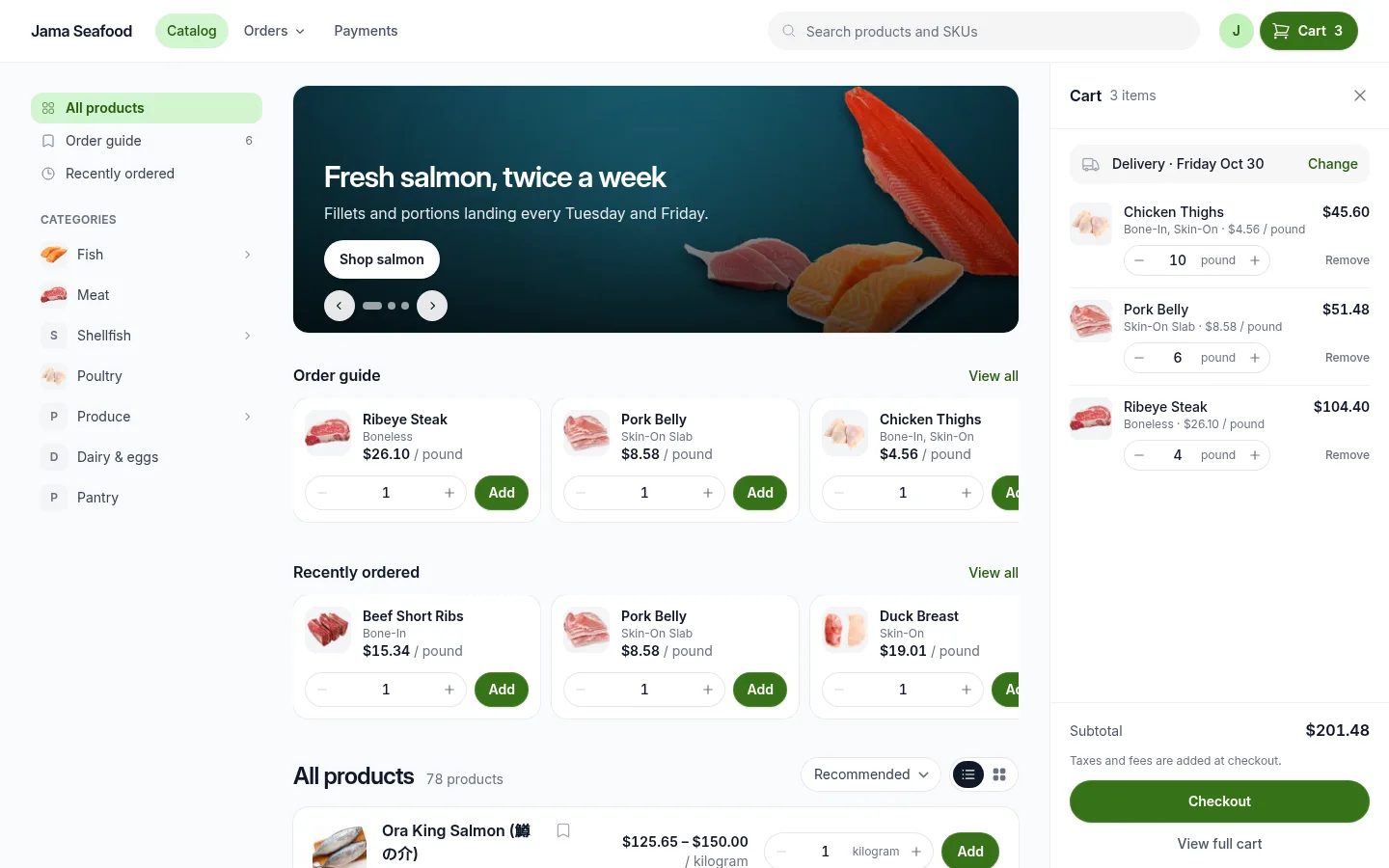
- 1Search. Products and SKUs, from any page. When nothing matches, it suggests similar words.
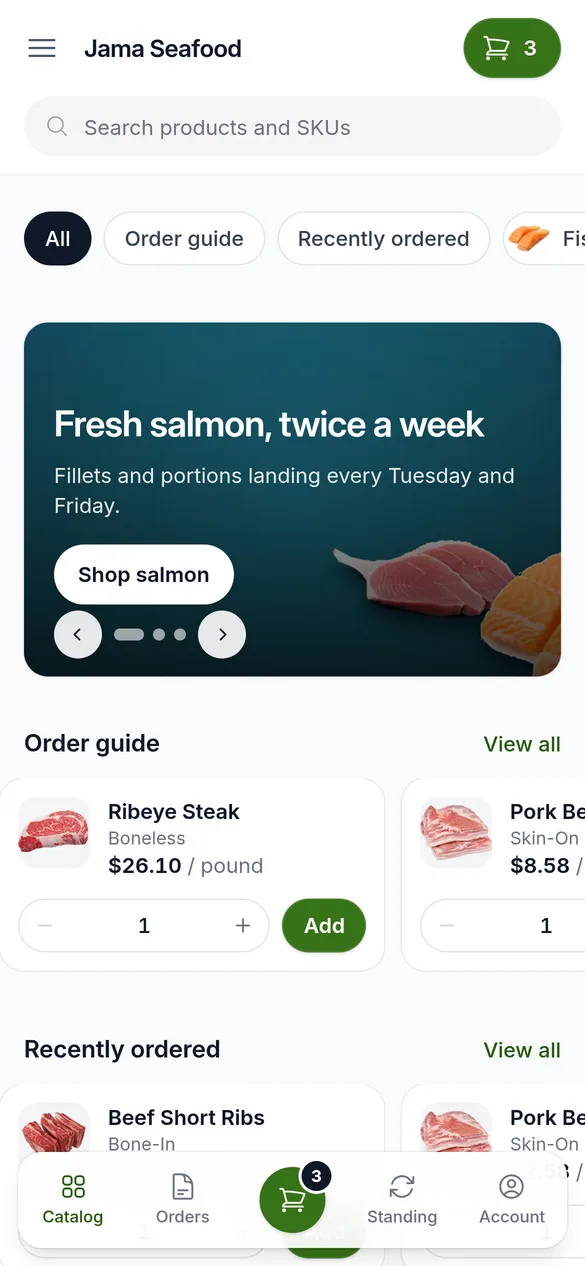
- 2Order guide and recently ordered. The buyer’s bookmarked items and what they ordered lately, one click away.
- 3Categories. With your category photos, and sub-categories that open in place.
- 4Banner. Your announcements, with arrows, dots and swipe. Off until you add slides.
- 5Shelves. The order guide and recently ordered as rows of products, ready to add, with View all.
- 6Sort and layout. Recommended or by name, and list or grid. The layout is remembered.
- 7Delivery date. The cart’s delivery or pickup day, with Change to pick another.
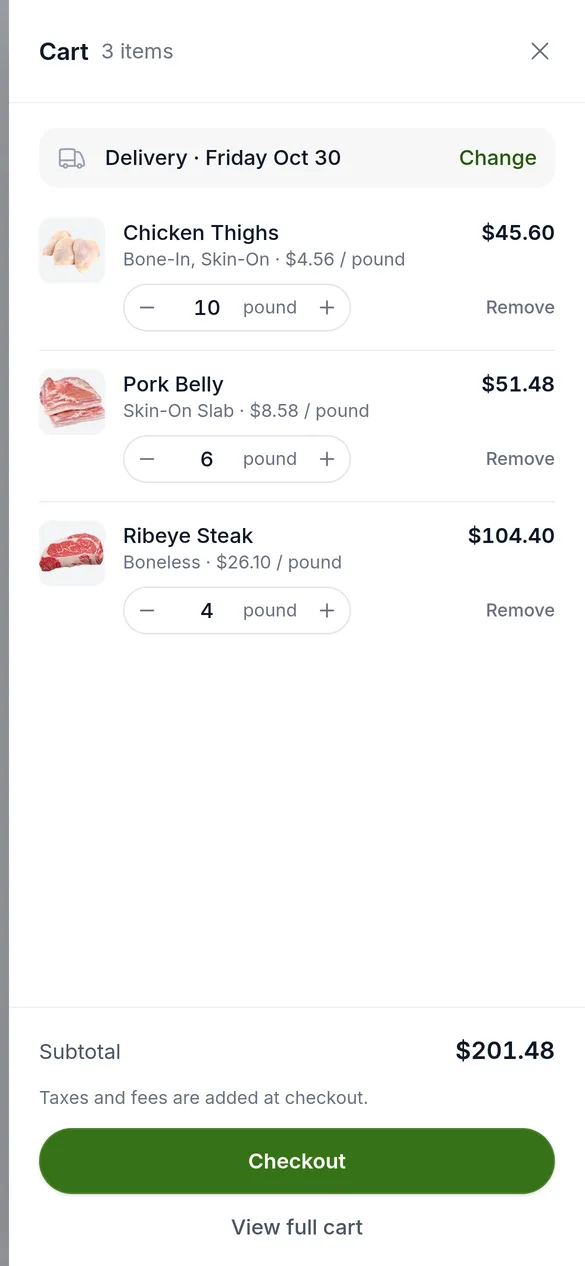
- 8Cart. Every line with a stepper and its total, the subtotal, and Checkout.
One storefront, three widths
Wide screens
The cart sits beside the catalog, open until the buyer closes it.
Laptops and tablets
The cart slides in from the right when the buyer opens it.
Phones
Categories become chips, and the cart is one tap away at the bottom.
Browsing the Catalog
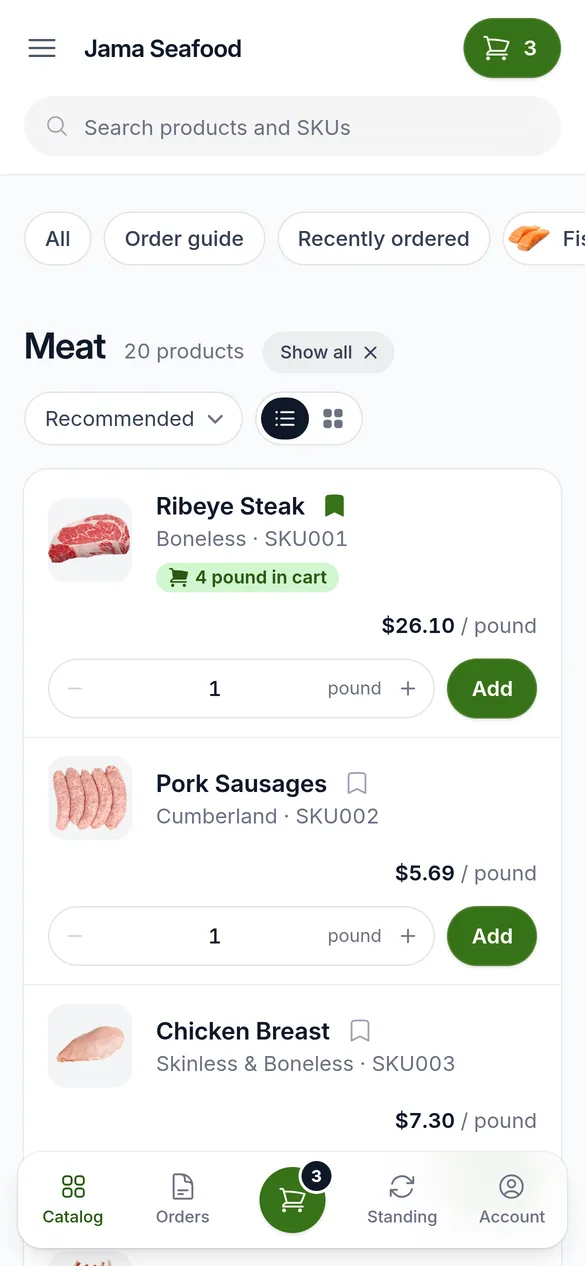
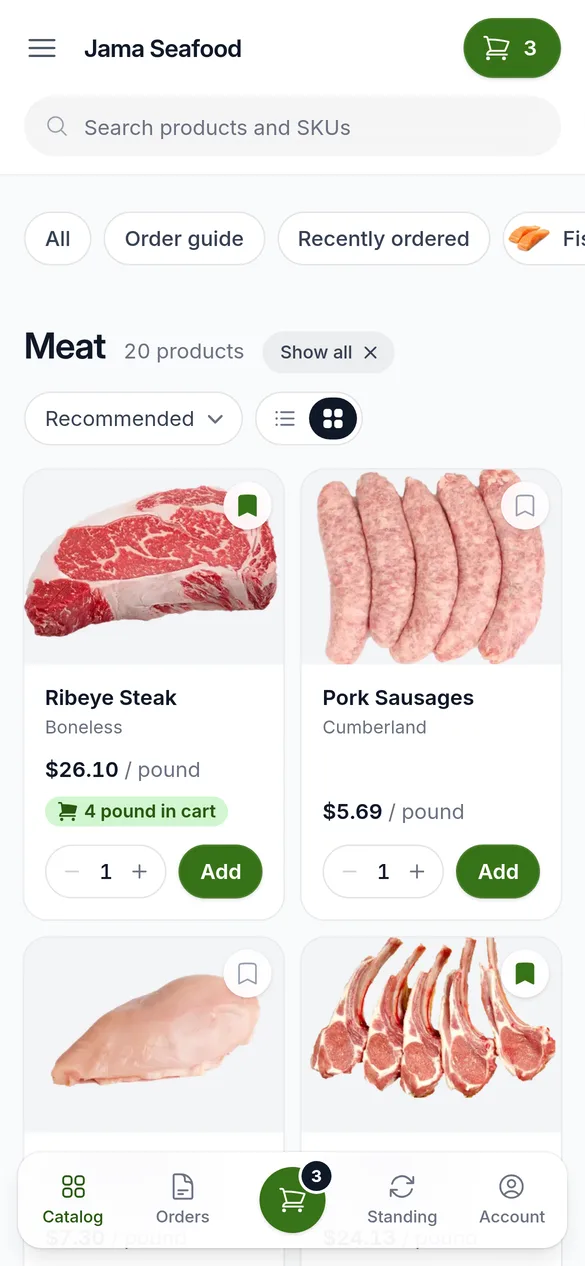
The catalog opens in a list. It’s the fastest way to order from a long catalog: one product per row, with its pack size, price per unit, a quantity stepper and Add. Switch to grid for photo cards, which is handy for buyers trying something new. Buyers can switch at any time, and the storefront remembers their choice. You choose which one they see first.
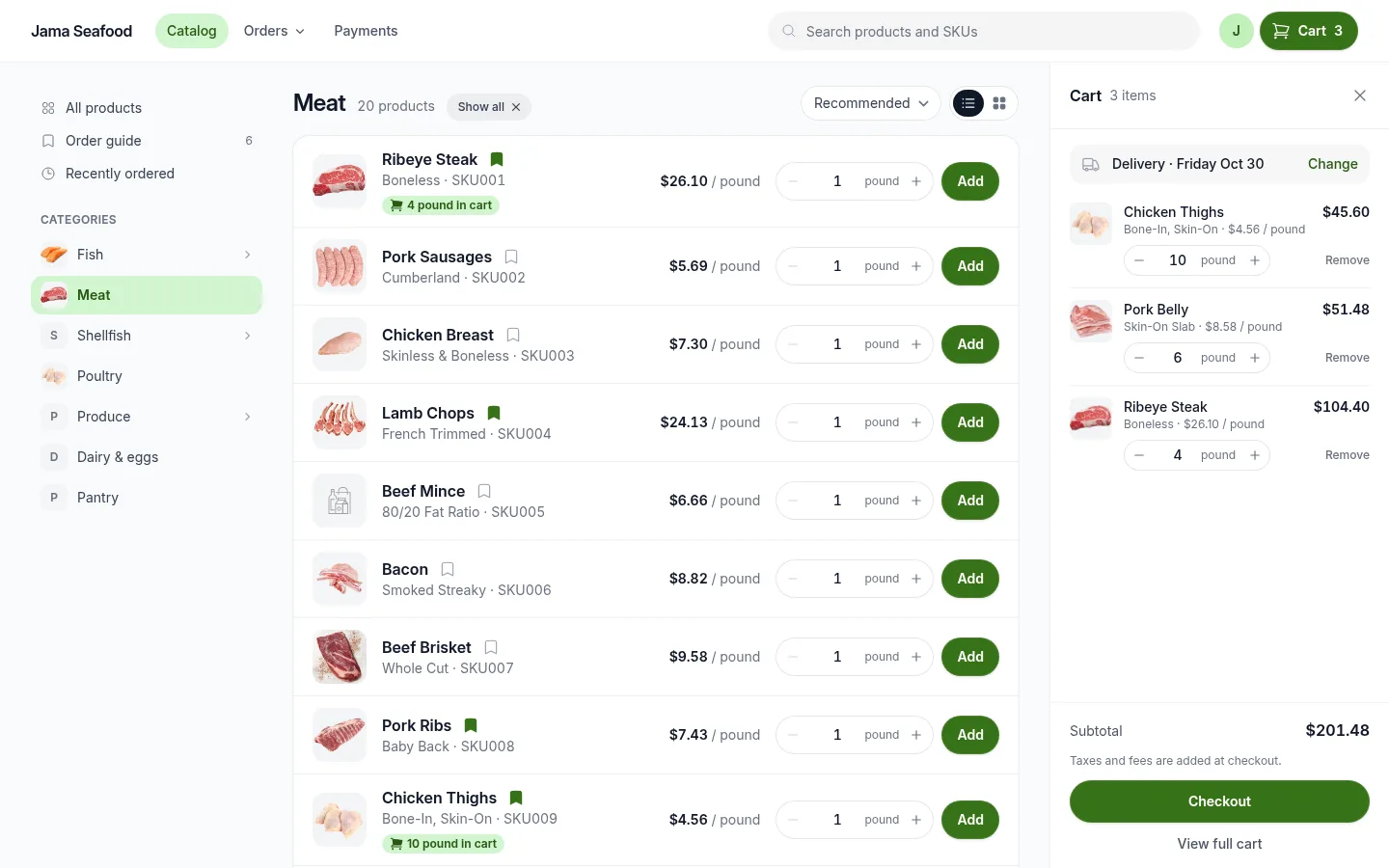
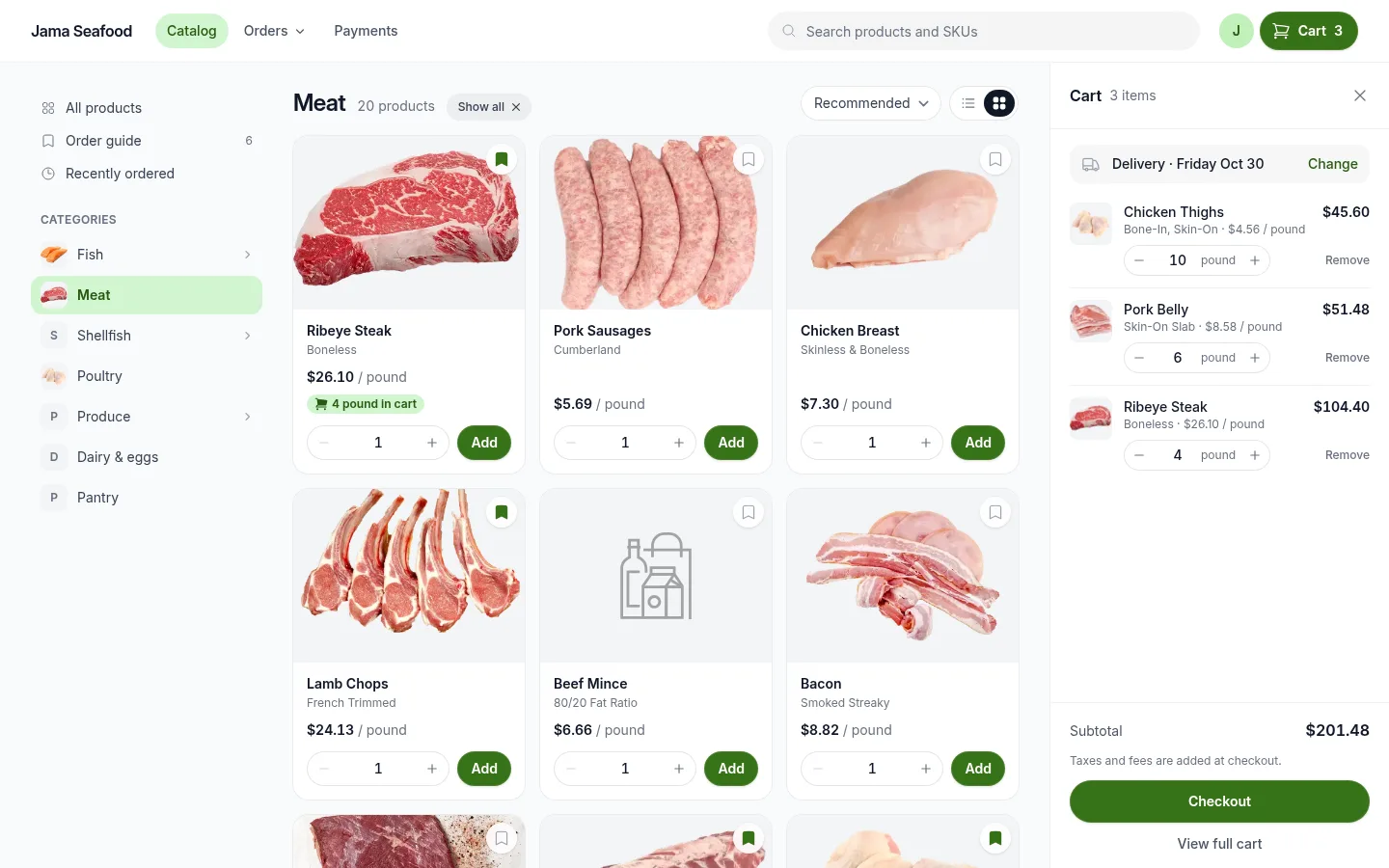
- Categories sit in a menu on the left, with your category photos. A category without a photo shows its first letter. Pick one to see its products, with a breadcrumb back up for sub-categories.
- Sort by Recommended, or by name from A to Z or Z to A.
- Bookmark any product to add it to the buyer’s order guide. The bookmark fills in, and the order guide count goes up.
- Already in the cart? The product says so, like “4 pound in cart”, so nobody orders the same thing twice.
- Quantities step in the product’s case size and start at its default quantity, so buyers can’t order half a case by accident.
The home page, top to bottom
- 1BannerEveryone who can see your catalogOff until you add slides
- 2Order guideSigned-in buyers with bookmarked itemsOn
- 3Recently orderedSigned-in buyers with past ordersOn
- 4Shop by categoryEveryone who can see your catalogOff
- 5All productsAlways there, in list or grid, 50 to a page.
The Cart, Always in Reach
On a wide screen, the cart is docked on the right and stays open while buyers browse, search and switch categories. Every change shows up right away. Buyers who prefer more room for the catalog can close it, and it stays closed for them until they open it again. On smaller screens, the cart slides in from the right when it’s needed.
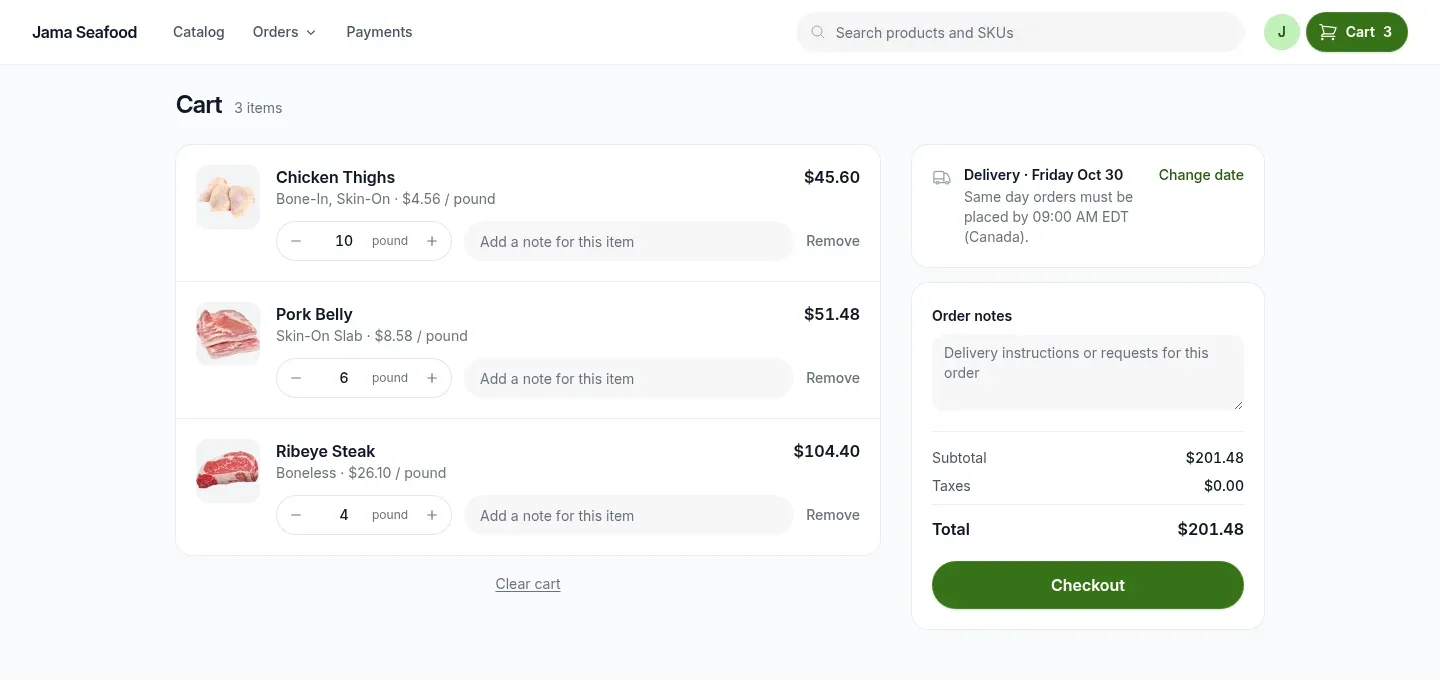

View full cart opens the whole cart, with a note field for each line, order notes, taxes and the total.
Change date opens a calendar that shows, day by day, whether everything in the cart can be delivered, only some of it, or none. Buyers pick a day that works before they reach checkout.
Product Pages
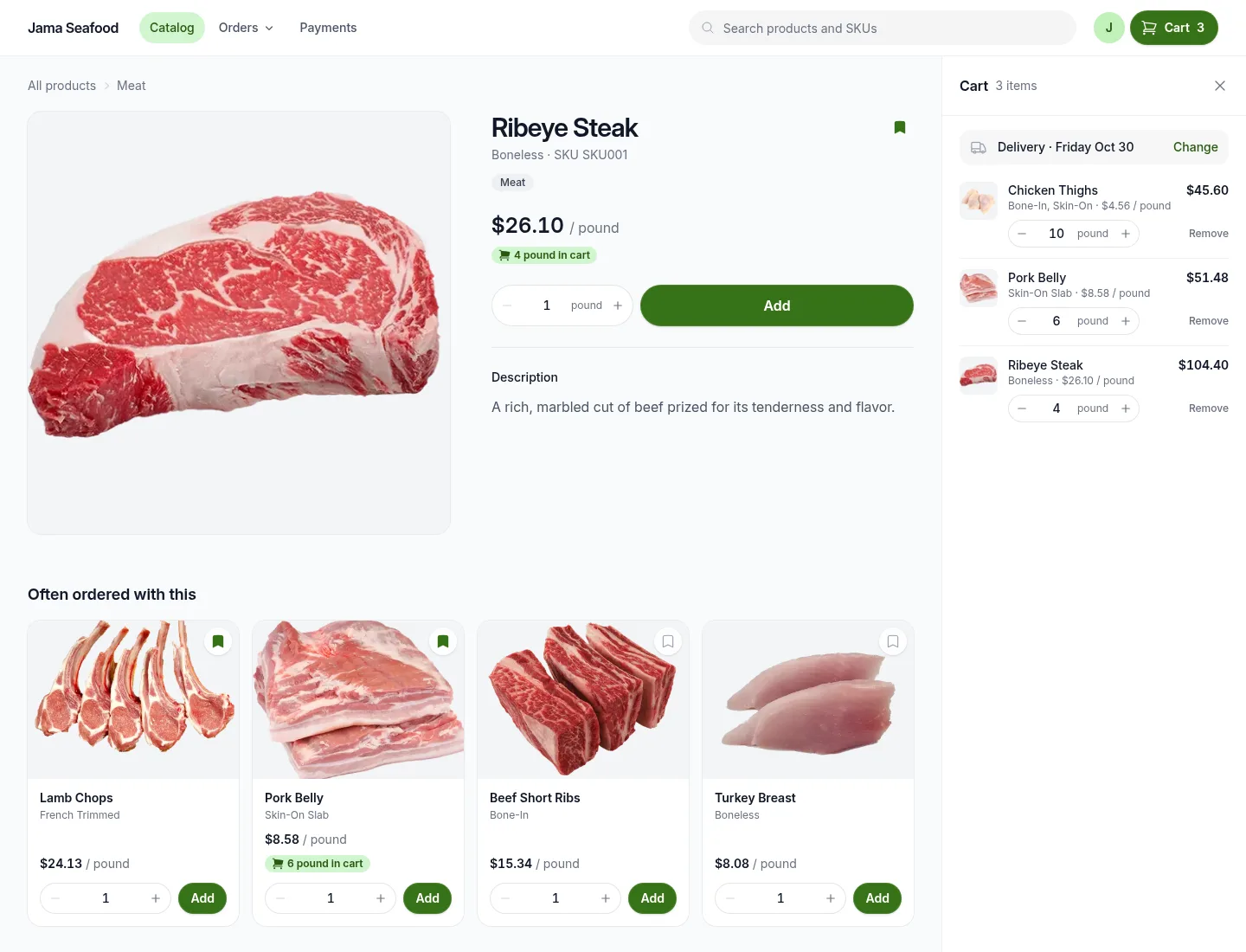
- Photos: a large image, with thumbnails when there are several.
- Packs: each of the product’s packs as a button, so switching from a case to a single unit takes one click.
- Volume pricing: when the buyer’s price changes with quantity, the tiers are listed with the price at each.
- Often ordered with this: up to four products that buyers tend to order together, priced for this buyer and ready to add without leaving the page.
On a Phone
Plenty of orders are placed standing in a kitchen. On a phone, search sits under the header, categories become a row of chips, and a bar at the bottom holds Catalog, Orders, the cart, Standing orders and Account. Products stack one per row in list view, or two across in grid.
Dark Mode
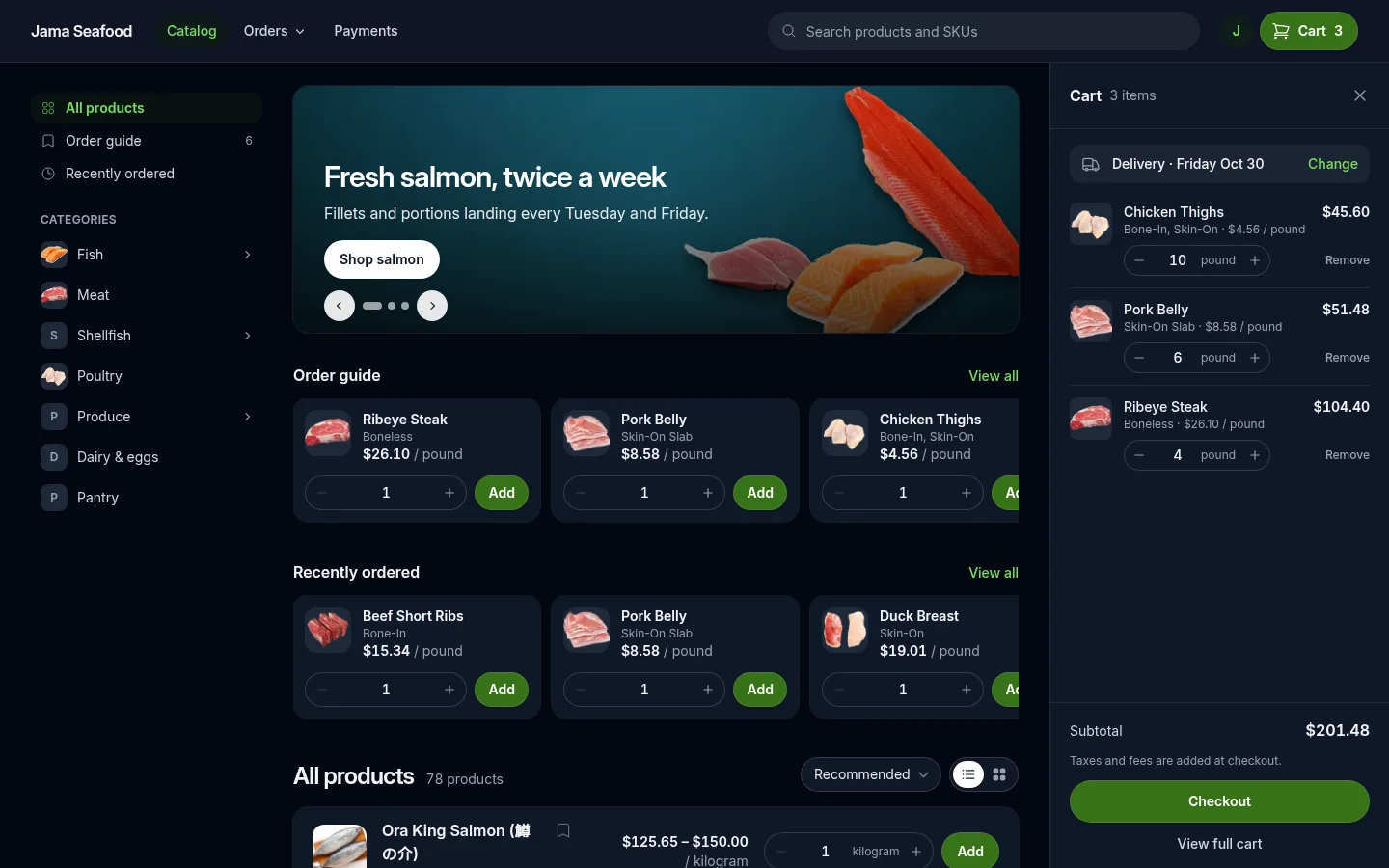
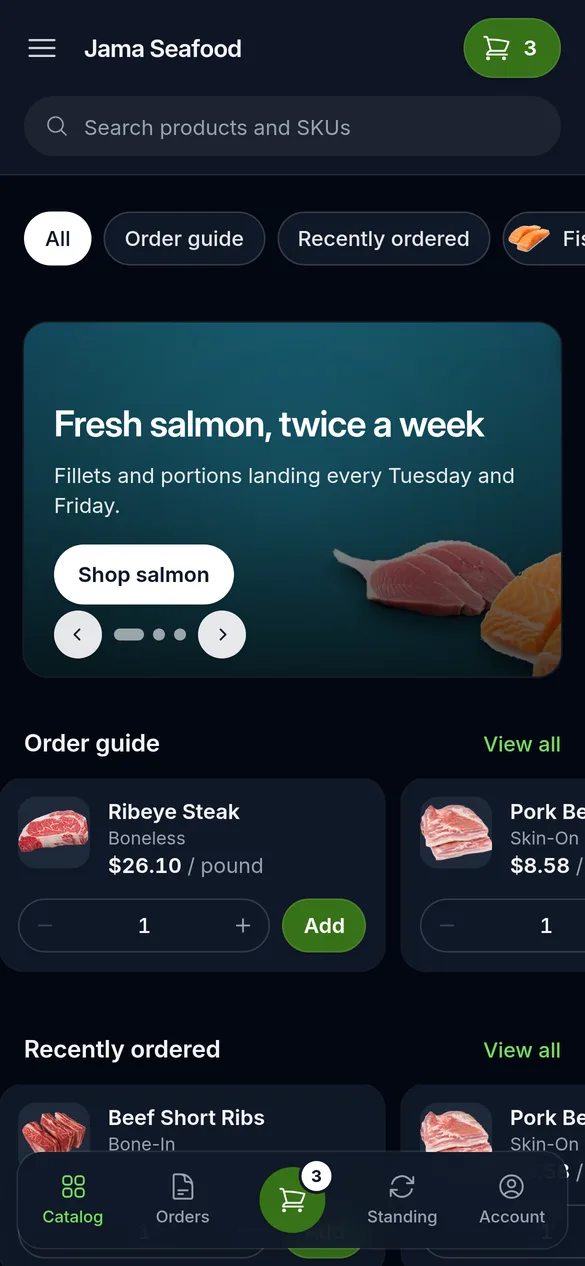
When a buyer’s phone or computer is set to dark mode, the storefront follows. If you’ve uploaded a logo for dark backgrounds, it’s used there.
Making It Yours
The new storefront comes with settings of its own, under Settings → Storefront theme in Freshline. Change what you like and press Save; buyers see it on their next page.
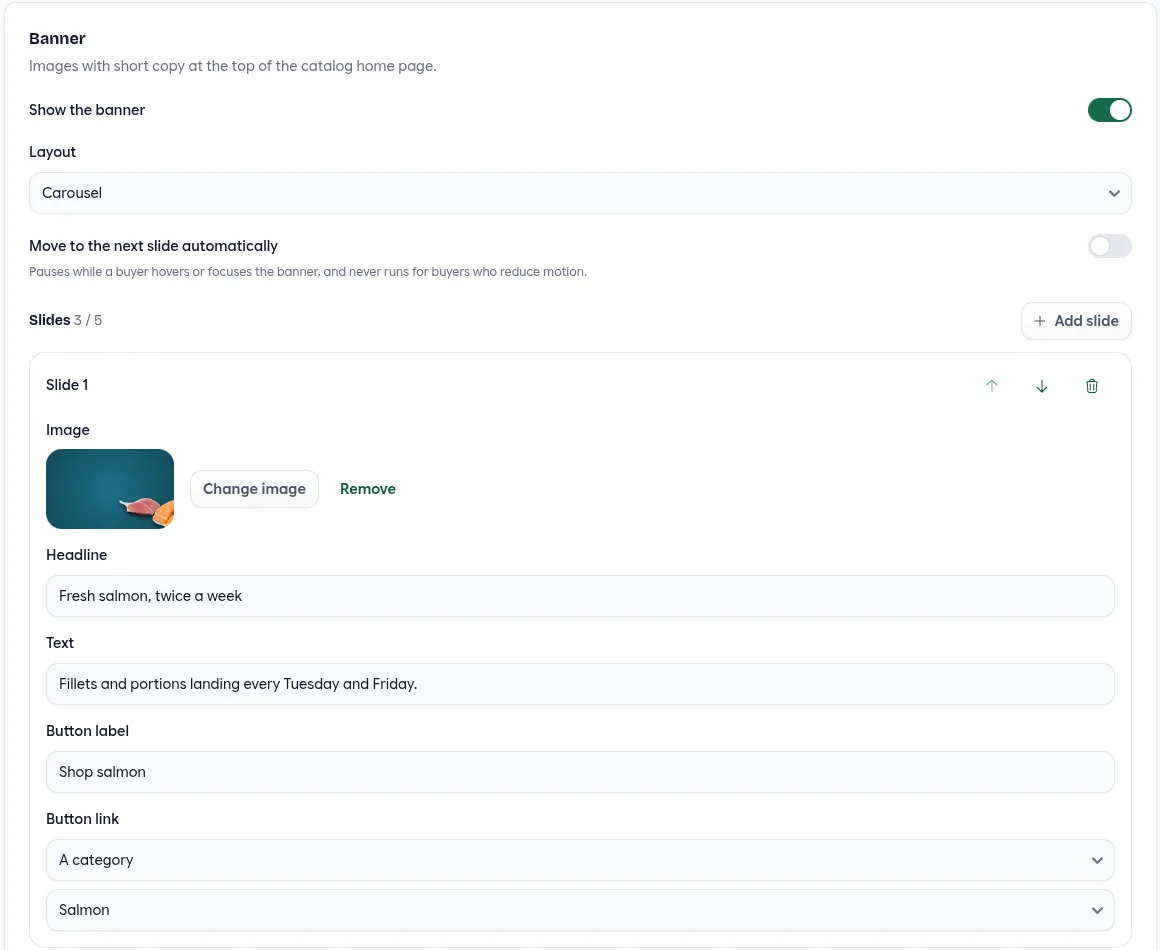
Banner. Turn it on, then add up to five slides. Each has an image from your image library, and can have a headline, a line of text and a button that links to a category or any web address. Show them as a carousel, or just the first as a single image. Reorder slides with the arrows, or remove one.
A carousel only moves when buyers use the arrows, dots or a swipe, unless you turn on Move to the next slide automatically. Even then, it pauses while a buyer is looking at it, and never moves for buyers who’ve asked their device to reduce motion.
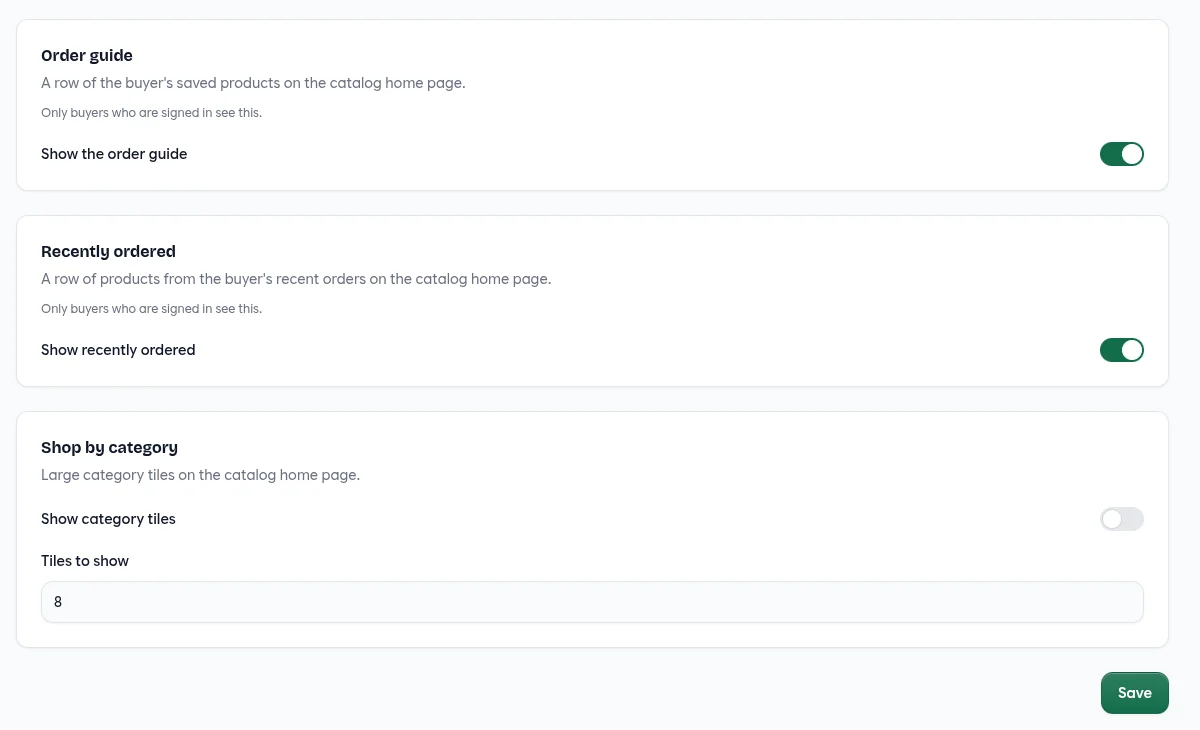
Home page sections. Turn the order guide, recently ordered and shop by category rows on or off, and choose how many category tiles to show. Catalog. Choose whether buyers start in list or grid, and whether the category menu shows your category photos.
Your logo and brand colour carry over on their own. Buttons, links and highlights use your colour, and button text switches between white and black to stay readable.
Your colour, readable buttons
#377217
#1d4ed8
#b91c1c
#f0bc00
#06b6d4
Quick Reference
Storefront Theme Settings
| Setting | Choices | Starts as |
|---|---|---|
| Default catalog layout | List or Grid | List |
| Show category images in the category menu | On or off | On |
| Banner: Show the banner | On or off | Off |
| Banner: Layout | Carousel or One image | Carousel |
| Banner: Move to the next slide automatically | On or off, every 6 seconds | Off |
| Banner: Slides | 1 to 5. Image, plus optional headline (60 characters), text (160), button label (30) and button link (a category or web address) | None |
| Order guide: Show the order guide | On or off | On |
| Recently ordered: Show recently ordered | On or off | On |
| Shop by category: Show category tiles | On or off | Off |
| Shop by category: Tiles to show | 2 to 12 | 8 |
What Buyers’ Browsers Remember
| Choice | Remembered |
|---|---|
| List or grid | Yes, until they switch again |
| Cart open or closed on a wide screen | Yes. It starts open. |
| Sort order | No. Each visit starts on Recommended. |
| Dark mode | Follows the device setting |
What’s Part of the New Look
| Pages | Look |
|---|---|
| Catalog, search, categories, order guide, recently ordered | New |
| Product pages | New |
| Cart and full cart | New |
| Order history and order details | New |
| Sign in, sign up and your content pages | New |
| Checkout, payments, standing orders and account settings | Unchanged |
Good to Know
- The order guide and recently ordered are for signed-in buyers. Visitors to a public catalog see the banner, the categories and the products.
- If you hide totals on your storefront, the cart and order history hide them here too.
- The banner you may already show to buyers on a service location still appears, as a strip under the header.
- The catalog shows 50 products to a page.
Getting the New Look
New stores start on the new storefront. We’re moving existing storefronts over vendor by vendor, and we’ll be in touch before yours changes. Your products, prices, customers and orders stay exactly as they are: it’s the same storefront, with a new look.
If you’d like to move sooner, or want help setting up your banner and category photos, email us at [email protected].