Many distributors plan tomorrow's deliveries in a spreadsheet, a separate routing tool, or a driver's head. Delivery routes puts that into Freshline. Each day's delivery orders become a draft route with real driving times. Put the stops in order, split a busy area between drivers, and dispatch. Drivers work the route from their phone, customers get an arrival window and a tracking link, and anything that couldn't be delivered comes back to the office to sort out.
What’s New
- Routes plan themselves. Open a day and each area with routes turned on gets a draft, with its driver, start time and that day's delivery orders.
- One button to put stops in order, using real driving times. Drag stops by hand, lock the ones that must stay put, or move them to another route.
- Arrival times for every stop, with a warning when one falls outside the customer's receiving hours.
- A route on the driver's phone: the next stop, directions, what to drop off, and Deliver with photos and a signature.
- Customers know when you're coming. An arrival window and a tracking page when the driver sets out, then a delivered email with photos.
- Missed deliveries don't get lost. They wait under Needs attention until someone tries again or moves them to another day.
How It Works
A route belongs to a day and a service location. Each stop on it is one customer location, and every order for that location on that day is delivered there together.
A delivery day
- 1
Plan
FreshlineOpen a day and each area with routes turned on gets a draft route: its delivery orders as stops, the schedule's driver and start time.
- 2
Arrange
DispatcherOptimize, drag, lock or split stops between routes. Arrival times update as you go.
- 3
Dispatch
DispatcherEach route goes to its driver, in order, and their orders are assigned to them.
- 4
Drive
DriverStart route, navigate, arrive, then deliver with photos and a signature, or report why not.
- 5
Hear about it
CustomerAn arrival window and tracking link when the route starts, then delivered or couldn't deliver.
- 6
Follow up
DispatcherStops that couldn't be delivered wait under Needs attention: try again today, or move to another day.
Routes follow the orders, not the other way round. When an order is rescheduled, cancelled, switched to pickup or moved to another location, it drops off its stop on its own and is planned again where it now belongs.
Setting Up
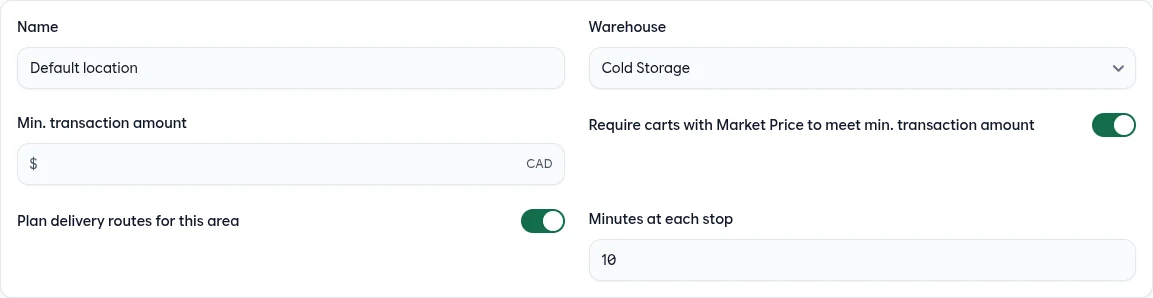
Routes are turned on area by area, so you can route your own trucks and leave courier areas as they are. A few settings get you started.
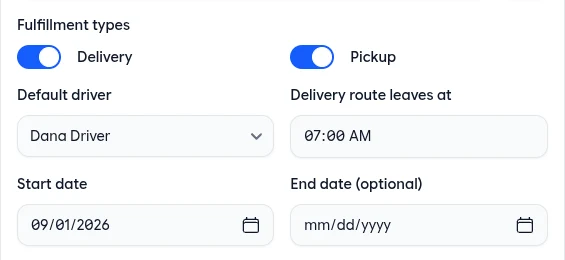
The area's fulfillment schedule sets the Default driver and the time the Delivery route leaves at. Each day's draft starts with both, and you can change them on the route.
Routes start at the area's warehouse, so give it an address. Without one, they start from your store's address.
On a customer location, Receives deliveries from and Until set its receiving hours, and Minutes at the stop overrides the area's minutes for a stop that takes longer.
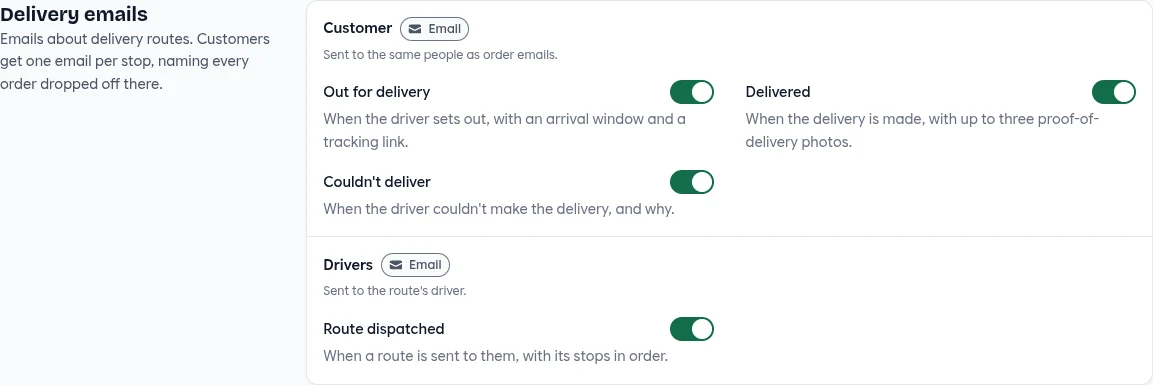
Delivery emails are under Notification settings, and they're all off until you turn them on.
Planning the Day
Deliveries has a Routes view next to the list. Pick a day and its routes are laid out beside a map, each in its own colour.
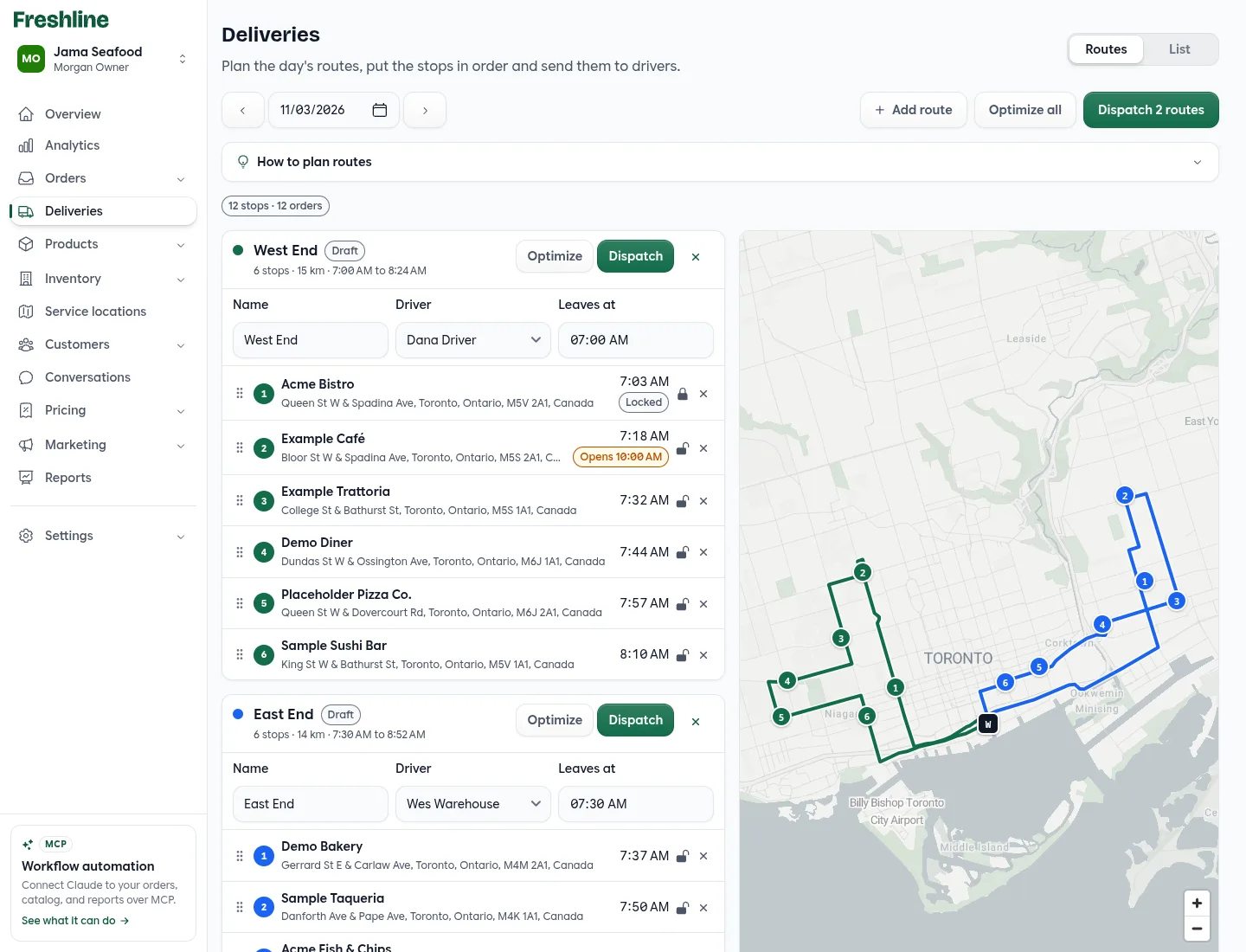
- 1The day. Opening today or a later day plans it: one draft route per area with routes turned on.
- 2Add route, Optimize all, Dispatch. Split an area across drivers, put every route in order, or send them all at once.
- 3Routes or List. The same day's deliveries as routes, or as the list you know.
- 4Each route at a glance. Draft, Dispatched, Out for delivery or Done, with its stops, distance and hours on the road.
- 5Name, driver and start time. Change them right on the route. Arrival times follow the start time.
- 6Stops. Drag by the handle to reorder or move to another route. The lock keeps a stop in place when you optimize; × takes it off.
- 7Arrival times and warnings. When the driver should get there, and a warning when that's outside the customer's receiving hours.
- 8The map. Every route's drive from the warehouse, with numbered stops. Click a stop in the list to find it on the map.
Where the Drafts Come From
Each draft takes the day's delivery orders for its area. Stops start in the order of the last route you dispatched for that area on the same weekday, so a run you've already tuned keeps its shape. Customers who weren't on it are slotted in wherever they add the least driving.
Putting Stops in Order
Press Optimize on a route, or Optimize all. Drag a stop to change the order yourself, and lock a stop that has to come first, such as a kitchen that opens early, so optimizing works around it. If driving times can't be fetched, routes fall back to straight-line estimates rather than stopping you.
What Optimize does
It measures
Driving time between every pair of stops
From the warehouse and in both directions, since one-way streets make A to B differ from B to A.
It orders
Ten stops or fewer: every order is tried
Longer routes start from the nearest stop each time, and from the order they're in, then improve by reversing stretches, swapping stops and moving runs of up to three.
It keeps
Locked stops and finished ones in place
And it never hands back a longer drive than the one you had. On a route that's already out, it asks first.
Splitting a Busy Area
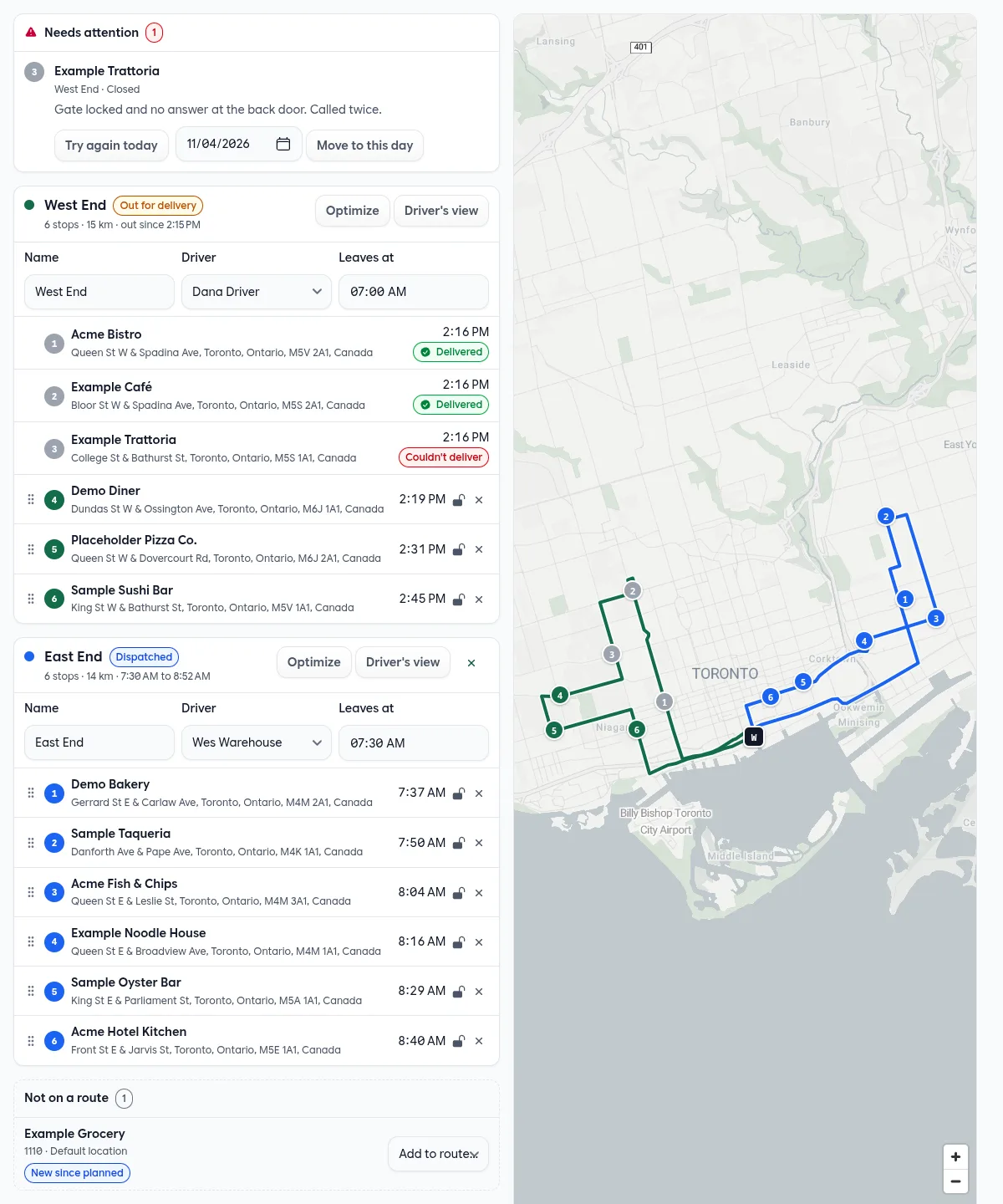
Add route adds an empty route to the day. Give it a name, a driver and a start time, then drag stops onto it from the other route. In the screenshot above, one area was split into West End and East End, each with its own driver.
Arrival Times
How an arrival time is worked out
Leaves the warehouse at 7:00
Grey: driving, in minutes. Green: time at the stop.
Arrival = start time + drives + minutes at each stop before
Minutes at each stop come from the area, and a customer location can set its own. Once the driver is out, the rest are worked out again from the last stop they finished.
The customer's window: half an hour either side
Widened to the quarter hour. An arrival estimated at 8:04 is given as 7:30 to 8:45.
Dispatching
Dispatch sends a route to its driver and assigns them every order on it, the same as assigning a driver on the order. With Route dispatched turned on, the driver gets an email with their stops in order. A dispatched route can still change. Taking a stop off takes the driver off its orders, and changing the route's driver hands every order to the new one. A dispatched route can't be left without a driver.
On the Road
Drivers find their routes at the top of their Deliveries page, and only the routes dispatched to them. The route page is built for a phone, and drivers can add Freshline to their home screen.
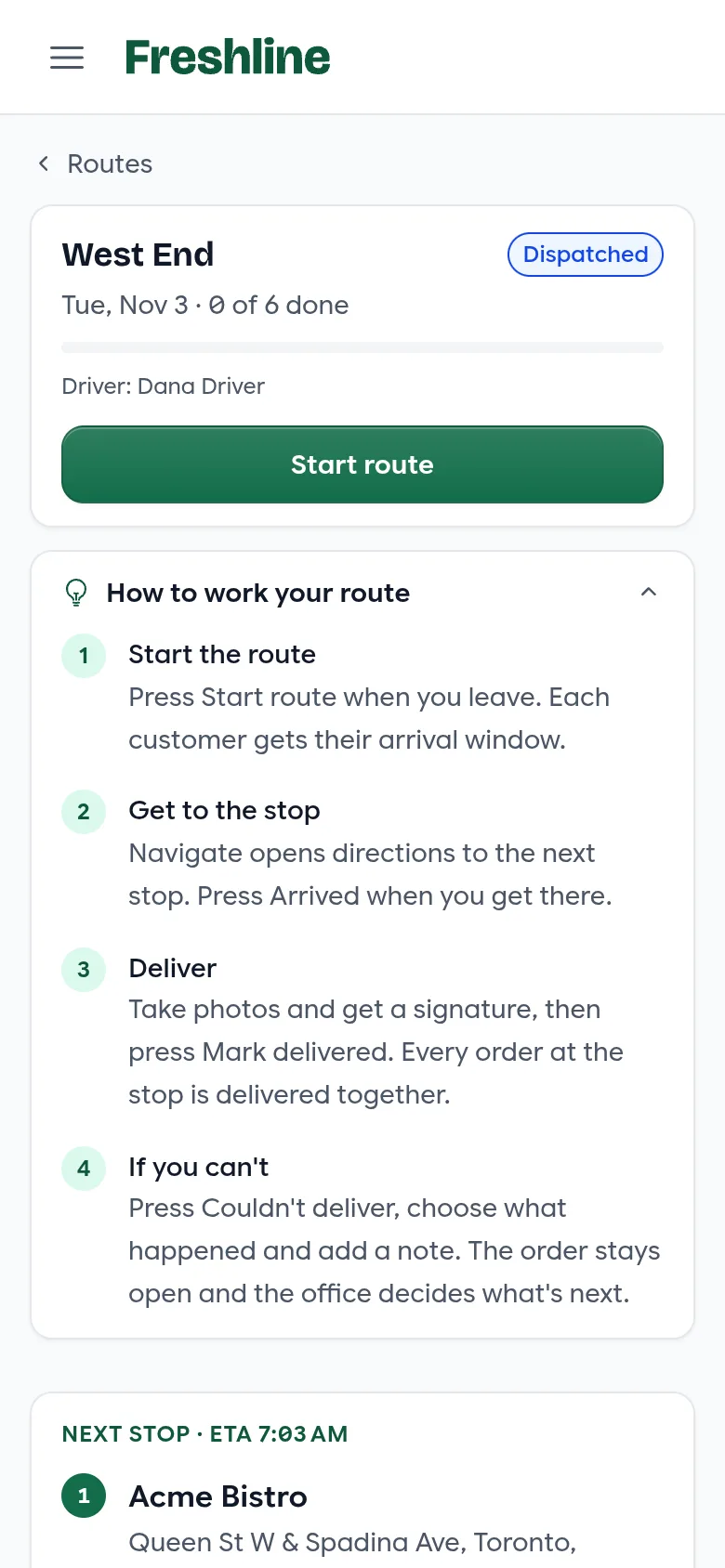
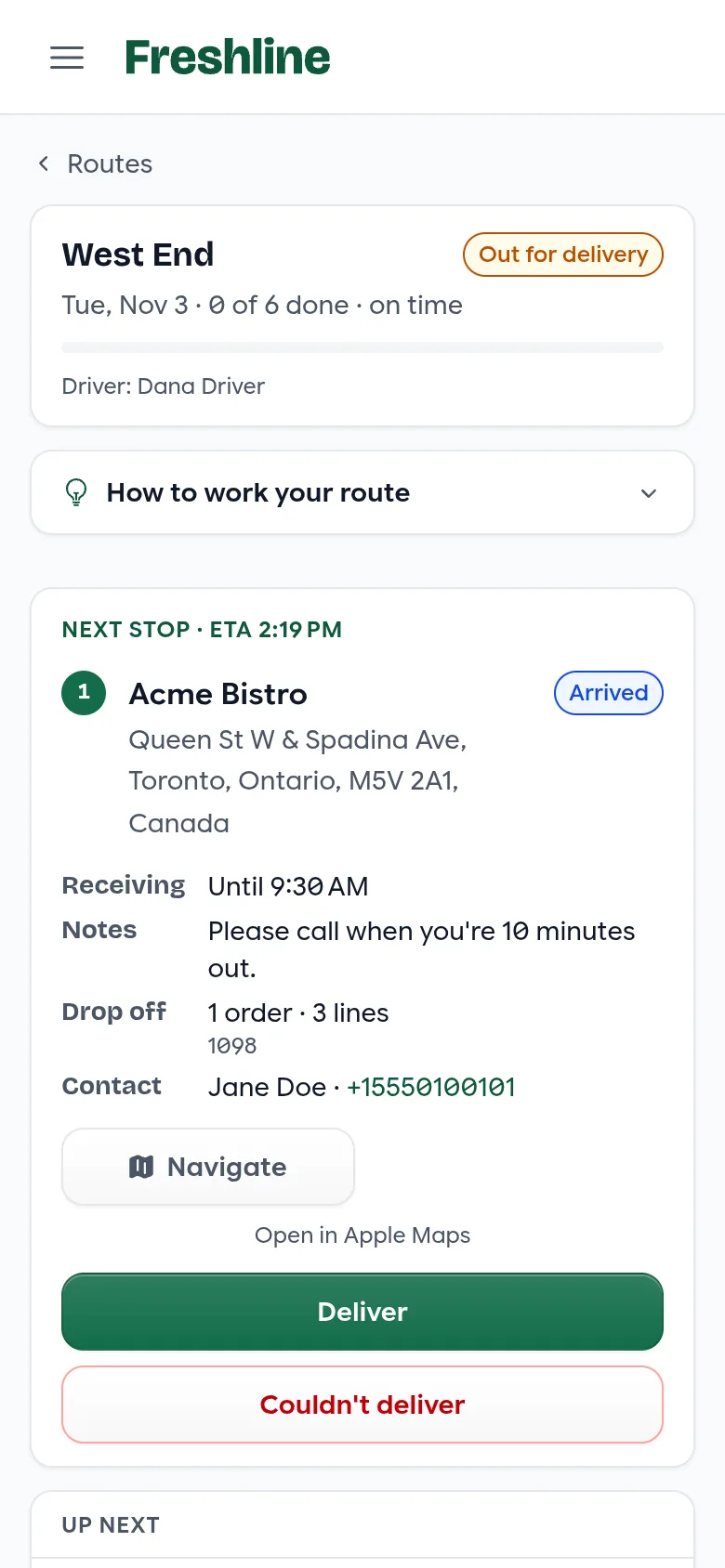
- Start route tells each customer their arrival window, when that email is on. Arrival times are worked out again from the moment the driver leaves.
- Navigate opens directions in Google Maps, or Apple Maps from the link below it. Arrived marks the stop.
- The next stop shows the receiving hours, the address's delivery notes and the customer's order notes, what to drop off, and a contact to call. Each order's items are listed under it, and View order opens the order if something needs changing at the door.
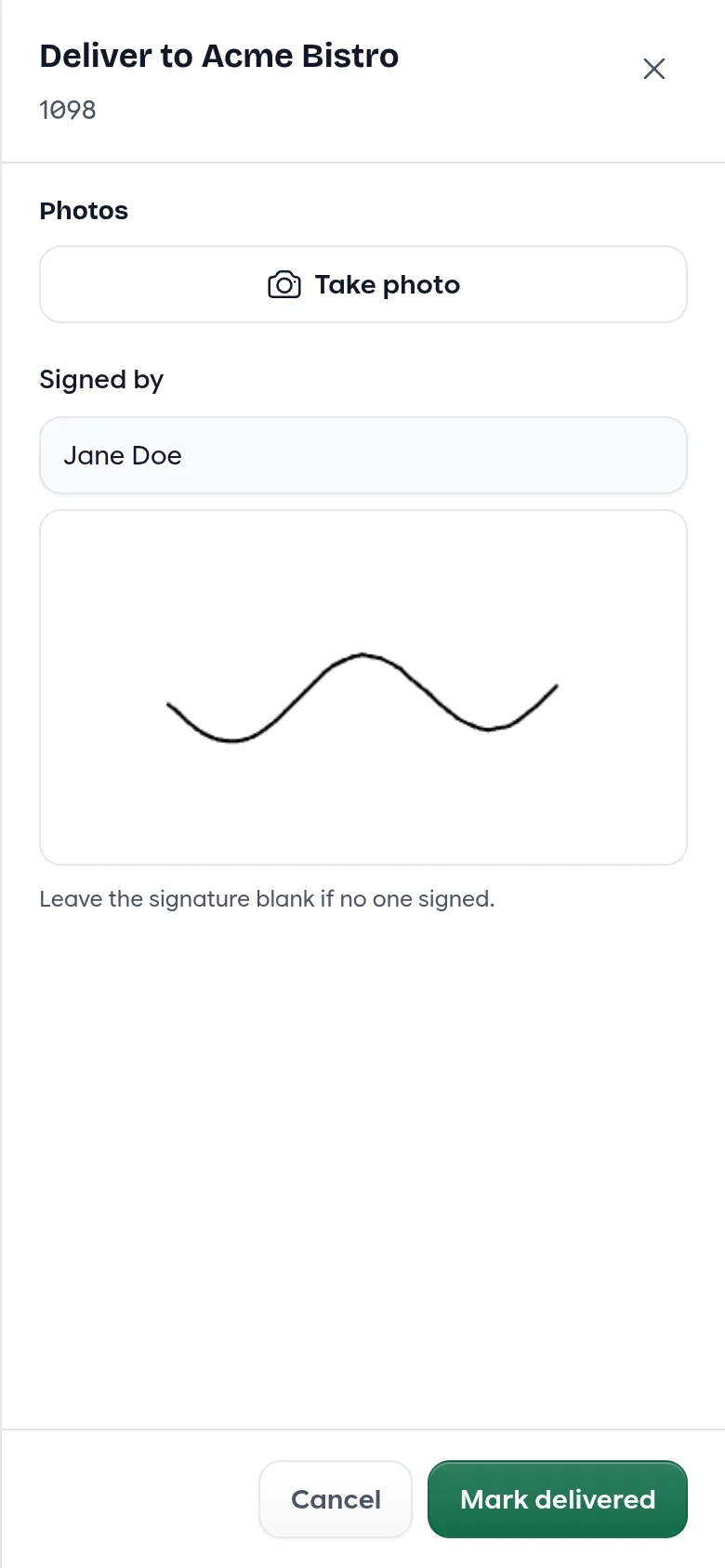
- Deliver takes photos, when order photos are turned on for your account, and a signature with the signer's name. Mark delivered puts them on every order at the stop and marks each one delivered.
- If the driver delivers before pressing Start route, the route starts then.
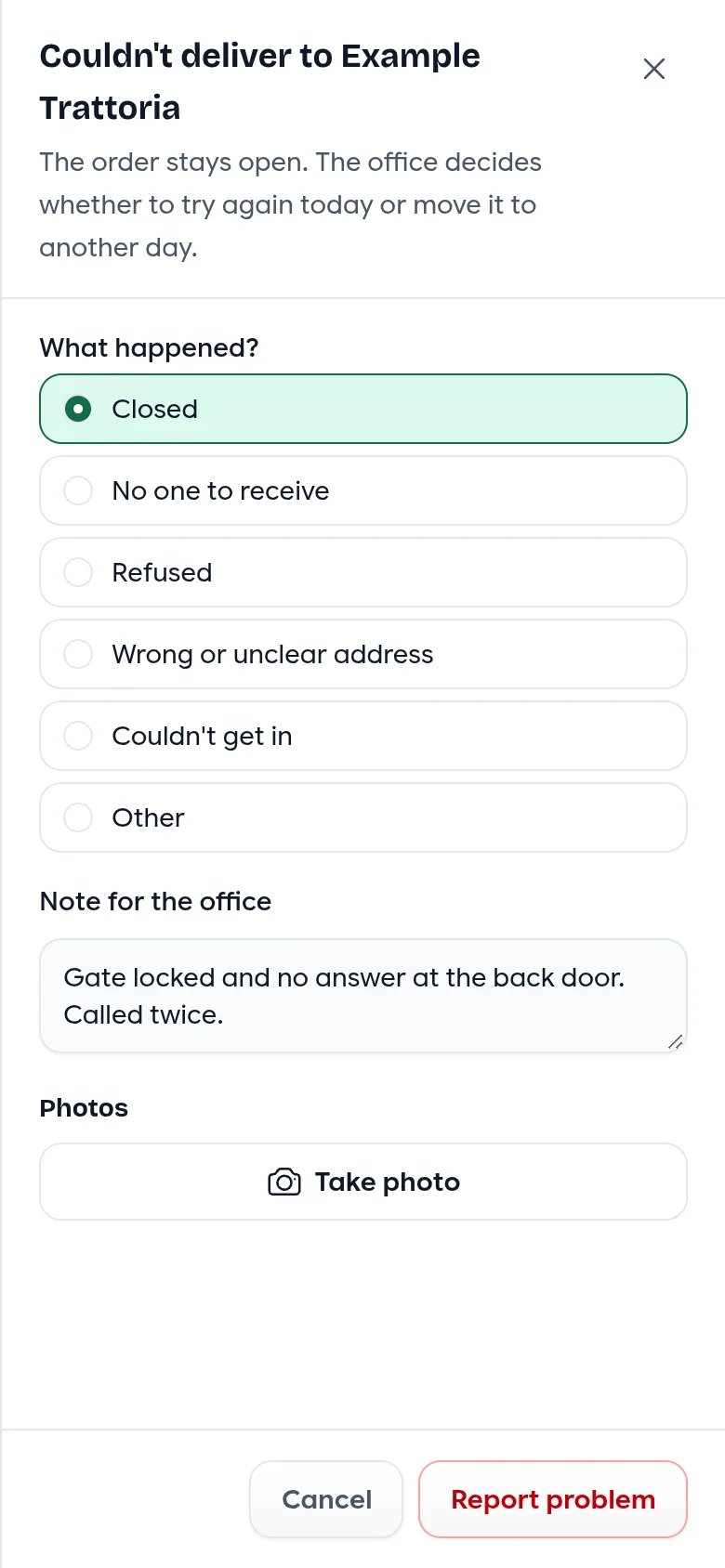
When a delivery can't be made, Couldn't deliver asks what happened: closed, no one to receive, refused, a wrong or unclear address, couldn't get in, or something else. The driver can add a note and photos, which stay with the office. The order stays open, the driver moves on to the next stop, and the office decides what happens next.
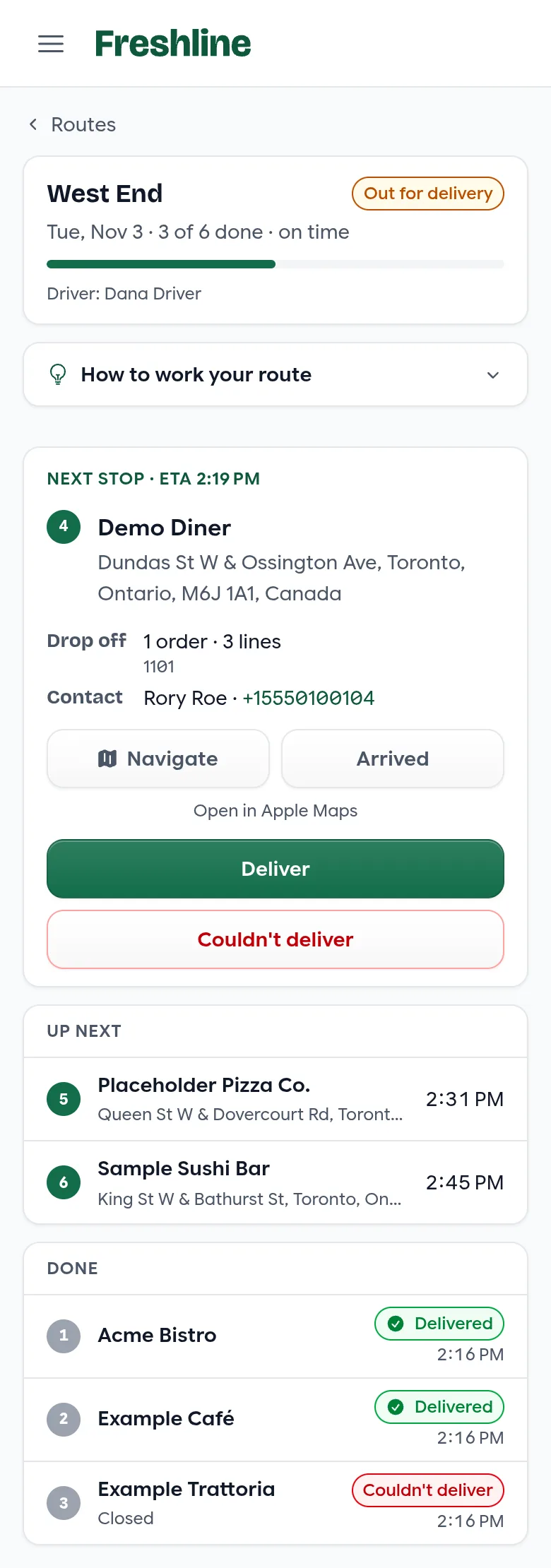
The top of the page keeps count and says whether the route is on time, or how far behind it's running.
Keeping Customers Posted
Customers get one email per stop, naming every order dropped off there, sent to the same people as your order emails. Each email can be turned on separately.
- Out for delivery, when the driver sets out: the arrival window and a link to follow the delivery.
- Delivered, with up to three of the driver's photos.
- Couldn't deliver, with what happened.
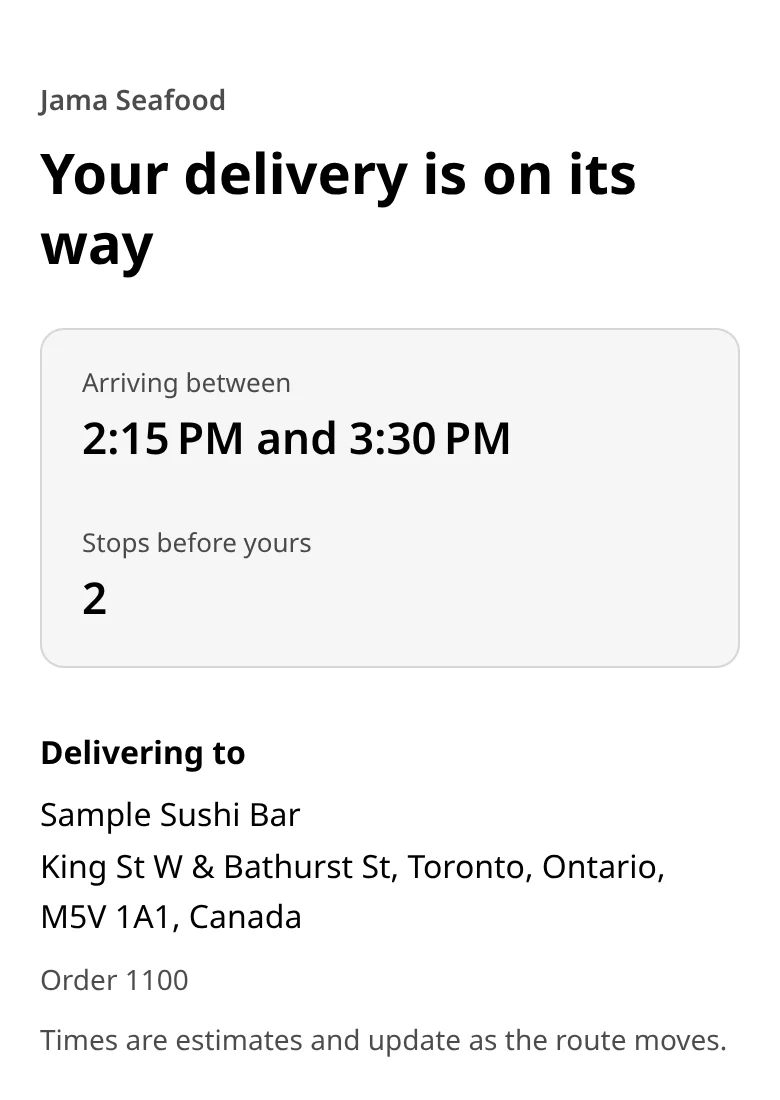
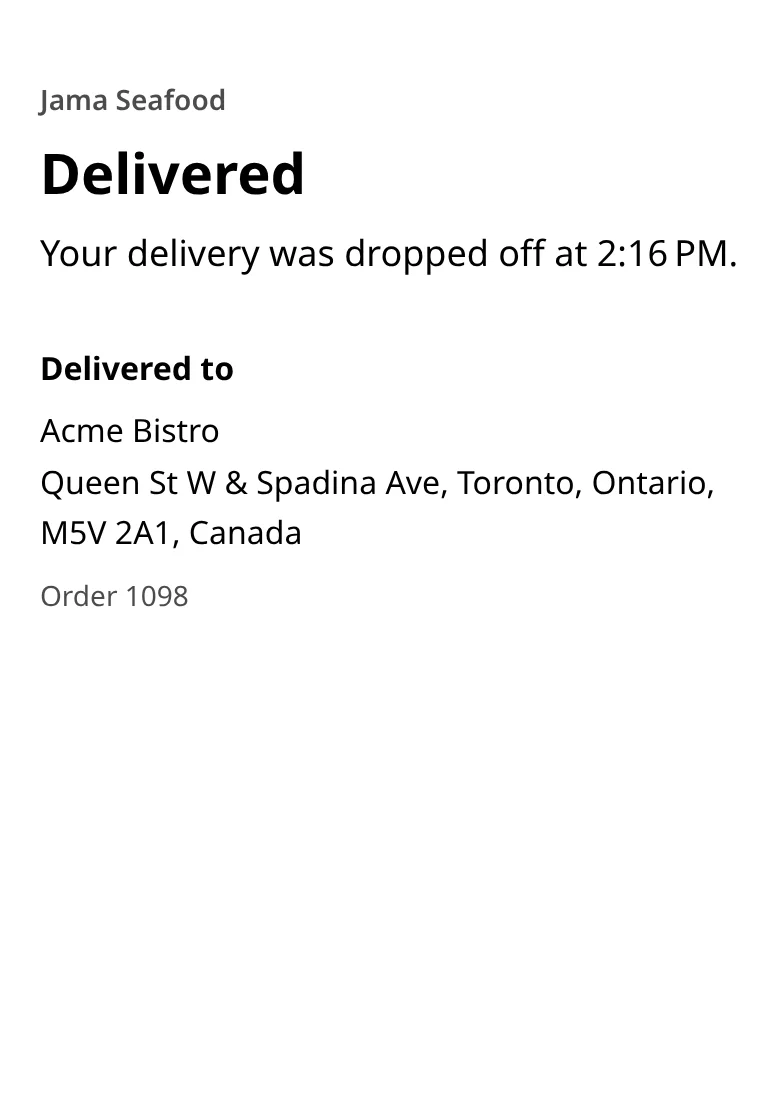
The tracking link opens on your storefront's address, with no login. It shows the arrival window and how many stops are before theirs, then the time it was delivered and the photos.
It never shows prices or what's in the order, so it's safe to forward to whoever is receiving.
Hide order details in your notification settings applies to these emails too. The photos still go out.
Following Up
Back in the planner, the day fills in as the drivers work: finished stops are greyed out on the map, and each route shows how far along it is.
What happens at a stop
On the way
The driver presses Arrived. Every order for that customer location that day is one stop, delivered together.
Delivered
Photos and signature go on every order at the stop, and each is marked delivered.
Couldn't deliver
A reason and a note for the office. The orders stay open; nothing is cancelled.
Needs attention
- Try again today puts the stop back at the end of its route.
- Move to this day reschedules its orders, and that day's planning picks them up.
- Until then, its orders are held back from completing on their own.
Needs Attention
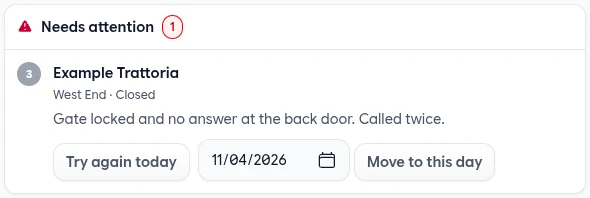
Stops the driver couldn't deliver are listed first. Try again today puts the stop back at the end of its route. Move to this day moves its orders to another delivery day. A failed stop never cancels an order, and its orders don't complete on their own until they're delivered, retried, moved or completed by hand.
Not on a Route
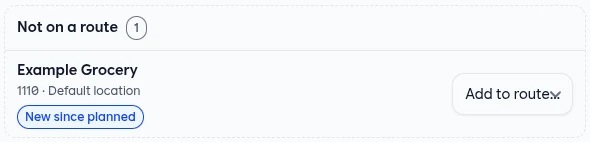
Orders that aren't on a route wait at the bottom: orders placed after their route was dispatched, stops you took off, and customer locations without a map pin. Add one to a route from the list, or Fix pin to place the location on the map.
Cancelling a route before it sets out sends its orders to Not on a route, and that area won't get another draft that day. Add a route and drag them on if you need one.
Quick Reference
Route Status
| Status | What it means |
|---|---|
| Draft | Planned, not yet sent. Change anything. |
| Dispatched | Sent to the driver, who hasn't set out. Its orders are assigned to them. |
| Out for delivery | The driver has started. Arrival times follow the driver. |
| Done | Every stop is delivered or reported. |
| Cancelled | Taken off the day. Its orders wait under Not on a route. |
Stop Status and Warnings
| Shown as | What it means |
|---|---|
| Arrived | The driver is at the stop. |
| Delivered | Every order at the stop was delivered, with any photos and signature. |
| Couldn't deliver | The driver reported a problem. Listed under Needs attention. |
| Locked | Optimize leaves this stop where it is. |
| Opens 10:00 AM | The estimated arrival is before the customer starts receiving. |
| Closes 9:30 AM | The estimated arrival is after the customer stops receiving. |
Couldn't Deliver Reasons
| Reason | Typical case |
|---|---|
| Closed | Nobody open at the time of delivery. |
| No one to receive | Open, but no one could take the delivery. |
| Refused | The customer wouldn't accept it. |
| Wrong or unclear address | The pin or address didn't lead to the customer. |
| Couldn't get in | Locked gate, no access to the dock. |
| Other | Anything else. The note says what. |
Not on a Route
| Label | What to do |
|---|---|
| New since planned | Placed after the route went out. Add it to a route if it should go today. |
| Removed from its route | Taken off a route. Add it back, or leave it for another day. |
| Needs a pin | The customer location has no map point. Fix pin, then it can be routed. |
Who Can Do What
| Role | Routes |
|---|---|
| Owner, Manager, Order Desk, Warehouse | Plan, optimize and dispatch routes, follow up on missed stops, and work any route. |
| Delivery | See and work the routes dispatched to them. |
Settings
| Where | Setting |
|---|---|
| Service location | Plan delivery routes for this area; Minutes at each stop |
| Service location schedule | Default driver; Delivery route leaves at |
| Warehouse | Its address, where routes start |
| Customer location | Receives deliveries from, Until; Minutes at the stop |
| Notification settings | Out for delivery, Delivered, Couldn't deliver, Route dispatched (all off to start) |
For Developers
Two new webhook events, order.delivered and order.delivery_failed. The first is also sent when proof of delivery is recorded on the order page. Orders in the API gain delivered_at, driver_id and driver. Distances show in kilometres, or miles for stores that bill in US dollars.
Getting Delivery Routes
We're turning delivery routes on account by account. If you'd like it for your team, email us at [email protected] and we'll help you set up your first area.
Some of this is already on every account: a Driver column, filter and bulk edit on the orders list, and Assign driver for several deliveries at once on the Deliveries list.