Service locations decide where you deliver and which days customers can order for. Each one is an area on the map, served from one warehouse, with its own delivery or pickup days, order cutoffs, minimum and fees. A customer location is matched to the area its map pin falls in, and checkout follows that area's rules. Most setup trouble comes from a short list: a schedule saved before the area was drawn, a cutoff on the wrong warehouse timezone, or customers who were never saved again after the area changed. This guide goes through the setup in the order that avoids those, and ends with the fixes we hear about most.
What a Service Location Is
A service location is one area you serve from one warehouse. You might have downtown on Tuesday and Friday, the suburbs on Wednesday, and a dock pickup that runs every weekday.
How the pieces fit together
Warehouse
Where orders ship from
Service location
One area, one set of rules
- Service area: the shape you draw on the map
- Schedule: delivery or pickup days, cutoffs and windows
- Minimum and fees: what an order has to meet, and what it's charged
Customer locations
Matched by their map pin
- Matching is automatic, from the map pin. You don't add customers to a service location one by one. When a customer location is saved, Freshline checks which area its pin falls in.
- Delivery and pickup live on the schedule. One location can offer both, on the same days or on different ones. Add a second schedule when the days or the cutoff differ.
- Price lists stay on the customer. The service location handles the minimum, the fees, the days and the cutoffs.
- Orders for the area are fulfilled from its warehouse. The warehouse's timezone is the clock those cutoffs use.
Before You Start
Setting things up in this order avoids nearly every problem in the troubleshooting section.
Setting up an area, in order
- 1
Check the warehouse
Warehouses
Its timezone is the one your cutoffs use. A wrong timezone moves every cutoff.
- 2
Create the location
Service locations
A name customers would recognise, and the warehouse it ships from.
- 3
Draw the service area
Service area tab
Do this before the schedule: a schedule won't save on a location with no area.
- 4
Add a schedule
Schedule tab
Delivery, pickup or both, which days, and when orders close.
- 5
Set the minimum and fees
Overview and Fees tabs
Optional. Leave them empty and orders have no minimum or area fee.
- 6
Check your customers
Customers
Re-save existing customer locations inside the new area so they're matched to it.
Open the warehouse and check its Timezone. Every cutoff on its service locations runs on that clock, and checkout prints the timezone next to the time. A Vancouver warehouse left on Eastern time closes orders three hours early.
Creating a Location
Service locations is in the sidebar. The title shows which warehouse you're looking at. Open that name to switch warehouses, or choose All warehouses. The list sits beside a map of every area in the filter.
Press New service location, enter a Name and choose the Warehouse, then Save. Name it the way your team and your customers talk about the run, such as Downtown or North shore. The name shows on orders and on packing and delivery lists.
The location opens on Overview. Across the top are Overview, Marketing, Service area, Schedule and Fees. Overview shows the schedule calendar and the area, with Name, Warehouse and the minimum underneath. Edit on the calendar or the map opens that tab.
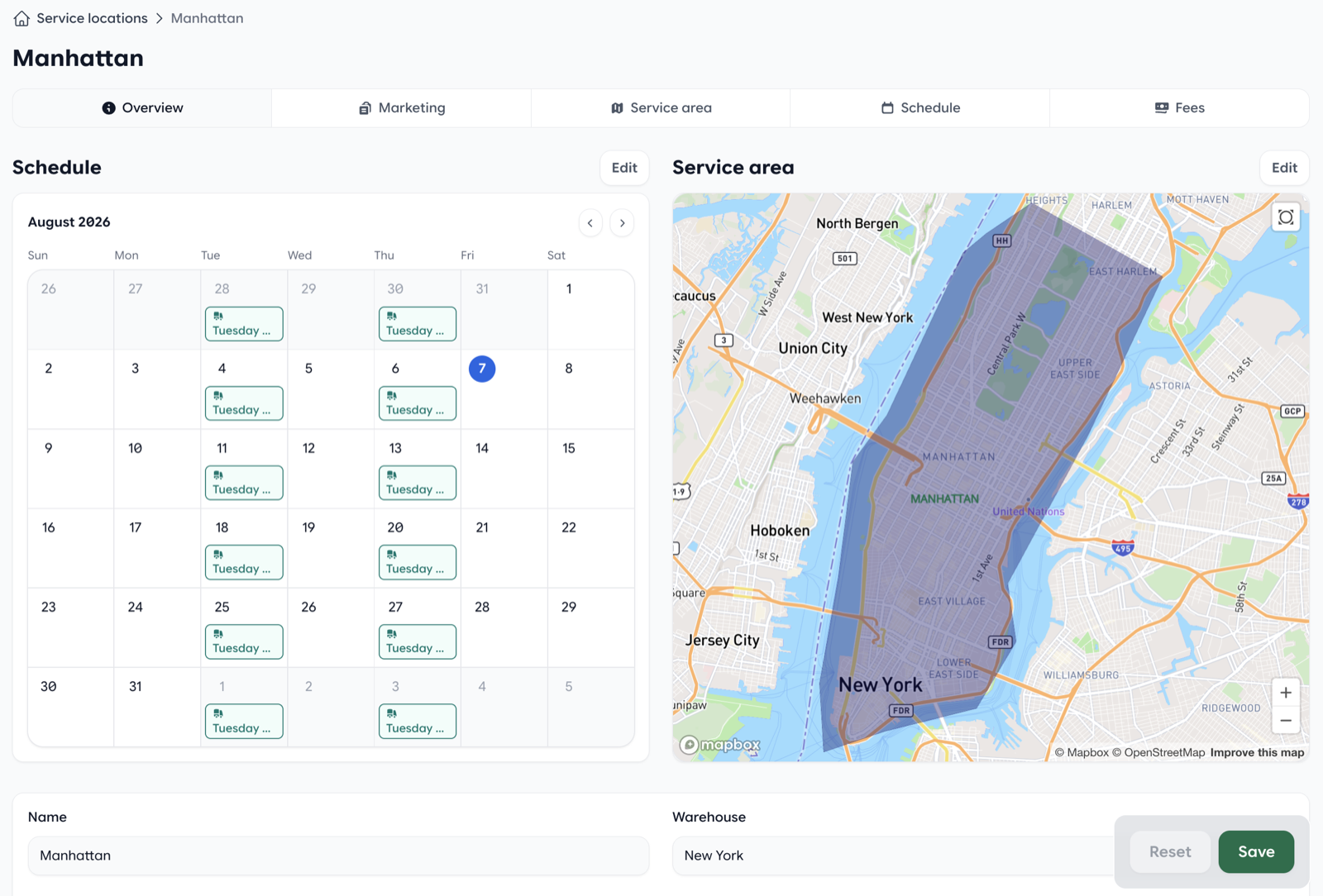
Go to Service area next. A schedule will not save until the area exists.
Drawing the Service Area
Search for an address to move the map. The drawing tools sit at the top left: the polygon tool and the trash tool. Click around the edge of the area, then click the first point again to close the shape. Drag a corner to adjust it. Select a shape and use the trash tool to remove it and start over.
An area can be several shapes, so two neighbourhoods can share one schedule. There is no Save button on this tab. Each change saves on its own, a moment after you draw it.
Tips for Drawing
- Draw a little past the edge. A pin just outside the line can't be saved without an override. A few extra blocks costs nothing.
- A pin inside two areas gets one of them. You can always change it on the customer location.
- Redrawing leaves existing customers where they are. A customer location keeps the service location it had until someone saves it again. See Matching Customers.
Setting the Schedule
The schedule is which days customers can choose, and when ordering for each day closes. Open the Schedule tab and press Add schedule. The form is on the left. A calendar on the right shows the days your settings produce as you change them.
A new schedule starts as every day, delivery only, closing at 9:00 AM the same day. That is rarely what you want, so go through each field before you save.
| Field | What to put |
|---|---|
| Name | Something your team will recognise, like Weekday delivery or Saturday pickup. |
| Fulfillment types | Delivery, Pickup, or both. Turn on both only when they share the same days, cutoff and windows. |
| Start date / End date (optional) | When the schedule begins, and when it stops. Leave the end empty for an ongoing schedule. |
| Orders must be placed by | The cutoff time, and how many days before the delivery day. 0 days means the same day. |
| Orders can't be placed more than | How far ahead customers can order. 60 days by default. The last day they can pick is one day short of this number. |
| Repeats | Every N days, weeks or months. For set weekdays, choose weeks, then pick On days. A weekly schedule needs at least one day. |
| On dates | The dates of the month, when Repeats is months. A monthly schedule needs at least one date. |
| Fulfillment windows | Optional time slots, such as 7–10 AM. Once a schedule has windows, customers have to pick one. |
Press Save at the bottom. If you see “There was a problem updating the schedule”, the location usually has no service area yet. Draw it, then save again. The same message appears when a weekly schedule has no days selected, a monthly schedule has no dates, or both fulfillment types are turned off.
How Cutoffs Work
Orders must be placed by has two parts: a time, and a number of days before the delivery day. Together they set when each day closes.
When orders close for a Tuesday delivery
Same day
By 7:00 AM, 0 days before
Orders close Tuesday at 7:00 AM.
Day before
By 5:00 PM, 1 day before
Orders close Monday at 5:00 PM.
Two days before
By 2:00 PM, 2 days before
Orders close Sunday at 2:00 PM.
Cutoff = delivery day − days before, at the time
Counted in calendar days, weekends included. Two days before a Monday is Saturday.
In the warehouse's timezone
Not yours, and not the customer's. Checkout shows the timezone next to the time, such as “by 05:00 PM EST”.
Delivery and Pickup on Different Days
A schedule's days, cutoff and windows apply to every fulfillment type turned on in it. When pickup runs on Saturdays and delivery on weekdays, add two schedules: one with only Delivery, one with only Pickup. Both show on the same calendar.
Pickup uses the same area as delivery. A customer still needs a location whose pin is inside the area before pickup days appear. Put where to collect and how, in Fulfillment instructions on the Marketing tab.
Holidays and Closures
Schedules have no skip dates. To close for a holiday week, set an End date on the current schedule and add a second schedule that starts when you reopen. For a single missed day, move the orders that land on it.
Fulfillment Windows
Windows let customers choose a time of day. Press Add window and give it a Name, a Start and an optional End. Morning 7:00–10:00 and Afternoon 12:00–3:00 is a typical pair.
Once a schedule has windows, checkout requires one. A customer location can store a Default fulfillment window so regulars don't have to choose each time. Windows are shared by every fulfillment type on that schedule. Use two schedules when pickup and delivery need different windows.
Minimums and Fees
On Overview, Min. transaction amount is the smallest order customers in the area can check out. Leave it empty and the area itself adds no minimum.
Which minimum applies: a minimum set on the customer replaces the others. With none on the customer, checkout uses whichever is higher, the service location's or the price list's.
Require carts with Market Price to meet min. transaction amount is on by default, so a cart with market-priced items still has to meet the minimum. Turn it off when those carts should skip the check.
The Fees tab lists your store's fees. The Active toggle charges that fee in this area. Press New fee to create one without leaving the page. On the fee, set Fulfillment type to Delivery so pickup orders aren't charged it. Any charges both.
A fee that isn't assigned to any service location is charged everywhere. Turning it on for one area limits it to the areas where Active is on.
Matching Customers
A customer location gets its service location when it is saved, from where the map pin sits.
How a customer location gets its service location
Inside one area
Assigned automatically
Outside every area
The location won't save
Inside two areas
One is picked
On an existing location, the form shows the service location it was given, marked (assigned automatically). Tick Override? to choose one yourself, for a customer just outside the line or one you serve on a different run. On a new customer, the same option is Choose a service location instead.
If the pin is in the wrong spot, drag it. The address text stays the same. The pin is what gets matched.
A location can also store a Default fulfillment window, once the area has windows. Changing the service location clears that default unless you set it again.
What the form shows
- Service Location. The area the pin was given, or the one you picked with Override?
- Override? Choose the area yourself. Leave it off and the pin decides on every save.
- Default fulfillment window. Optional. Shown when the area has windows.
After Adding or Redrawing an Area
Existing customers stay on the service location they already have. Open each affected customer location and press Save. With Override? off, Freshline matches the pin again.
To set many customers at once, select them on the customers list and use Bulk edit, then Service location. That sets every location on those customers, and it does not look at the pin. The next time someone saves a location with Override? off, the pin decides again. Use bulk edit when you mean to place them, then tick Override? on any location that should stay put even though the pin says otherwise.
Customer locations without one are marked No service location in red on the customer's locations list. Starting an order for that location stops with the location's name and “has no service location.” Fix the location, then start the order.
What Customers See
At checkout, customers choose Delivery or Pickup when both are offered, then a fulfillment date. The calendar only offers days that are on the schedule, still before their cutoff, and inside the “can't be placed more than” window.
Under the calendar, the cutoff is written out from the schedule:
- Same day: “Same day orders must be placed by 07:00 AM EST.”
- The day before: “Orders must be placed the day before by 05:00 PM EST.”
- Longer lead: “Orders must be placed 2 days before by 02:00 PM EST.”
If the schedule has windows, a fulfillment window list appears and one is required. A day shows as Partially available when something in the cart can't be delivered that day, such as a product with its own lead time.
In the admin, the order's delivery drawer offers the same scheduled days. Days off the schedule can't be picked there. The note under that calendar names the area and whether the day is a delivery or a pickup day.
On Marketing, two messages do different jobs. Cart message is shown with the cart for customers in this area. The Storefront banner (Enable banner, Banner image and Banner text) is the strip under the storefront header, for those customers only. Use it for a holiday notice or a standing announcement. Fulfillment instructions are the pickup or delivery directions for the area.
When delivery routes are turned on for your account, the area also has Plan delivery routes for this area and Minutes at each stop. That setup is in Introducing Delivery Routes.
Troubleshooting
| What you see | Why | Fix |
|---|---|---|
| “There was a problem updating the schedule” | The location has no service area, a weekly schedule has no days, a monthly schedule has no dates, or both fulfillment types are off. | Draw the area on Service area, then check On days, On dates and Fulfillment types, and save again. |
| “is not within any service locations” on the address | The customer's pin is outside every area, and Override? is off. | Widen the area, drag the pin if it's misplaced, or tick Override? and choose an area. |
| A customer sees no dates, or every date is greyed out | No schedule for the type they chose, a start date in the future, an end date in the past, or every open day is past its cutoff. | On the Schedule tab, check the dates, the fulfillment types and the cutoff. The calendar on the right is what checkout can offer. |
| Orders close hours too early or too late | The warehouse timezone is wrong. Cutoffs use that clock, not yours and not the customer's. | Set Timezone on the warehouse. |
| Customers can order every day | A new schedule repeats daily and closes at 9:00 AM until you change it. | Set Repeats to every 1 week and pick the weekdays. |
| A customer is in the wrong area | Overlapping areas, a misplaced pin, or the area was redrawn after they were saved. | Separate the areas, drag the pin, then save the customer location again. |
| “No service location” on a customer location | The location was saved with none, often from an import or from before any area covered the pin. | Save the location so the pin can match, or tick Override? and choose one. |
| “{name} has no service location.” when starting an order | The location on the order has no service location, so there are no days to offer. | Open that location, fix it, then start the order. The alert includes Add service location. |
| Checkout asks for a window | The schedule has fulfillment windows. A window is required once any exist. | Expected. Set a Default fulfillment window on the customer location so regulars skip the choice. |
| “is less than the minimum of …” | The cart is under the minimum that applies: the customer's, or the higher of the area and the price list. | Lower that minimum, or set a smaller one on the customer. A customer minimum replaces the area and the price list. |
| Pickup orders are charged a delivery fee | The fee's fulfillment type is Any, so it applies to delivery and pickup. | Edit the fee and set Fulfillment type to Delivery. |
| A fee shows up in every area | A fee assigned to no service location is charged everywhere. | Turn Active on for the areas that should have it. That limits the fee to those areas. |
| The furthest day in range can't be picked | “Can't be placed more than 60 days in the future” allows dates up to 59 days out. | Add one to the number of days. |
| Delete won't remove the area | Customer locations still point at it, so the area can't be removed. | Move those customers to another area, or override them, then delete. |
Quick Reference
Where Each Setting Lives
| Tab | Settings |
|---|---|
| Overview | Name; Warehouse; Min. transaction amount; Require carts with Market Price to meet min. transaction amount. Schedule and area previews, with Edit. |
| Marketing | Fulfillment instructions; Cart message; Storefront banner (Enable banner, Banner image, Banner text) |
| Service area | The shapes on the map. Polygon and trash tools. Saves as you draw. |
| Schedule | Fulfillment types; Start date and End date; Orders must be placed by; Orders can't be placed more than; Repeats; On days or On dates; Fulfillment windows |
| Fees | Active, to charge a fee here; New fee |
Elsewhere
| Where | Setting |
|---|---|
| Warehouse | Timezone, which every cutoff uses |
| Customer location | Service Location; Override?; Default fulfillment window; the map pin |
| New customer | Choose a service location instead, when the pin shouldn't decide |
| Customers list | Bulk edit → Service location, applied to every location on the selected customers |
| Customer | Min. transaction amount, which replaces the service location and price list minimums |
| Price list | Min. transaction amount, used when the customer has none |
Schedule Examples
| You want | Set |
|---|---|
| Tuesday and Friday delivery, order by 5 PM the day before | Delivery · Repeats every 1 week · Tue, Fri · by 5:00 PM, 1 day before |
| Weekday delivery, same-day orders until 7 AM | Delivery · Repeats every 1 week · Mon–Fri · by 7:00 AM, 0 days before |
| Saturday pickup, order by Thursday noon | Pickup · Repeats every 1 week · Sat · by 12:00 PM, 2 days before |
| Every other Wednesday | Delivery · Repeats every 2 weeks · Wed · start the schedule on a Wednesday you deliver |
| The 1st of the month | Delivery · Repeats every 1 month · On dates 1 |
Need a Hand?
If an area or a schedule still isn't behaving, email [email protected] with the service location's name and what the customer sees at checkout. We'll look at it with you.