Late payments, manual follow-ups, and reconciliation headaches are still the norm for most food distributors.
Freshline Autopay changes that. With automated payment collection built directly into your ordering and invoicing workflow, you can reduce DSO, eliminate manual work, and create a seamless experience for your customers.
This walkthrough shows exactly how it works, from setup to customer experience, so you can see how it fits into your operation.
Why Autopay Matters
Before diving into workflow details, here is what Autopay solves immediately:
- No more chasing payments
- No more manual AR tracking
- Faster cash flow with automatic due-date collection
- Cleaner reconciliation with payments tied directly to invoices
For distributors operating on thin margins and high volume, this creates a meaningful operational and financial unlock.
Step 1: Setting Up Autopay (Distributor View)
Setting up Autopay takes less than a minute per customer.
Path: Dashboard -> Customer -> Payments
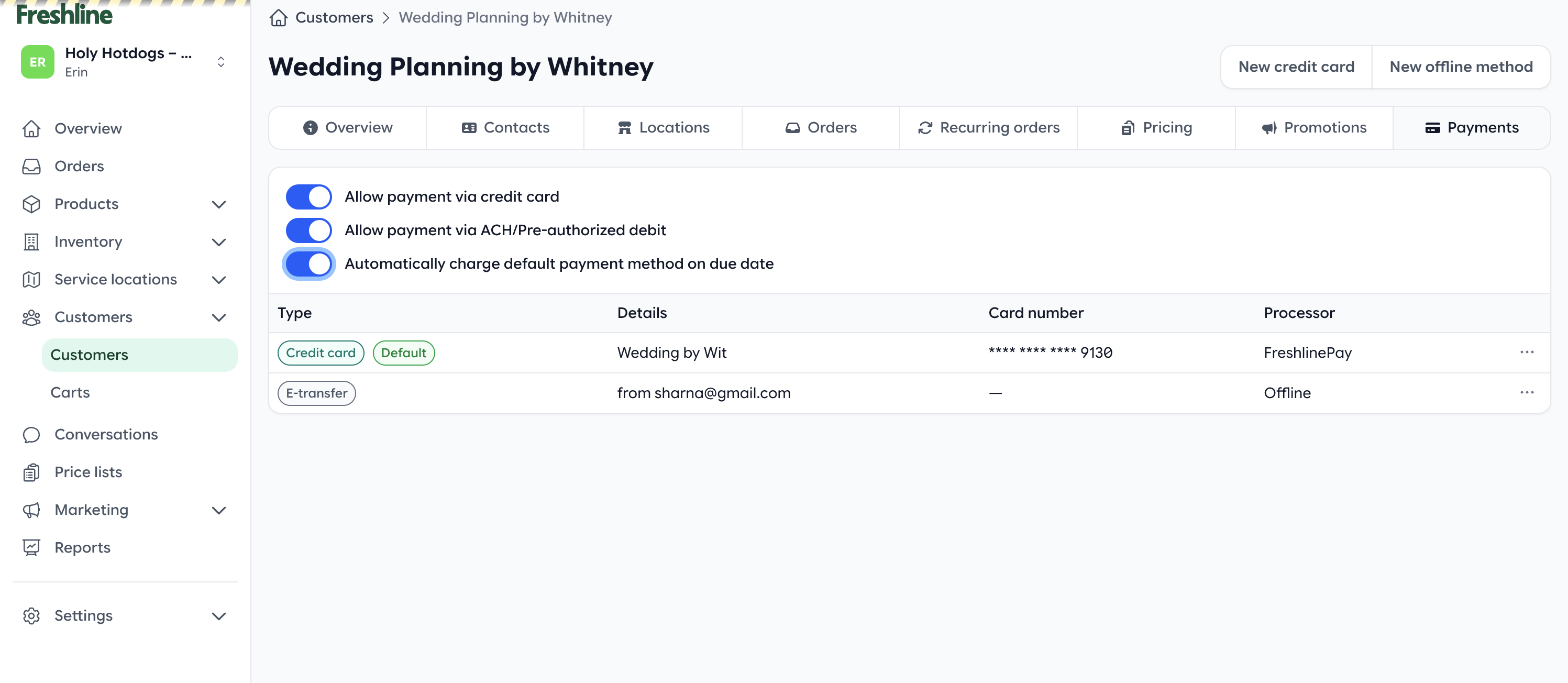
Inside the customer record, you will see:
- Saved payment methods (card or bank/ACH)
- Default payment method selector
- Autopay toggle
What you do:
- Select or add a default payment method
- Toggle Autopay ON
That is it. From here, Freshline handles everything automatically.
How It Works Behind the Scenes
Once Autopay is enabled:
- Freshline reads the customer's net terms (for example Net 7, Net 14, Net 30)
- Calculates the invoice due date based on the order date
- Schedules a payment for that exact due date
- Automatically charges the default payment method on file
No manual intervention required.
Step 2: Customer Experience (What Your Buyers See)
Autopay is not only about automation, it is also about making payments frictionless for your customers.
1. Invoice Page
When a customer receives an invoice, they see:
- Order details
- Line items
- Total due
- Due date
- Pay Now button
If Autopay is enabled, the invoice also shows:
- Autopay scheduled status
- The payment method on file
2. Payment Page
If they click Pay Now, or need to update details, they can:
- Pay instantly via card or bank transfer
- Save a payment method
- Set it as default
- Enable Autopay themselves (optional flow)
Clean, mobile-friendly, and no friction.
3. Statements
Customers also receive clear account statements with:
- All open invoices
- Paid invoices
- Upcoming Autopay charges
- Running balance
This reduces back-and-forth with your AR team.
Step 3: What Happens on Due Date
On the invoice due date:
- Freshline automatically charges the saved payment method
- Payment is instantly applied to the invoice
- Status updates to Paid
- Receipt is sent to the customer
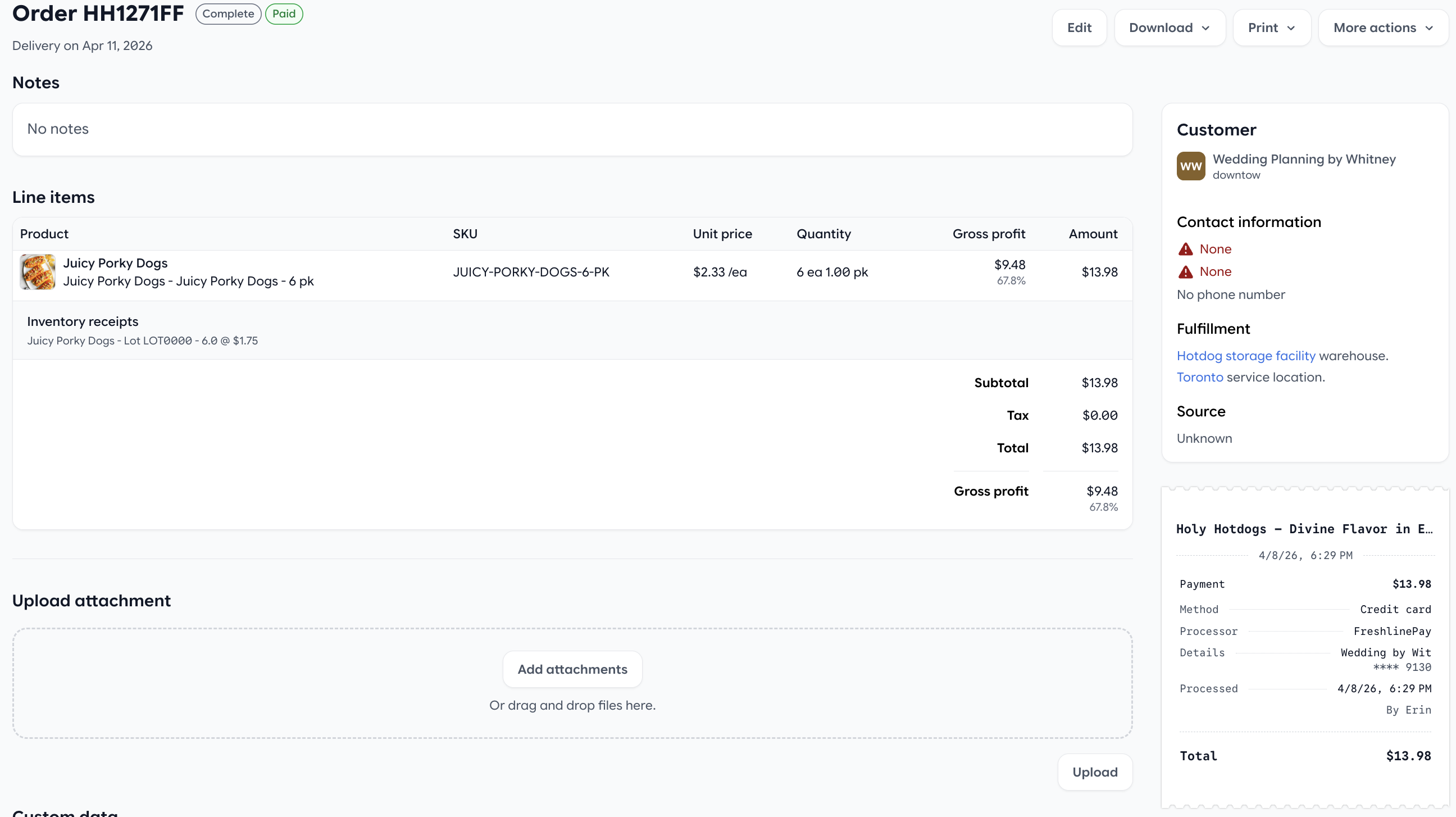
No emails. No follow-ups. No missed payments.
Step 4: Reconciliation (Distributor View)
From your side, everything stays clean and traceable.
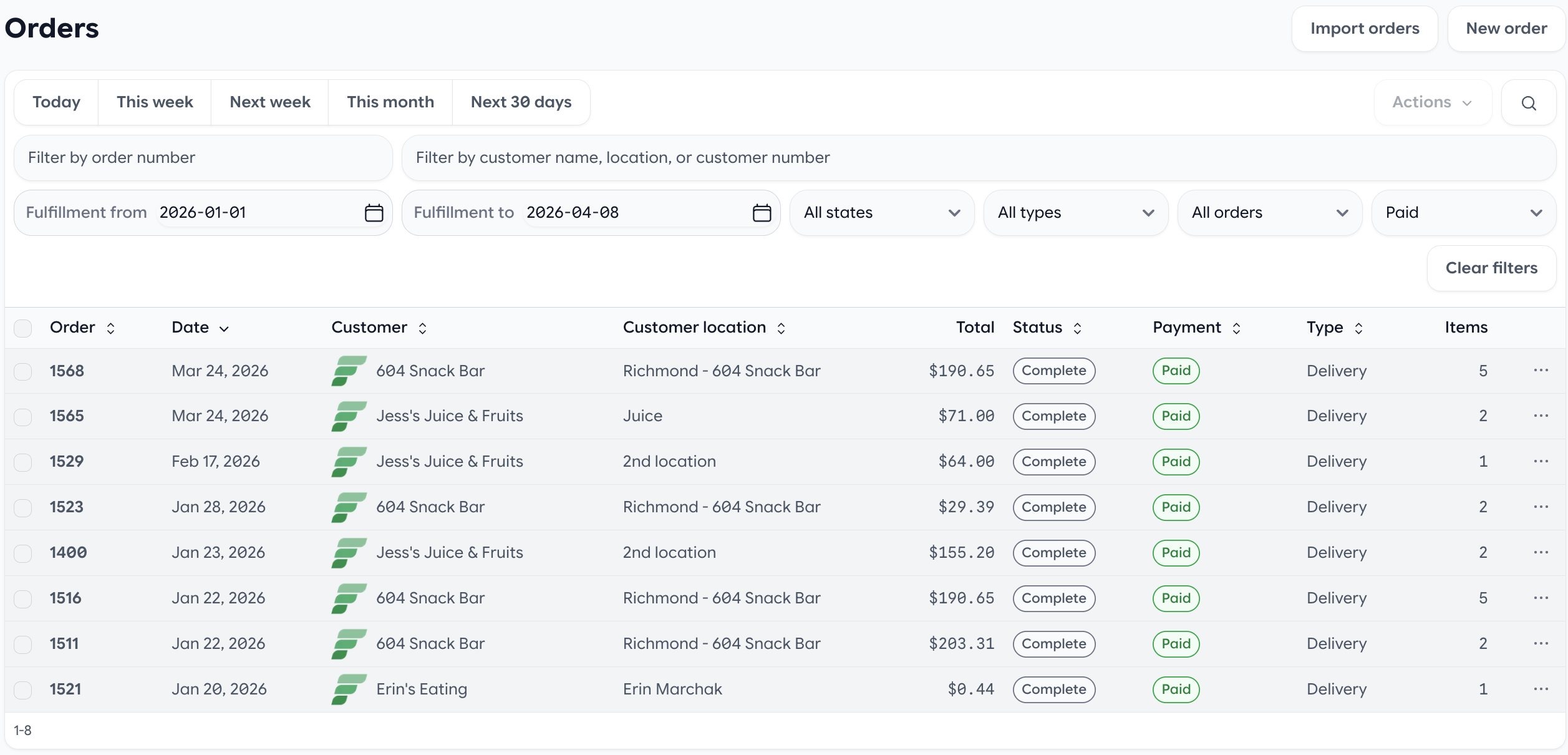
You get:
- Payments automatically linked to invoices
- Real-time status updates
- Clear audit trail
- Exportable records for accounting
This dramatically reduces reconciliation time, especially for high-volume distributors.
Optional Controls & Flexibility
Autopay is flexible and fully under your control:
- Enable per customer
- Choose card or bank (ACH)
- Override or disable anytime
- Customers can update payment methods themselves
You decide how aggressive or flexible your collections workflow should be.
Real Impact
Distributors using Autopay typically see:
- Faster payment cycles
- Reduced AR workload
- Fewer overdue invoices
- Better customer experience
Most importantly, teams gain more predictable cash flow.
Final Thoughts
Autopay is not just a feature. It is a shift in how distributors manage payments.
- Instead of chasing cash, you collect it automatically
- Instead of reconciling manually, updates happen in real time
- Instead of adding friction, you deliver a modern payment experience
Want to Turn It On?
If you are already using Freshline: go to Customer -> Payments -> Set Default Payment Method -> Toggle Autopay ON.
If you are not yet using Freshline, book a demo and we will walk you through setup for your operation.